Digiotouch AI
Digiotouch AI
簡介
Digiotouch AI turns every meeting into structured, shareable knowledge, and this connection delivers it straight into your Notion workspace.
Digiotouch AI is a meeting-intelligence platform that records and transcribes your conversations, then uses leading AI models to generate accurate summaries, decisions, action items, and follow-ups. Instead of leaving that knowledge trapped in a recording, Digiotouch AI files it where your team already works: Notion.
What this connection does
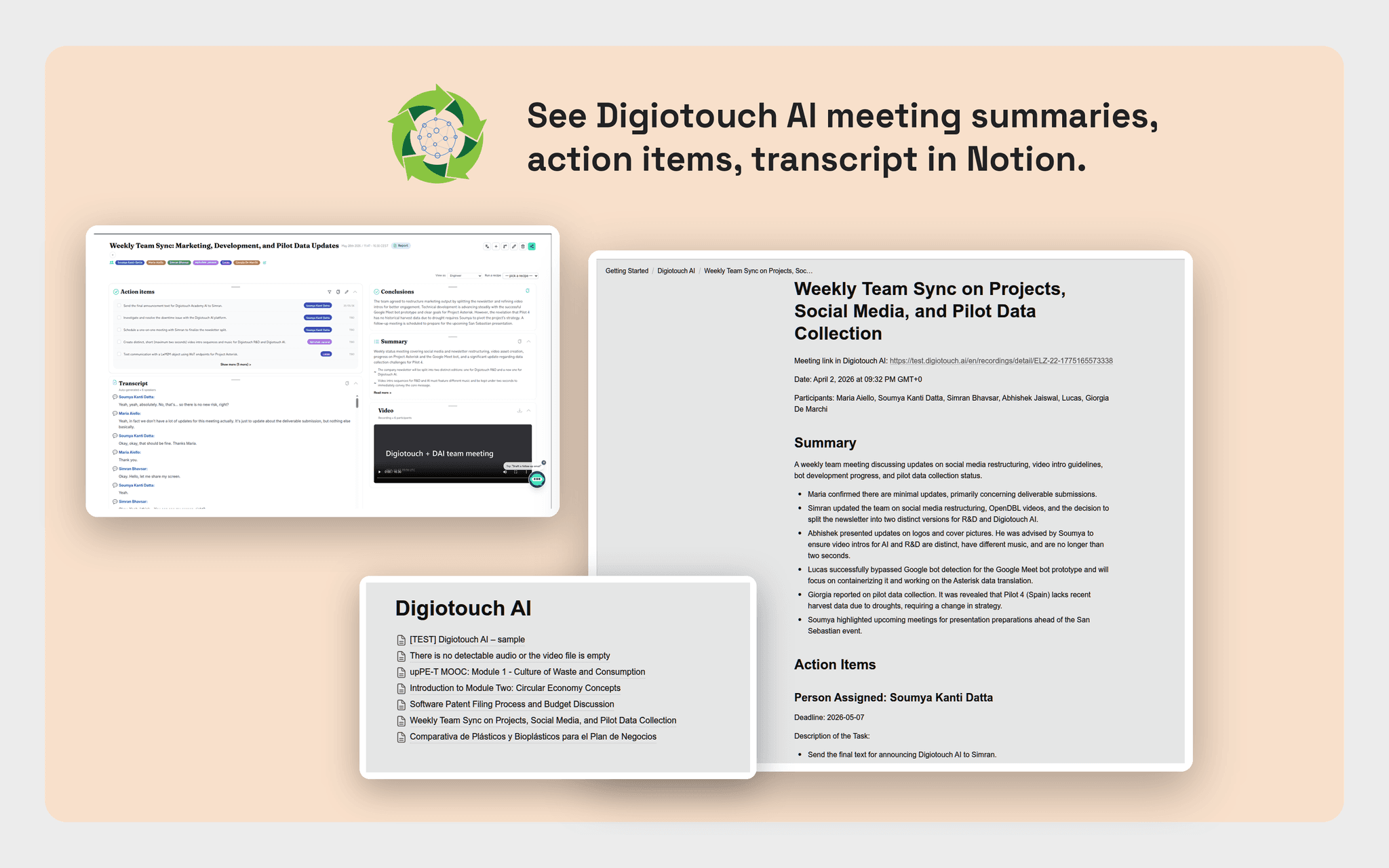
Once you connect your workspace, Digiotouch AI automatically creates a dedicated "Digiotouch AI" page in Notion and publishes your meeting outputs as clean, well-structured pages beneath it. Summaries, notes, transcripts, and action items land in Notion moments after a meeting ends, with no copy-pasting, no manual exports, and no switching tools. You choose the parent page, and Digiotouch AI handles the rest.
Dynamic workflows: your meetings, your rules
Digiotouch AI's standout capability is its dynamic workflow engine. Rather than a one-size-fits-all export, you decide exactly what happens after each meeting:
• Route different meeting types to different Notion pages, such as sales calls to one space, standups to another, and client reviews to a third.
• Pick which outputs get published: full transcript, executive summary, action items only, or a tailored recap.
• Trigger Notion delivery conditionally, for example only for meetings with a specific tag, participant, or topic.
• Chain Notion alongside your other connected tools so one meeting fans out to every destination at once.
Because the workflow is configurable per use case, the same meeting can become a concise leadership brief in one Notion page and a detailed engineering log in another, automatically, every time.
Why teams choose Digiotouch AI
• Accurate, multilingual transcription built on best-in-class speech models, so summaries start from a reliable source of truth.
• Smart summaries and recipes: generate the exact format you need, such as decisions, risks, next steps, or customer asks, instead of a generic wall of text.
• Audience reframing: rewrite the same meeting for the right reader, from execs to engineers to clients, before it reaches Notion.
• Multi-meeting reports: roll up a series of meetings into a single narrative, then publish the report directly to your workspace.
• Bring your own AI key: connect your own Anthropic, OpenAI, or Mistral key for full control over models, cost, and data handling.
• Privacy-first by design: you control what is captured, what is generated, and where it goes.
How it works
- Connect Notion from the Digiotouch AI integrations page and authorize the workspace.
- Digiotouch AI creates (or you select) the parent page where meeting content will live.
- Configure a workflow: choose the trigger, the outputs, and the destination page.
- Run your meetings as usual, and Digiotouch AI transcribes, summarizes, and publishes to Notion automatically.
Permissions and data
Digiotouch AI requests only the access needed to create and update the pages it publishes. Content is written into the workspace and pages you authorize. You can disconnect at any time to revoke access, and test exports are automatically cleaned up. Digiotouch AI does not read or modify unrelated pages in your workspace.
Stop rewriting your meetings into Notion by hand. Connect Digiotouch AI and let every conversation become organized, on-brand, ready-to-use knowledge, delivered exactly where your team needs it.
功能
- 讀取、插入和更新內容可以讀取、插入和更新此連接共享的頁面、資料庫和區塊。
- 查看工作空間使用者讀取工作空間成員與訪客的基本個人檔案詳細資料,包括其電子郵件地址。
使用方式
**Getting started with Digiotouch AI for Notion**
Connect your Notion workspace once, and you can send your meeting summaries, notes, and transcripts from Digiotouch AI to Notion as clean, organized pages.
**Before you begin**
You will need:
- An active Digiotouch AI account
- A Notion account with permission to add a connection to your workspace
**Step 1: Connect Notion**
1. Sign in to Digiotouch AI and open the **Integrations** page.
2. Find **Notion** in the list of connectors and click **Connect**.
3. You will be redirected to Notion. Choose the workspace you want to use and click **Allow access**.
4. You are returned to Digiotouch AI, where Notion now shows as *Connected*, along with the workspace you authorized.
**Step 2: Choose where your meetings go**
When you connect, Digiotouch AI automatically creates a page called **Digiotouch AI** in your workspace. This becomes the home for everything it publishes.
- To use a different location, open the Notion connection on the Integrations page and select or paste the parent page you prefer.
- Make sure the connection has access to that page in Notion so Digiotouch AI can write to it.
**Step 3: Send a test**
1. On the Notion connection, click **Send test**.
2. Open your **Digiotouch AI** page in Notion to confirm the test page appears.
3. Test pages are temporary and are cleaned up automatically.
**Step 4: Publish your meetings to Notion**
Record or import a meeting as usual. Once it is processed, open the meeting in Digiotouch AI and choose to export it to Notion. Your selected summary, notes, or transcript is published as a new page under your chosen parent page, ready to share and organize with your team.
**Managing the connection**
- Reconnect at any time if access expires, directly from the Integrations page.
- Click **Disconnect** on the Notion connection to revoke access. You can also remove the connection from within Notion.
For more help, visit the Digiotouch AI Help Center or contact [email protected].