

簡介
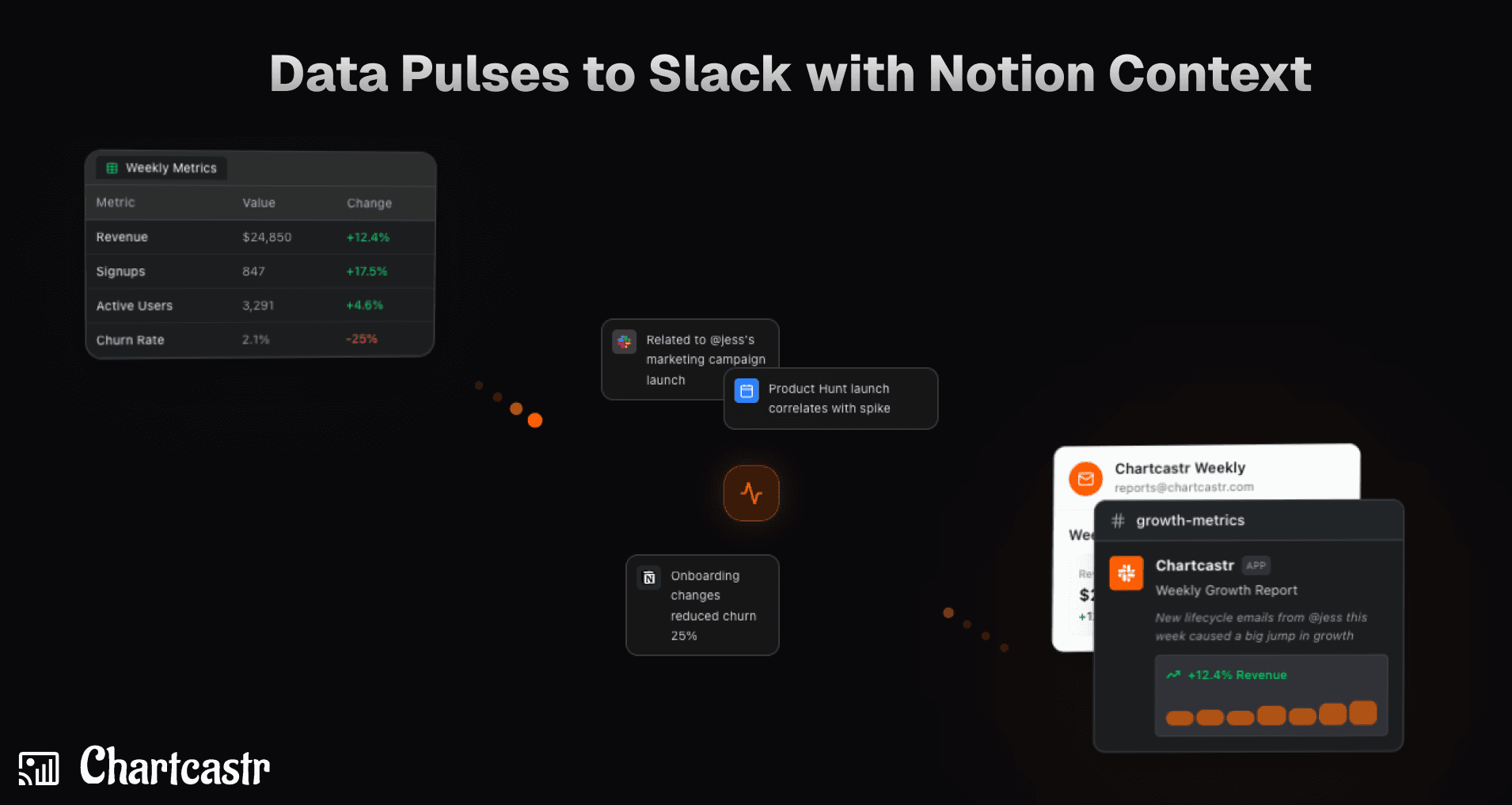
Chartcastr transforms your data into actionable insights by delivering automated "Pulses" directly to Slack. By integrating Notion as an external context source, Chartcastr's AI analyzes your Notion documentation, wikis, and project notes alongside your live data (from sources like Google Sheets or SQL databases). This allows the AI to provide summaries that aren't just about the numbers, but also about the "why" behind them, correlating metric changes with documented project milestones or process changes.
功能
- 讀取內容可以讀取此連接共享的頁面、資料庫和區塊。
- 讀取 個留言可以在有權存取的頁面和區塊上讀取留言。
- 查看工作空間使用者讀取工作空間成員與訪客的基本個人檔案詳細資料,包括其電子郵件地址。
使用方式
1. Create Chartcastr Account: Sign up at https://chartcastr.com/sign-up to get started.
2. Connect Notion: Navigate to Settings > Integrations. Click "Connect Notion" and select the pages or workspace trees you want Chartcastr to have access to.
3. Setup Your Data Source: Go to Settings > Sources and connect your primary data source (e.g., Google Sheets, BigQuery, or PostgreSQL).
4. Map Notion Context: Open your Source details, click Add Source Context, and select Notion. Choose the specific pages relevant to this data source.
5. Set Slack Destination: Go to Settings > Destinations and click "Add to Slack" to authorize Chartcastr. Then, create a Pulse and map your source to a specific Slack channel.
6. Test the Pulse: In the Pulse settings, click Send Now to trigger an immediate delivery.
7. Check Slack for AI Summary: Open Slack to see your Pulse. You'll see a chart followed by an AI summary that has considered the context from your mapped Notion docs (e.g., "Conversion dropped, which aligns with the maintenance window documented in Notion").
