
Model Context Protocol is an open standard that allows AI tools to connect to other apps to use their data and capabilities. Here at Notion, we use MCP to connect workspaces with some of our favorite apps and tools including Figma, Linear, Gmail, Asana, and Dropbox.
Several weeks ago, Notion AI could only connect to 25 apps via MCP servers. Three weeks later, it could use 185. We didn’t hire an entire team to do it. Instead, we built a Notion agent to automate the busywork.
Adding one MCP server used to involve hours of setup and waiting for help
Earlier this year, every new MCP connection we added in Notion required our engineers and partnership team to spend hours making accounts and trudging through sign-up forms, emails, and “Are you human?” CAPTCHA tests. We had to set up an app in that company’s developer settings, then connect Notion and test it at least twice (once in our test environment and once in production) until Notion AI got real data back.
It was a Mechanical Turk–style operation. The easiest MCP connections took about half an hour. The harder ones took days, and most of that time was waiting: on the partner for an account, on design for logo and copy, and on engineering to approve the change. For months, we barely made progress on our MCP catalog.
So we taught a Notion agent to do it
In mid-September, we built a Notion agent that runs each MCP server through the pipeline from setup to production release. Anyone internal or external to Notion can request a new MCP, and a weekly flow adds in new MCPs based on our most popular custom MCPs.
Each MCP server gets a card in a Notion database that summarizes its current status, and each Kanban column is a pipeline step. The agent will move each MCP server across the board until it’s live. Our team is still involved in the most important steps.
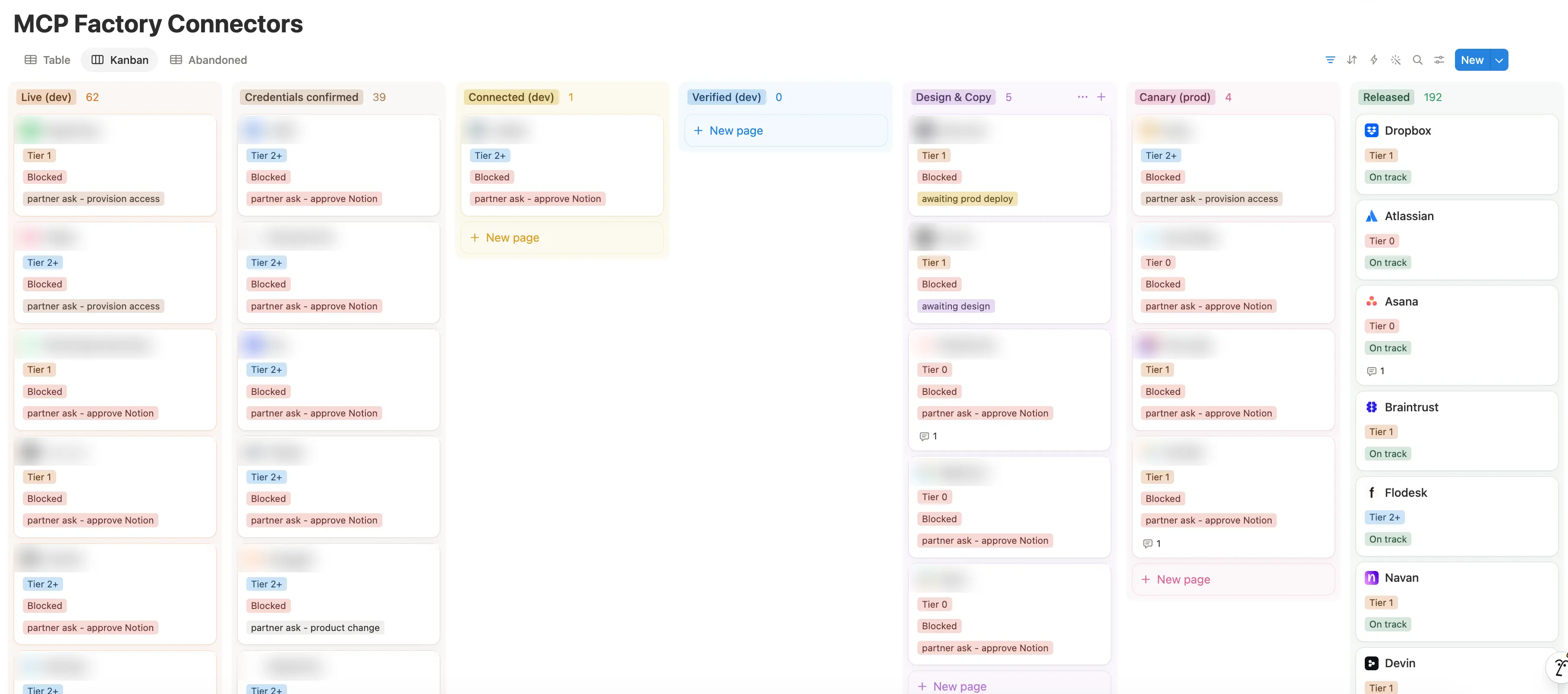
Here’s how an MCP server moves from start to finish:
Vet the MCP server to make sure it’s backed by a real company and follows basic security practices.
Discover the MCP URL and OAuth method. The MCPs with the simplest set-up use DCR/CIMD, and the more complex ones require BYO apps or bringing in your own developer credentials.
Create test accounts for that MCP. If connecting to the MCP requires a developer app, our agent will assist with this setup.
Add the MCP to Notion’s development env. Then connect to the MCP and ask Notion AI to use the tool, confirming that real data comes back. Sometimes, connecting to an MCP requires close work with our partners, so the agent will pass the task to our partnerships team.
Polish by adding the MCP’s logo, description, and example prompts that customers see.
Add the MCP to Notion’s production env and run the same connection and verification steps again.
Release broadly for everyone.
Signing up, clicking through settings, and connecting used to happen manually in a web browser, so we gave the agent one: agent-browser, which helps automates these steps.
Some steps are async, such as waiting for our logo changes to deploy or waiting until business hours to release new MCPs. The agent will do a check every hour to see if any MCPs are eligible to move forward.
Following Figma through the pipeline
Before putting our process to work, we worked with Figma to request access to their MCP server. Here’s what happened next:
First, the agent discovered Figma’s MCP URL and added it to the database of Notion’s preconfigured MCP servers.
Then we signed up for a test account, opened Notion’s connections settings, and connected to Figma.
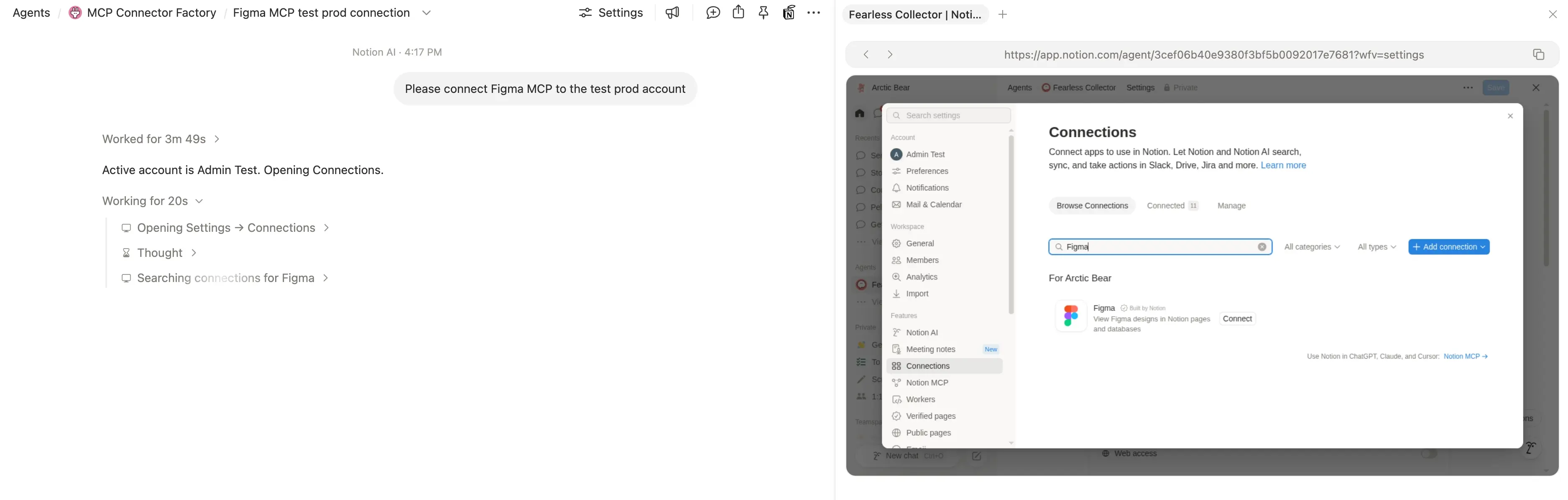
Once connected, Notion AI asked a question and checked that it returned actual Figma data.
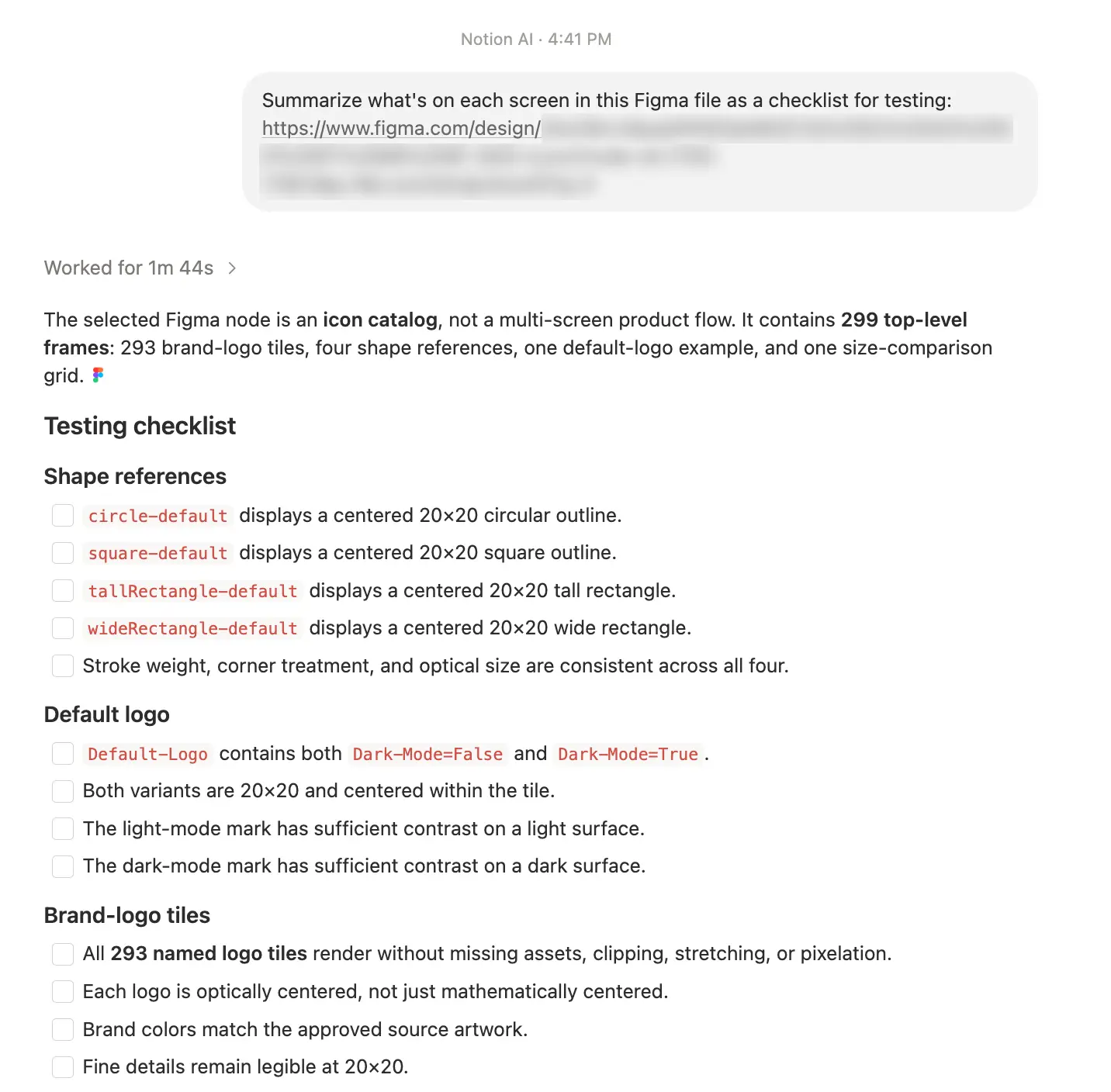
Once Notion AI verified the data, the agent opened the code change that added the logo and description, then ran the same checks in production before switching on Figma MCP for everyone.
The result is the Figma card that customers can use to connect to the full set of tools offered by Figma MCP:
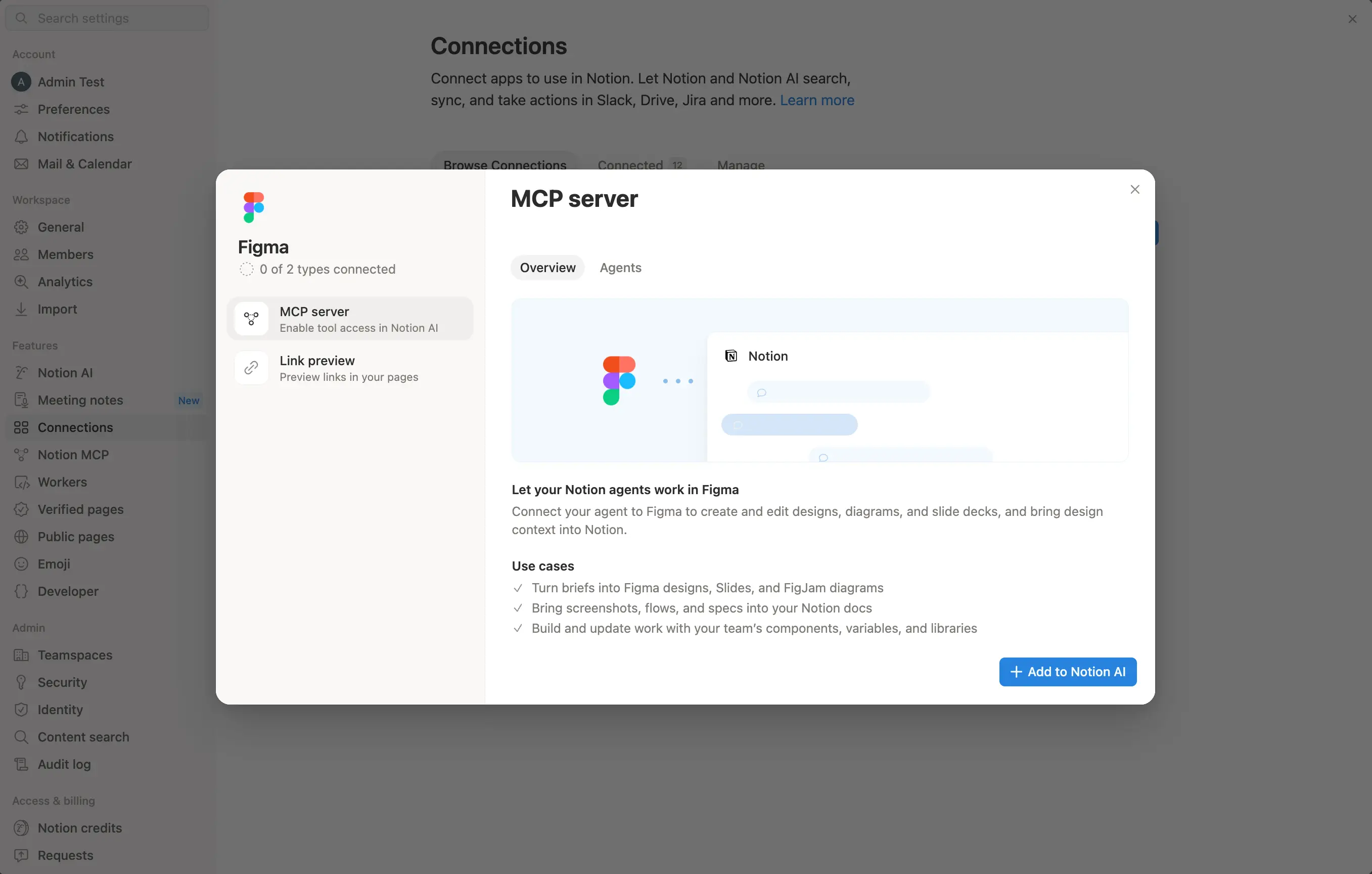
People still make the important calls
The agent automated the busywork. People, on the other hand, still review every code change, design logos and other visual assets, test the most popular MCP servers by hand, and, most importantly, talk to our partners at other companies about the fine details.
A few lessons we learned along the way
Just because something works for us doesn’t mean it works for our customers. For instance, monday.com’s MCP passed all of our tests, but failed for everyone outside Notion. The Notion developer app we’d created was private, so other workspaces got an “App is not installed” error. Now, the agent also connects from a second test account that didn’t create the app, simulating how a real customer would connect.
Similar MCP names can fool agents. Many companies sell more than one product with almost the same name (e.g., “1Password” vs. “1Password SaaS Manager”). The agent sometimes found the MCP server for the wrong product. Now, the agent confirms the server URL on both the vendor’s own website and
mcpservers.org, and a person approves every new MCP before it enters the pipeline.
Keep instructions short. The agent started skipping steps from its runbook, so we split the runbook into one page per pipeline transition to avoid loading in unnecessary context.
Where we are now
We went from 25 → 185 connectors in about three weeks, including tools like Figma, Atlassian, Linear, HubSpot, Asana, and Stripe. On our busiest days, we shipped more than 30. A new connector usually goes from request to live in a few days, and sometimes in less than 24 hours.
Thanks to the engineers who reviewed every PR, the designers who drew the logos, our partnerships team and our incredible partners.