Workyloop

Snapr
About
Snapr is an AI meeting notetaker for Mac, iPhone, Android and the web. It transcribes your meetings, online or in person, and writes the notes for you, with no bot joining the call.
With the Notion connection:
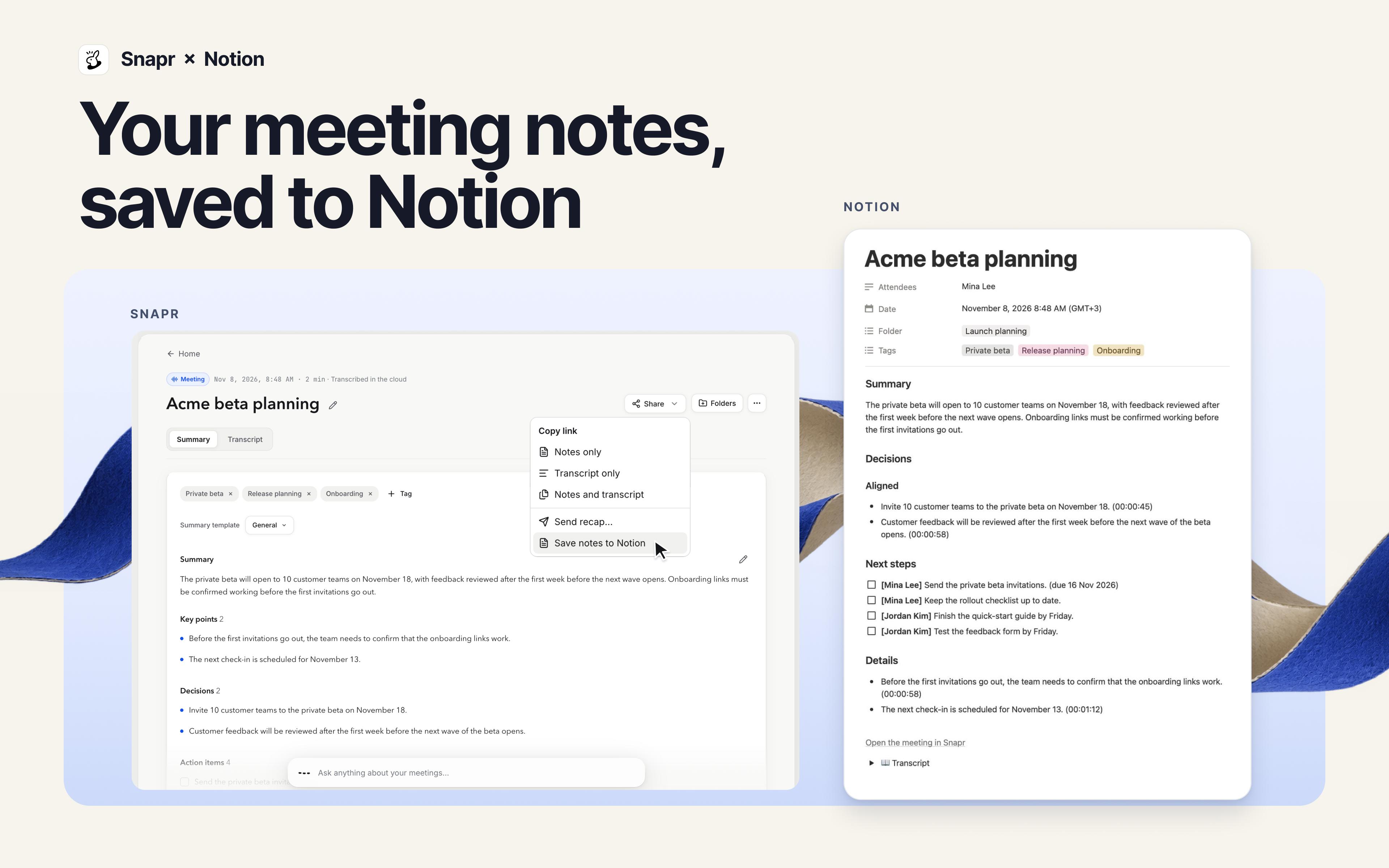
• Save meeting notes to Notion. Each meeting becomes a row in a "Snapr meetings" database that Snapr creates for you, with its date, attendees, tags, folder and a link back to Snapr. The page holds the summary, the full notes and the transcript. Prefer your own page or database? Choose it in Snapr's "Save to" setting.
• Save drafts from Ask. When Snapr's assistant drafts a document from your meetings, save it to Notion in one click.
• Answer from your Notion pages. Add Notion pages or databases as a knowledge source, and Ask answers from them alongside your meetings. Snapr re-reads them every hour.
Snapr only sees the pages you share with it when you connect. Disconnecting in Snapr also removes the connection from your Notion workspace.
The Notion connection is included in Snapr's paid plans (Pro, Business and Enterprise).
Tính năng
- Đọc, chèn và cập nhật nội dungCó thể đọc, chèn và cập nhật các trang, cơ sở dữ liệu và thành phần nội dung được chia sẻ với kết nối này.
How to use
- Sign up at
https://app.snapr.so
and choose a paid plan. - In Snapr, open Settings › Integrations › Notion and click Connect.
- In Notion, pick the workspace and the pages Snapr may access, then click Allow.
- Open a meeting and choose Share › Save to Notion. The first save creates a "Snapr meetings" database in your workspace.
- Optional: choose a different page or database under Settings › Integrations › Notion › Save to. To let Ask answer from Notion, go to Knowledge › Add source › Notion.