
About
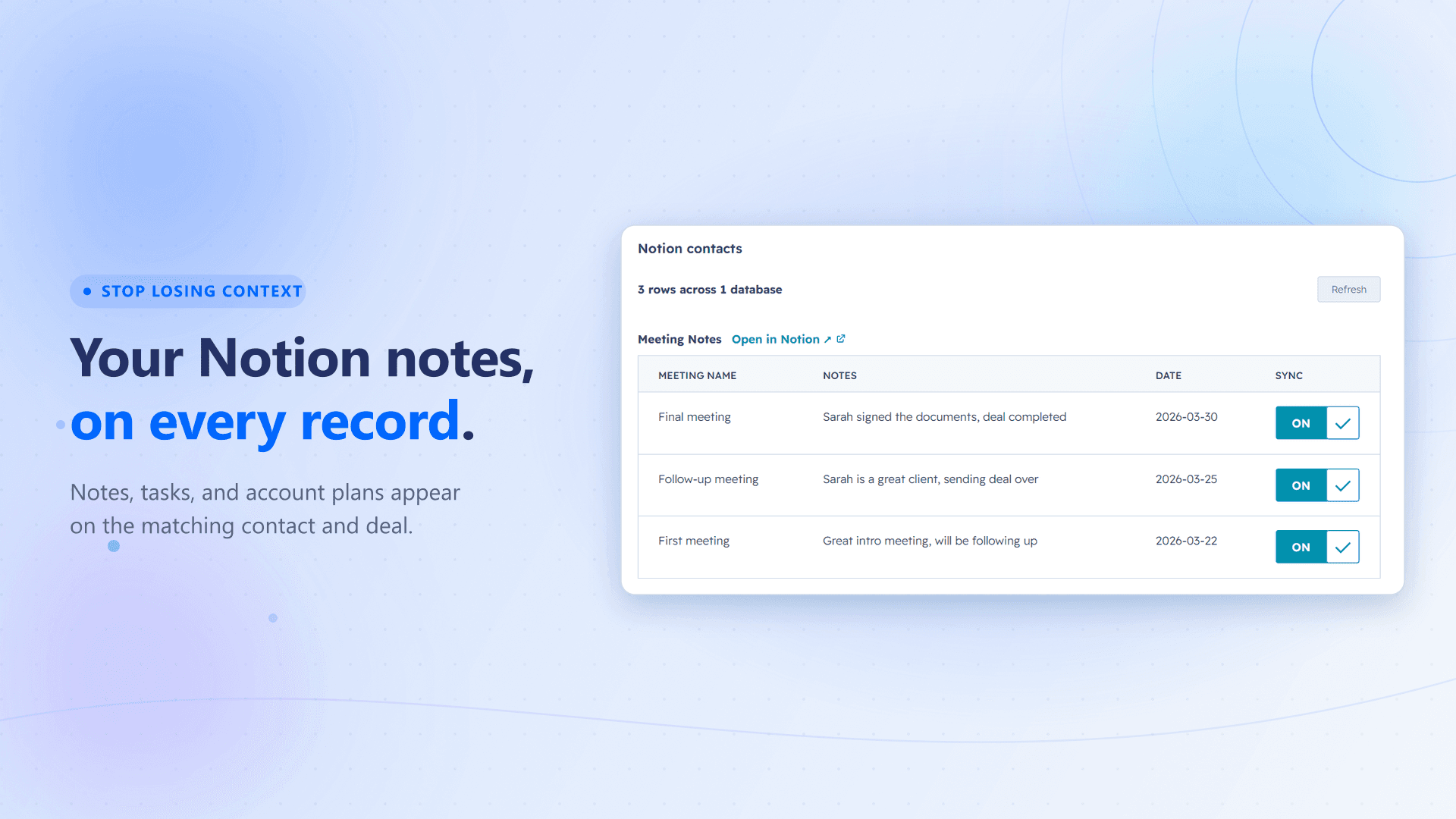
NoteLinker surfaces notes written in Notion right on the matching HubSpot contact or deal record. When someone finishes a call or meeting and writes it up in Notion, that note shows up automatically on an inline NoteLinker card on the matching HubSpot record, read live from Notion, with no manual copy-paste required.
It's built for teams that write in Notion but work in HubSpot. The note shows up where everyone expects to find it, keeping context visible across the team without changing how anyone works.
Tính năng
- Đọc nội dungCó thể đọc các trang, cơ sở dữ liệu và thành phần nội dung được chia sẻ với kết nối này.
- Xem người dùng trong không gian làm việcĐọc thông tin hồ sơ cơ bản của thành viên và khách trong không gian làm việc, bao gồm cả địa chỉ email của họ.
How to use
- Install NoteLinker from the HubSpot Marketplace. HubSpot walks you through the OAuth connection, then drops you on a setup page.
- On that page, connect your Notion workspace and pick which databases NoteLinker can read.
- Make sure each Notion database has an Email property (to match contacts) or a Deal Name property (to match deals). NoteLinker uses these to match each row to the right HubSpot record.
- Open any HubSpot contact or deal. Every Notion row whose Email or Deal Name matches shows up automatically on the inline NoteLinker card. There's no opt-in checkbox to keep up to date. To keep a row off a record, check a "Hide from HubSpot" checkbox in Notion.
- That's it. Rows stay in sync from that point forward, read live from Notion.
Details
Made by
Category
- Năng suất
- Bán hàng
- Marketing
Developer links