
Fluxo Flow
About
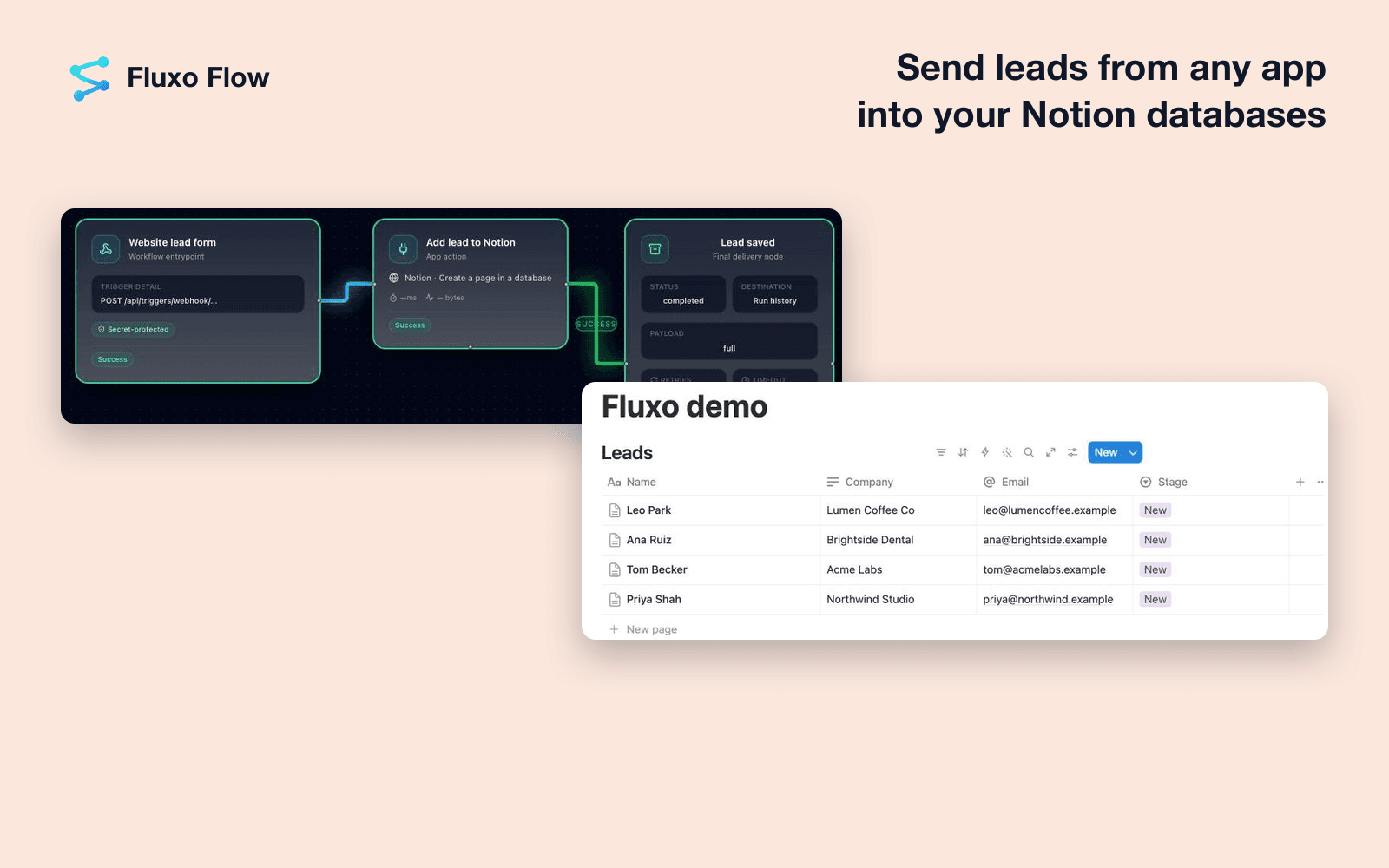
Fluxo Flow is an AI workflow automation platform for small and growing businesses. Connect Notion to keep your workspace up to date automatically, and to give AI agents the context that lives in your pages.
What you can do with Notion in Fluxo Flow:
- Create a page in a database: add a row with a title, properties and text, for example a new lead, client project, change order or support request.
- Update page properties: change a status, date, person, number or other property when something happens in another app.
- Add content to a page: append paragraphs, bullets, to-dos or headings, such as meeting notes, AI summaries or follow-up checklists.
- Query a database: list pages with filters and sorting to build reports or decide what to do next.
- Get a page and read a page's text: read properties or the text of a page, such as a policy, price list or FAQ, so an AI step can answer from your own information.
- Search: find pages and databases shared with Fluxo Flow by title.
Triggers:
- New page in database: start a workflow each time a page is added.
- New or updated page in database: start a workflow each time a page is added or edited.
Fluxo Flow connects Notion to the other tools you use, such as Gmail, Google Sheets, Slack and HubSpot, and includes ready-made AI agents that work with Notion. Steps that send or change something important can wait for your approval before they run.
Privacy and access: Fluxo Flow can only see the pages and databases you choose to share with it during setup. You can change that selection in Notion at any time, or disconnect Notion in Fluxo Flow under Settings, Integrations. Tokens are stored encrypted.
Privacy policy: https://getflow.fluxosuite.com/legal/privacy
Terms: https://getflow.fluxosuite.com/legal/terms
Support: [email protected]
Tính năng
- Đọc, chèn và cập nhật nội dungCó thể đọc, chèn và cập nhật các trang, cơ sở dữ liệu và thành phần nội dung được chia sẻ với kết nối này.
- Xem người dùng trong không gian làm việcĐọc thông tin hồ sơ cơ bản của thành viên và khách trong không gian làm việc, bao gồm cả địa chỉ email của họ.
How to use
1. Create a free Fluxo Flow account at https://getflow.fluxosuite.com and open your workspace.
2. Go to Settings, then Integrations, find Notion and click Connect.
3. Sign in to Notion and choose the pages and databases Fluxo Flow may use. Only what you select here is visible to Fluxo Flow. To use a database, share that database (or a page that contains it).
4. Back in Fluxo Flow, build a workflow on the canvas or pick a ready-made agent, and add a Notion step or trigger. Pick your database and map the fields.
5. Run a test, then turn the workflow on.
Need to add more pages later? In Notion, open the page, click the ... menu, choose Connections and add Fluxo Flow. To remove access, disconnect Notion in Fluxo Flow or remove the connection in Notion's settings.
Help: [email protected]