

About
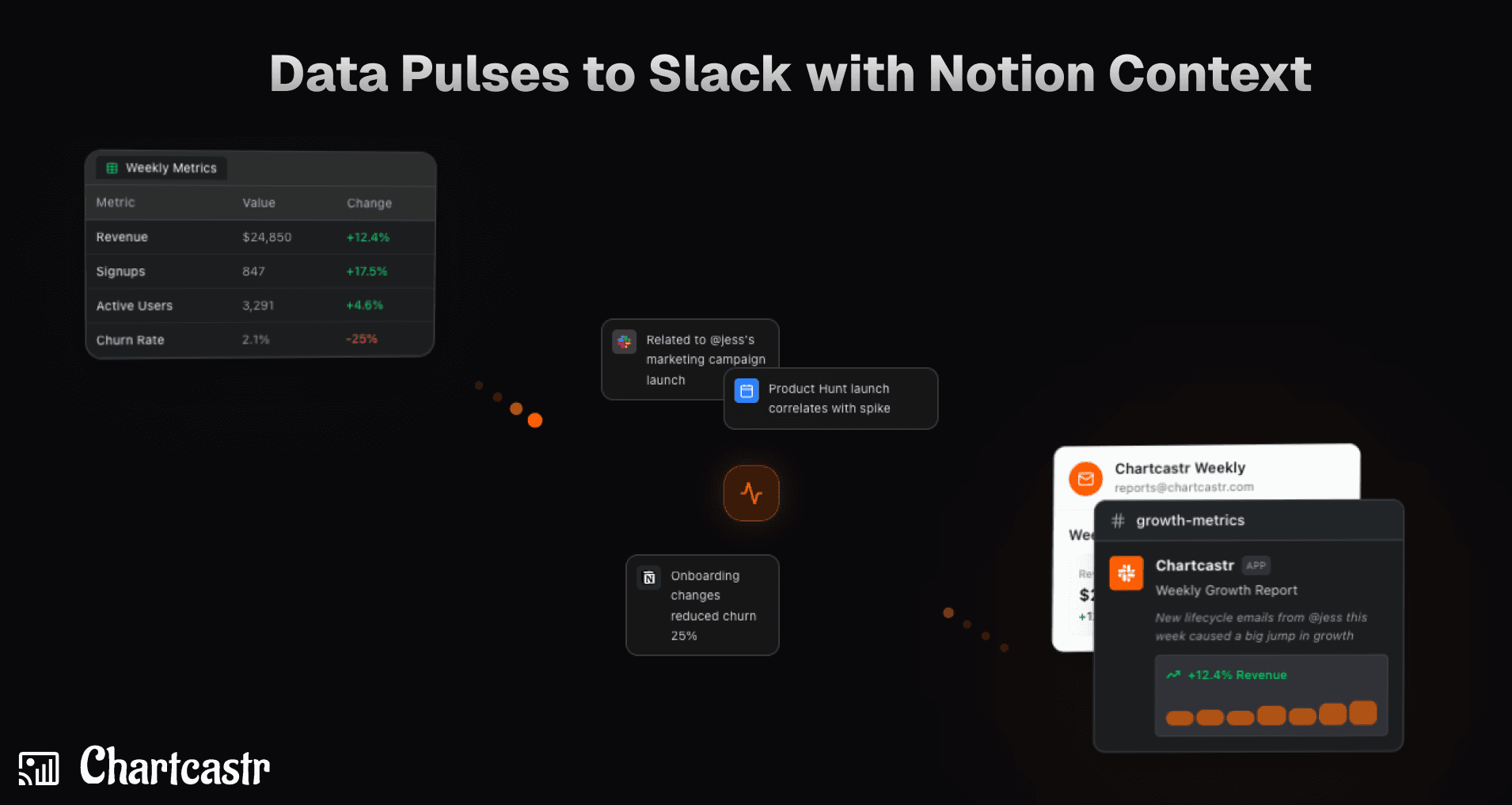
Chartcastr transforms your data into actionable insights by delivering automated "Pulses" directly to Slack. By integrating Notion as an external context source, Chartcastr's AI analyzes your Notion documentation, wikis, and project notes alongside your live data (from sources like Google Sheets or SQL databases). This allows the AI to provide summaries that aren't just about the numbers, but also about the "why" behind them, correlating metric changes with documented project milestones or process changes.
Tính năng
- Đọc nội dungCó thể đọc các trang, cơ sở dữ liệu và thành phần nội dung được chia sẻ với kết nối này.
- Đọc bình luậnCó thể đọc bình luận trên các trang và thành phần nội dung mà nó có thể truy cập.
- Xem người dùng trong không gian làm việcĐọc thông tin hồ sơ cơ bản của thành viên và khách trong không gian làm việc, bao gồm cả địa chỉ email của họ.
How to use
1. Create Chartcastr Account: Sign up at https://chartcastr.com/sign-up to get started.
2. Connect Notion: Navigate to Settings > Integrations. Click "Connect Notion" and select the pages or workspace trees you want Chartcastr to have access to.
3. Setup Your Data Source: Go to Settings > Sources and connect your primary data source (e.g., Google Sheets, BigQuery, or PostgreSQL).
4. Map Notion Context: Open your Source details, click Add Source Context, and select Notion. Choose the specific pages relevant to this data source.
5. Set Slack Destination: Go to Settings > Destinations and click "Add to Slack" to authorize Chartcastr. Then, create a Pulse and map your source to a specific Slack channel.
6. Test the Pulse: In the Pulse settings, click Send Now to trigger an immediate delivery.
7. Check Slack for AI Summary: Open Slack to see your Pulse. You'll see a chart followed by an AI summary that has considered the context from your mapped Notion docs (e.g., "Conversion dropped, which aligns with the maintenance window documented in Notion").
