Work As Intended

asSigned
About
Your contracts already live in Notion. Now they can get signed there too.
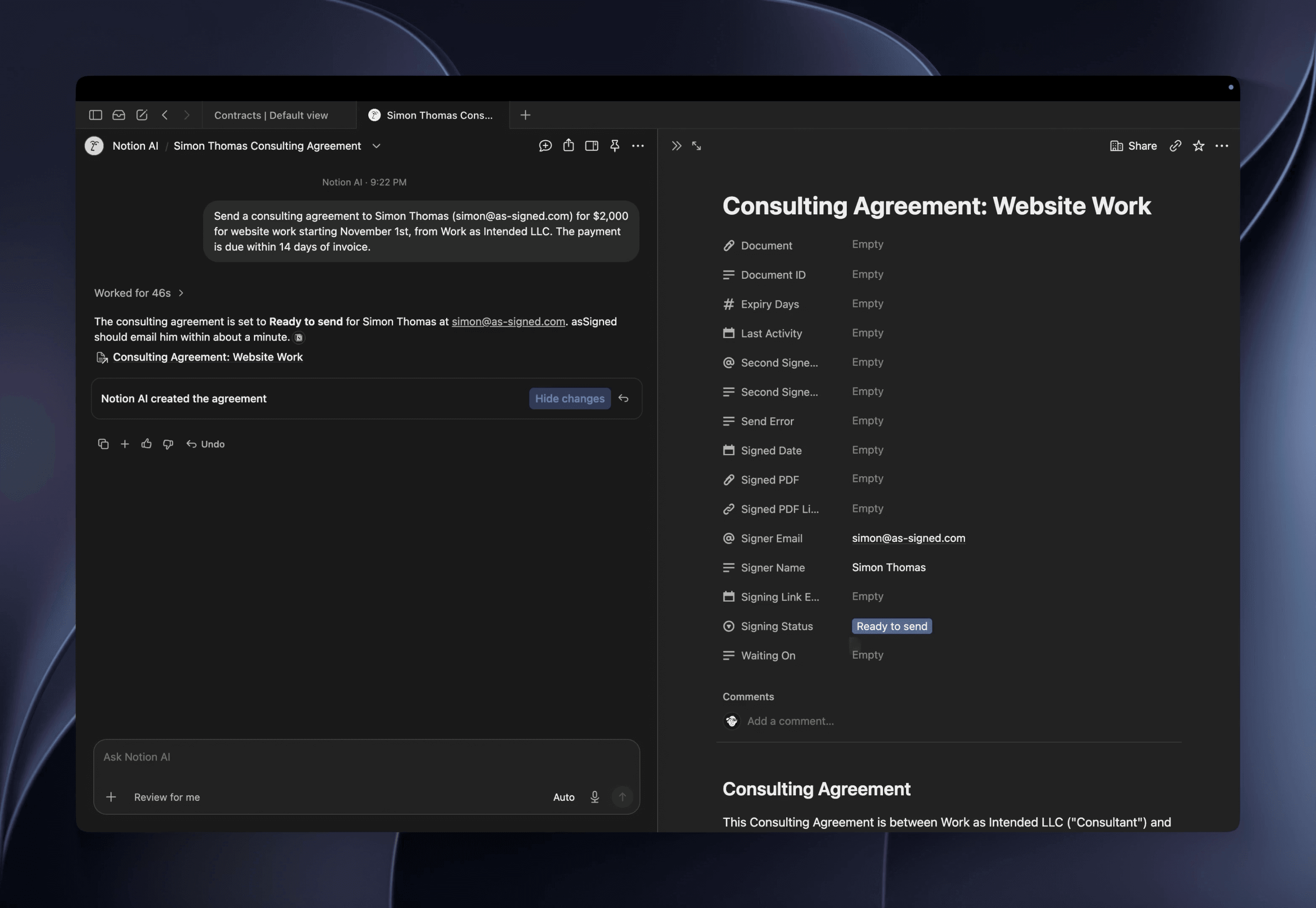
asSigned turns any row in a Notion database into a document for signature. Write or paste the contract into the row's page, fill in who signs, and set Signing Status to Ready to send. Within a minute your signer gets an email with a signing link, and the row moves on by itself: Sent, Viewed, Signed. When everyone has signed, the certified PDF is attached to the row and emailed to every signer.
Or ask Notion AI. Describe the agreement in a sentence, and it writes the contract in a row and sets it to Ready to send.
How it works
1. Continue with Notion. asSigned adds a ready-made Contracts database, with a sample to try.
2. Write the contract in a row's page. Put fields where the signer fills something in: [Signature], [Date], [Initials], [Text: Job title], [Checkbox: We have insurance], [Address: Billing address].
3. Set Signing Status to Ready to send. That's the whole job.
What you get
- Signers need no account, on any device.
- Waiting On shows who still hasn't signed, and Last Activity shows when anything last happened.
- Every signer consents first. The signed PDF's certificate records the time, IP address, device, the consent wording and the document's SHA-256 fingerprint, and anyone can check a copy on asSigned's Verify page.
- Reminders on day 3 and day 7, or the days you choose. Links expire when you say.
- A second signer, one after the other, such as you countersigning.
- Cancel before it's signed: every link stops working and the row says so.
- Use the Contracts template or your own database. asSigned guesses your columns and asks only about the ones it can't.
- REST API, webhooks and an MCP server on every plan, so Claude and other assistants can draft and send for you. They can send. They can never sign.
Plans
- Free: your first 5 documents, no card needed.
- Unlimited: $12 a month, or $10 a month paid yearly. As many documents as you like, your logo on the email, signing page and PDF, no "Sent with asSigned" line, and Word or PDF files signed straight from the row.
Keeps less, on purpose
asSigned keeps a document only while it's out for signature. Once it's signed and the PDF is in your Notion, asSigned deletes its own copy. Until then it's encrypted with a key that belongs to your account alone. Your signed PDFs are ordinary PDFs that stay yours for good.
Tính năng
- Đọc, chèn và cập nhật nội dungCó thể đọc, chèn và cập nhật các trang, cơ sở dữ liệu và thành phần nội dung được chia sẻ với kết nối này.
- Đọc và thêm bình luậnCó thể đọc và thêm bình luận trên các trang và thành phần nội dung mà nó có thể truy cập.
- Xem người dùng trong không gian làm việcĐọc thông tin hồ sơ cơ bản của thành viên và khách trong không gian làm việc, bao gồm cả địa chỉ email của họ.
How to use
1. Choose Continue with Notion, sign in to Notion and choose Allow. asSigned adds a ready-made Contracts database to your workspace, with a sample contract to try.
2. Try it on yourself. Open the sample row, put your own name and email in Signer Name and Signer Email, and set Signing Status to Ready to send. The email arrives within a minute.
3. Sign it from the email. The row moves to Signed and the signed PDF is attached to it.
4. For your own contracts, add a row, write or paste the contract into its page, and put [Signature] and [Date] where the signer signs. Fill in Signer Name and Signer Email, then set Ready to send.
Stuck? Set Signing Status to Get help and asSigned explains what's wrong in a comment on the row. Help pages are at app.as-signed.com/help, or write to [email protected].