Work As Intended
Seiche Connector
정보
Seiche — time tracking that syncs to Notion
Seiche is a Mac menu-bar time tracker for freelancers and consultants. You track hours against your clients and projects from the menu bar, see billable amounts as you go, and this connection keeps it all mirrored in your own Notion workspace — automatically.
What this connection does
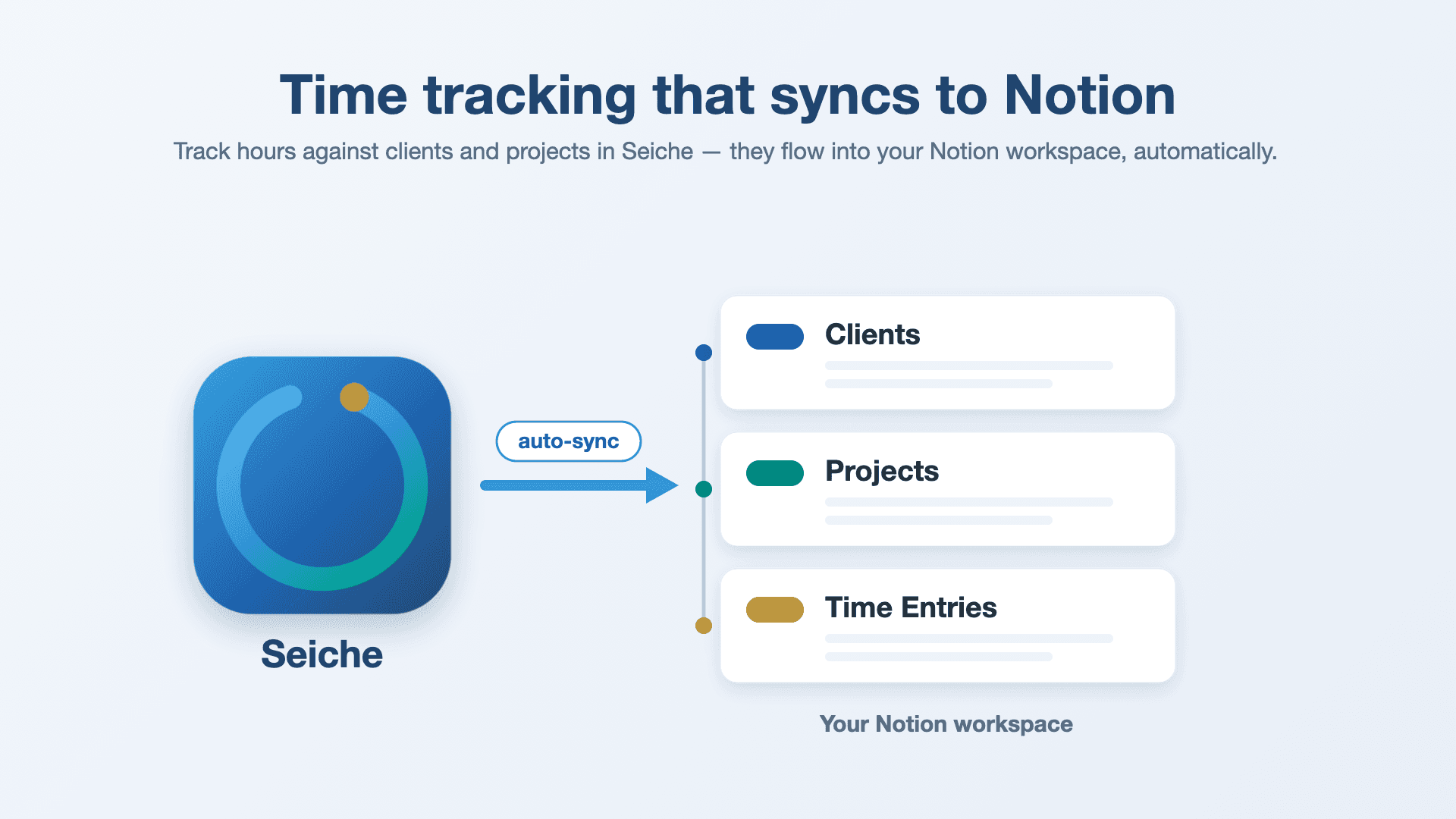
When you connect, Seiche adds a ready-made Seiche page to your workspace containing three linked databases:
- Clients
— your customers and their default rates - Projects
— projects belonging to each client - Time Entries
— tracked time, with start/end, hours, and billable amount
As you track time in the Seiche app, your clients, projects, and time entries are synced into these databases so you can view, filter, roll up, and share them in Notion. Sync happens automatically shortly after you make changes — there's nothing to press.
How it works
- One click to connect — no tokens or copy-pasting.
- Seiche creates and maintains the three databases for you (they're linked by relations, so projects roll up to clients and entries roll up to projects).
- Your Mac stays the source of truth; Notion is a live, shareable mirror.
Access it needs, and why
- Read content
— to locate the Seiche databases it created. - Insert content
— to add your clients, projects, and time entries. - Update content
— to keep those records current as you edit or stop timers.
Seiche requests no access to user information (no names or email addresses).
Privacy
Seiche has no account and no analytics. Your time data lives locally on your Mac and works fully offline; it's only written to Notion if you connect this integration, and then only to the workspace you authorize. Sync is one-way (app → Notion) — Seiche doesn't read or collect the rest of your Notion content. Full details: https://seiche.workasintended.com/privacy
기능
- 콘텐츠 읽기, 삽입 및 업데이트이 연결과 공유된 페이지, 데이터베이스, 블록을 읽기, 삽입 및 업데이트 수 있습니다.
- 워크스페이스 사용자 보기이메일 주소를 포함한 워크스페이스 멤버와 게스트에 대한 기본 프로필 상세정보를 읽습니다.
사용 방법
Seiche is a Mac menu-bar time tracker. This connection mirrors your time tracking into your own Notion workspace. You'll need the Seiche app and a Notion account.
1. Install Seiche
Get Seiche from Setapp and launch it. It lives in your menu bar (a small timer icon) — there's no separate window to keep open.
2. Add a client and project
Open Seiche → Clients & Projects, add a client (optionally with an hourly rate), then add a project or two under it. This is what your time gets tracked against.
3. Connect Notion
Open Seiche → Setup Guide (or Settings → Notion) and click Connect to Notion. Your browser opens Notion's authorization screen:
- Sign in and choose the workspace you want to use.
- Approve access and keep the
template duplication
selected.
Notion adds a ready-made Seiche page with three linked databases — Clients, Projects, and Time Entries — and returns you to the app automatically.
4. Track time
Click the menu-bar timer icon and pick a project to start timing. The icon shows the running time; click Stop when you're done, or Switch to jump to another project. You can also add or edit entries by hand under Time Entries.
5. Watch it sync
Your clients, projects, and time entries flow into the Seiche databases in Notion automatically, a few seconds after you make changes — nothing to press. From there you can build views, filters, and rollups, or share the workspace like any other Notion content. (You can also trigger an immediate push with Sync now in Settings.)
Good to know
- Your Mac is the source of truth. Seiche works fully offline; Notion is a live mirror.
- Sync is one-way (Seiche → Notion). Editing records directly in Notion won't flow back to the app.
- Seiche has no account and no analytics, and requests no access to your user info.
- To stop syncing, use
Settings → Notion → Disconnect
; delete the Seiche pages in Notion to remove the synced data.