

정보
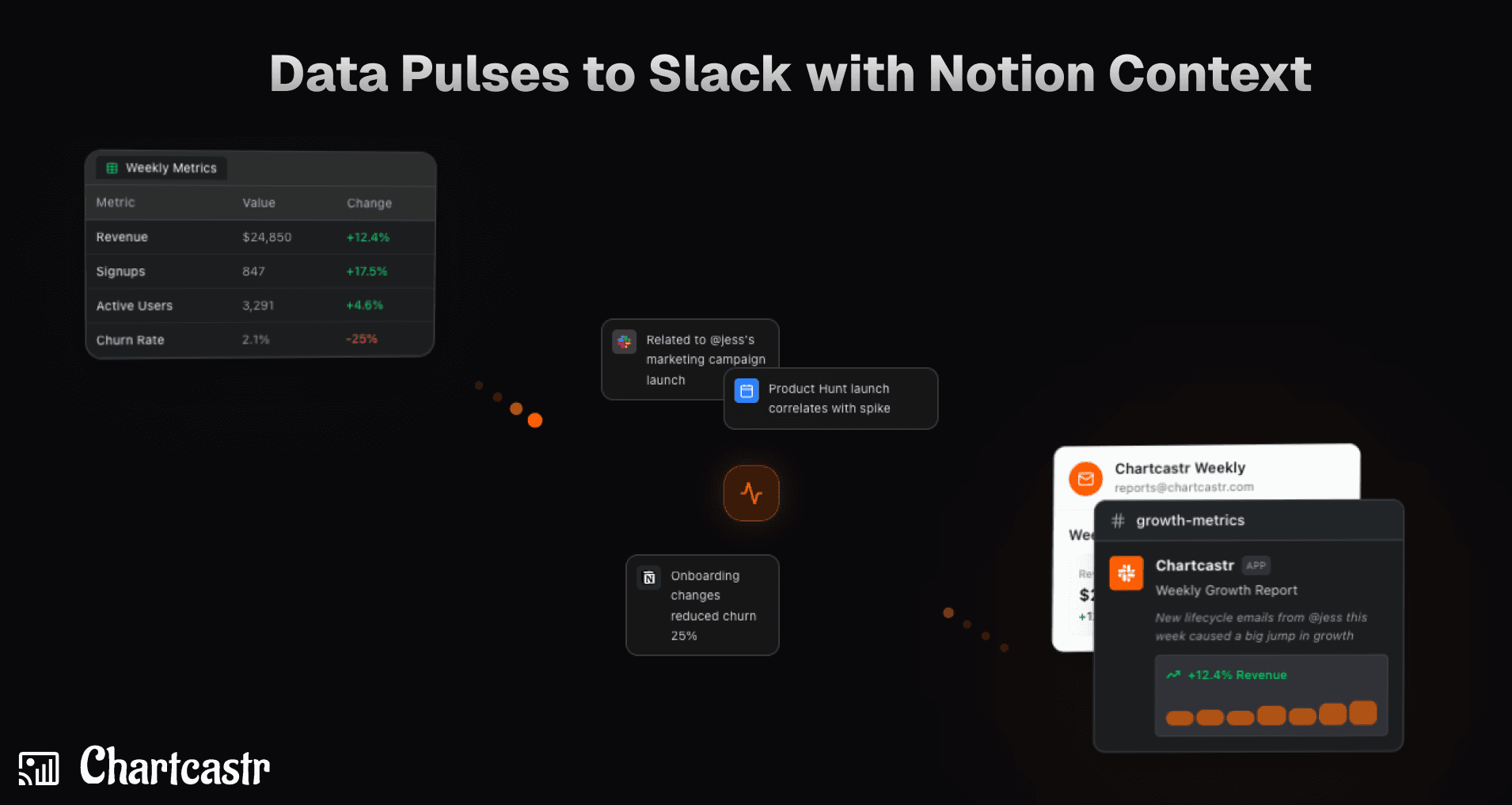
Chartcastr transforms your data into actionable insights by delivering automated "Pulses" directly to Slack. By integrating Notion as an external context source, Chartcastr's AI analyzes your Notion documentation, wikis, and project notes alongside your live data (from sources like Google Sheets or SQL databases). This allows the AI to provide summaries that aren't just about the numbers, but also about the "why" behind them, correlating metric changes with documented project milestones or process changes.
기능
- 콘텐츠 읽기이 연결과 공유된 페이지, 데이터베이스, 블록을 읽기 수 있습니다.
- 댓글 읽기접근할 수 있는 페이지와 블록에 댓글을 읽기 수 있습니다.
- 워크스페이스 사용자 보기이메일 주소를 포함한 워크스페이스 멤버와 게스트에 대한 기본 프로필 상세정보를 읽습니다.
사용 방법
1. Create Chartcastr Account: Sign up at https://chartcastr.com/sign-up to get started.
2. Connect Notion: Navigate to Settings > Integrations. Click "Connect Notion" and select the pages or workspace trees you want Chartcastr to have access to.
3. Setup Your Data Source: Go to Settings > Sources and connect your primary data source (e.g., Google Sheets, BigQuery, or PostgreSQL).
4. Map Notion Context: Open your Source details, click Add Source Context, and select Notion. Choose the specific pages relevant to this data source.
5. Set Slack Destination: Go to Settings > Destinations and click "Add to Slack" to authorize Chartcastr. Then, create a Pulse and map your source to a specific Slack channel.
6. Test the Pulse: In the Pulse settings, click Send Now to trigger an immediate delivery.
7. Check Slack for AI Summary: Open Slack to see your Pulse. You'll see a chart followed by an AI summary that has considered the context from your mapped Notion docs (e.g., "Conversion dropped, which aligns with the maintenance window documented in Notion").
