Taras Shynkarenko

AdaptlyPost
정보
AdaptlyPost publishes to Facebook, Instagram, Threads, X, Bluesky, LinkedIn, Mastodon, Telegram and Google Business Profile. This connection lets your team plan those posts in a Notion database, the way many teams already plan content, and hands the scheduling to AdaptlyPost.
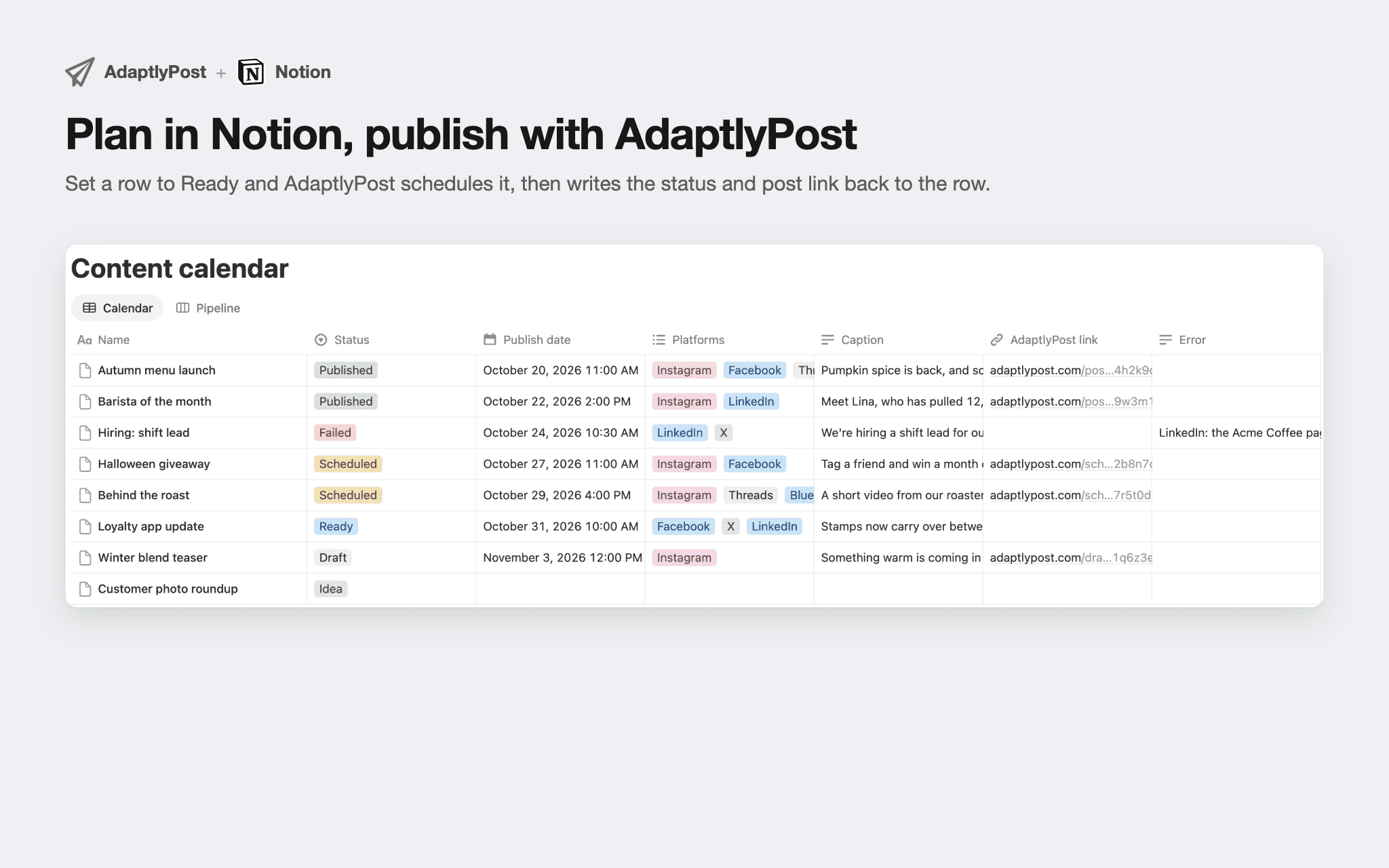
Each row is one post, with the columns Caption, Publish date, Status, Media, Platforms, AdaptlyPost link and Error. Write the caption, attach images or a video, set the date and change Status to Ready. AdaptlyPost checks the database every few minutes, schedules every Ready row to the accounts you picked for that calendar, and writes back to the row: Status moves to Scheduled and then Published, and the AdaptlyPost link points at the post.
When something goes wrong, such as a caption that is too long for X or an image Instagram refuses, the row turns Failed and the Error column says why. Fix the row and AdaptlyPost tries again.
Pick an existing database or let AdaptlyPost create one under a page you shared. A workspace can connect up to 10 databases, for example one per brand or per client, each with its own set of accounts.
기능
- 콘텐츠 읽기, 삽입 및 업데이트이 연결과 공유된 페이지, 데이터베이스, 블록을 읽기, 삽입 및 업데이트 수 있습니다.
- 워크스페이스 사용자 보기이메일 주소를 포함한 워크스페이스 멤버와 게스트에 대한 기본 프로필 상세정보를 읽습니다.
사용 방법
You need an AdaptlyPost account with at least one social account connected.
Click Add to Notion. Notion asks which pages and databases AdaptlyPost may use. Share your content calendar database, or a page AdaptlyPost can create a new one under.
Notion sends you back to AdaptlyPost. Sign in if asked, and Integrations opens on the Notion tab.
Choose a shared database or create a new one, then pick the social accounts its posts go to. AdaptlyPost adds its columns to the database.
Add a row in Notion with a caption and a publish date, set Status to Ready, and AdaptlyPost schedules it within a few minutes.
You can also connect from AdaptlyPost first: open Integrations, go to the Notion tab and click Connect.