 Margin
Margin Sync
정보
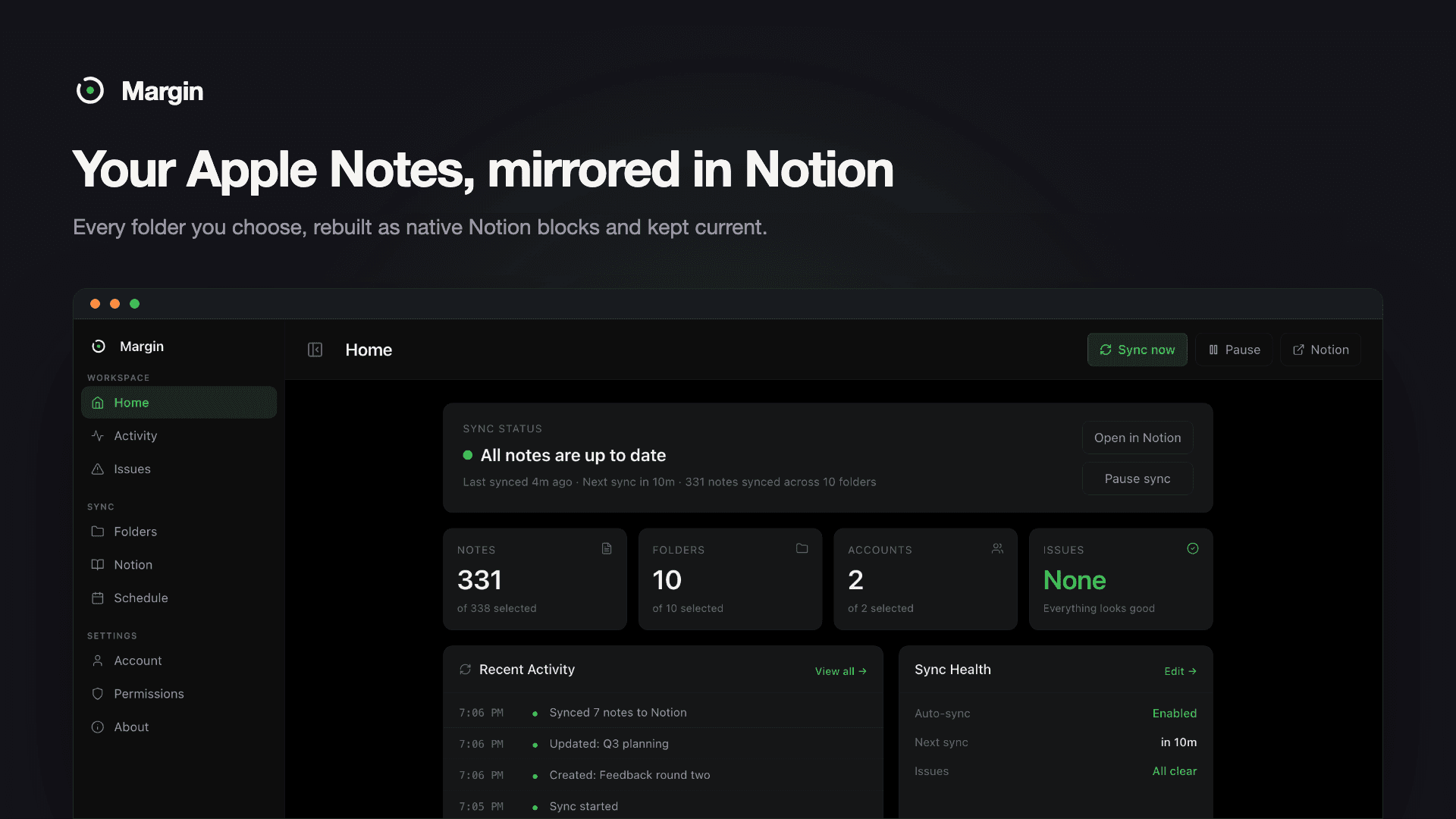
Margin mirrors your Apple Notes into Notion and keeps them there.
Pick the folders you want. Margin rebuilds every note as native Notion blocks: headings, bulleted and numbered lists, checklists, tables, code blocks, quotes, and the images inside your notes. What arrives is editable and searchable, not a wall of pasted text.
Your folder structure comes with it, built underneath a single Notion page you choose during setup.
From then on it runs by itself from your Mac’s menu bar, checking every 15 minutes or on whatever schedule you set, and touching only the notes that actually changed.
Sync runs one way, Apple Notes to Notion, and the connection to Apple Notes is read-only. Nothing Margin does can alter or delete a note you wrote.
Your notes are read on your Mac and sent straight to the workspace you authorised. Note content never reaches Margin’s servers. Margin only sees the one Notion page you hand it, and cannot read a page you did not give it.
기능
- 콘텐츠 읽기, 삽입 및 업데이트이 연결과 공유된 페이지, 데이터베이스, 블록을 읽기, 삽입 및 업데이트 수 있습니다.
- 워크스페이스 사용자 보기이메일 주소를 포함한 워크스페이스 멤버와 게스트에 대한 기본 프로필 상세정보를 읽습니다.
사용 방법
1. Download Margin from marginsync.app/download and drag it to Applications.
Every release is notarized by Apple.
2. Allow Margin to read Apple Notes when macOS asks. This is the standard
Automation prompt, and it is the only permission required.
3. Create your Margin account with Google or an emailed sign-in link.
4. Connect Notion. Margin opens Notion's own authorisation screen, so there
is no API key to generate. Pick or create a single empty page; your whole
folder structure is built underneath it.
5. Open Folders and tick the accounts and folders you want mirrored.
6. Leave it running. Auto-sync starts every 15 minutes and the interval is
yours to stretch whenever you want it quieter.
Full walkthrough: https://marginsync.app/how-to-sync-apple-notes-to-notion
