כתיבת הערות פגישה עם AI Meeting Notes ב-Notion

אפשר לרשום הערות מפורטות בלי להקליד במהלך הפגישות או שיחות הווידאו שלכם.
מעבר לשאלות הנפוצותAI Meeting Notes מפיק עבורך סיכומי פגישה מפורטים כדי שתוכל להישאר ממוקד בשיחה שאתה מנהל. Notion AI מתמלל את הפגישה שלך ומזהה נקודות מפתח ומשימות לביצוע שתוכל לשתף עם כל הצוות שלך.
כדי להשתמש ב-AI Meeting Notes:
עליך להיות בתוכנית Business או בתוכנית Enterprise של Notion כדי להשתמש ב-AI Meeting Notes.
AI Meeting Notes זמין גם עבור מנויים ניידים זכאים שבהם Notion AI כלול.
אם אתם משתמשים באפליקציית Notion למחשב, עליכם להשתמש בגרסה 4.7.0 ומעלה.
אם אתם משתמשים במכשיר Mac, עליכם להשתמש ב-macOS 13 או בגרסה מאוחרת יותר.
אם אתם משתמשים במכשיר Windows, עליכם להשתמש בגרסה העדכנית ביותר.

אפשר לנסות את AI Meeting Notes בחינם
קיימו פגישות בלי להחמיץ אף רגע. ההערות של AI Meeting Notes אוספות, מסכמות ומארגנות את ההערות שלכם כדי שתוכלו להיות מרוכזים בפגישה ולצאת ממנה עם תובנות ברורות.
AI Meeting Notes זמין באפליקציית Notion ובדפדפן. אפליקציית Notion מספקת את החוויה הטובה ביותר, במיוחד עבור שיחות וידאו, מכיוון שהיא קולטת את כל צדדי השיחה באמצעות האודיו והמיקרופון של המערכת שלכם. הדפדפן מתאים ביותר לשיחות פנים אל פנים מכיוון שהוא יכול לקלוט אודיו רק מהמיקרופון שלכם. ניתן להשתמש ב-AI Meeting Notes גם באפליקציית Notion לנייד, שמקליטה דרך המיקרופון של הטלפון שלכם.
אם אתם משתמשים בתכונה הזו בדפדפן שלכם, הנה כמה דברים שיש לשים לב אליהם:
רק קלט מהמיקרופון יתומלל. אודיו של המערכת לא יוקלט.
אודיו משיחות ועידה (Google Meet, Zoom, Microsoft Teams וכו') לא יוקלט אם אתה משתמש באוזניות. אם אינך משתמש באוזניות ועוצמת הקול של המכשיר שלך אינה נמוכה מדי, ייתכן שאודיו משיחות ועידה יוקלט.
אם אתם משתמשים בתכונה זו באפליקציית Notion לנייד, יש כמה דברים שכדאי לשים לב אליהם:
Notion מתמללת רק את הצלילים שהמיקרופון של הטלפון שלכם קולט. היא לא יכולה לקלוט אודיו שמושמע מהטלפון עצמו, כמו קולות של משתתפים אחרים בשיחת וידאו.
בשל כך, הגרסה לנייד עובדת בצורה הטובה ביותר עבור פגישות פנים אל פנים. היא עובדת היטב גם כאשר אודיו הפגישה מושמע בקול ממכשיר אחר, כמו הרמקול של המחשב שלכם.
אם אתם מצטרפים לשיחת וידאו בטלפון ומקשיבים דרך אוזניות, Notion לא תשמע או תתמלל את המשתתפים האחרים.
הערה: כדי להשתמש ב-AI Meeting Notes, Notion דורשת גישה להרשאות הקלטת האודיו והמסך של המערכת שלכם.
זאת במטרה לאפשר לנו לתמלל את האודיו של משתתפים אחרים כשאתם משתמשים באוזניות במהלך פגישות וירטואליות.
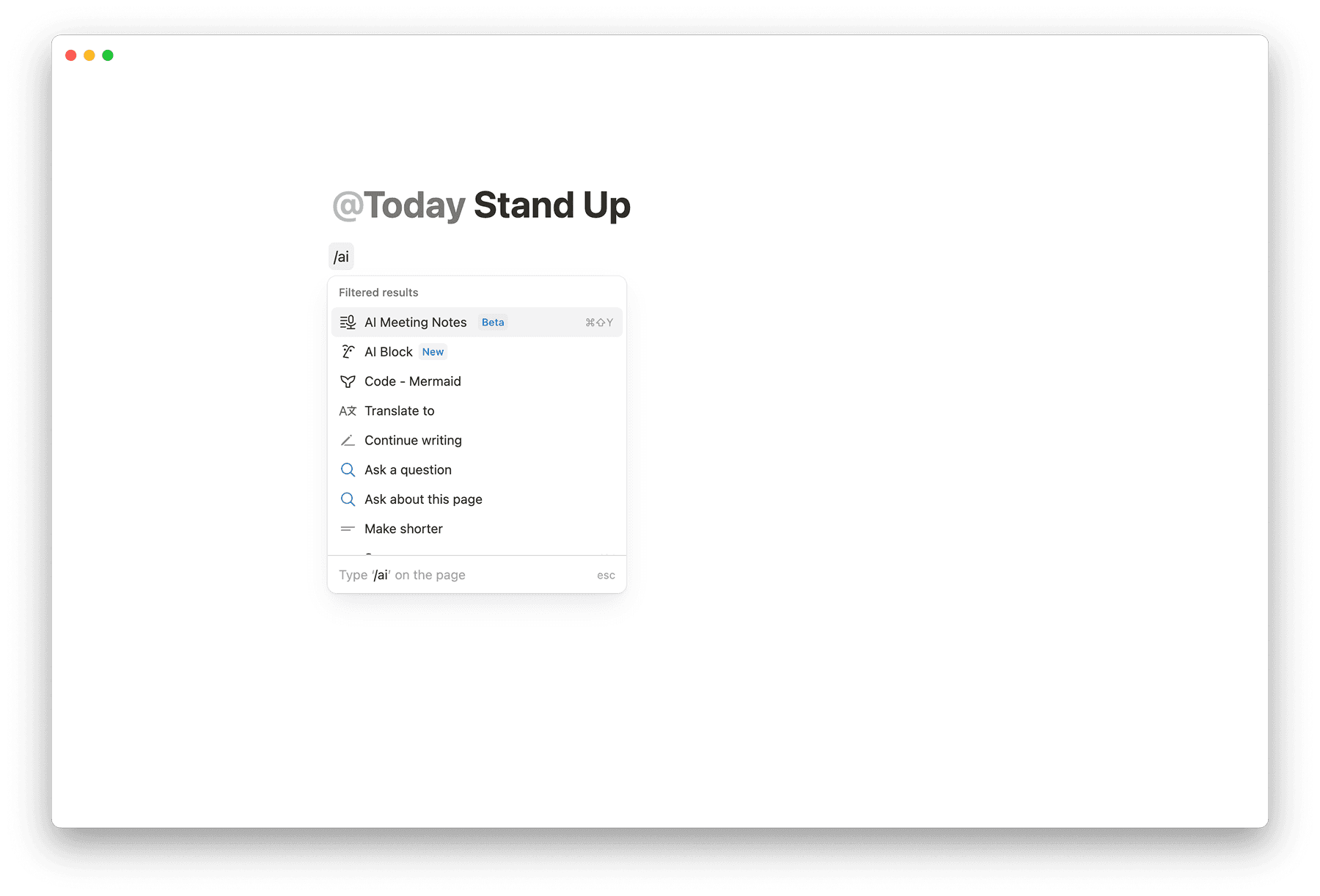
כדי ליצור AI Meeting Notes, הקלד /meet בכל דף באפליקציית שולחן העבודה. אם אתה בדפדפן אינטרנט, תתבקש לפתוח את אפליקציית שולחן העבודה של Notion או להוריד אותה אם עדיין לא עשית זאת.

טיפ: אפשר גם לגשת ל-AI Meeting Notes ישירות מהאריח אירועים קרוביםבדף הבית.
כתוב כל נושא לדיון או הקשר תחת
Notesלפני הפגישה. בעת יצירת הסיכום, Notion AI יתחשב בהערות אלו.ברגע שהפגישה התחילה, בחר ב-
Start transcribing. פעולה זו מהווה אישור לכך שכל המשתתפים בפגישה נתנו את הסכמתם להקלטה ולתמלול של הפגישה.לאחר סיום הפגישה, כשתרצה להפסיק את התמלול, בחר ב-
Stop. סיכום ה-AI יתחיל להיווצר באופן אוטומטי. שים לב שנדרשת דקה אחת לפחות של אודיו מוקלט כדי ליצור סיכום.אם ברצונכם לחדש את ההקלטה, יש ללחוץ על סמל המחוון בחלק העליון של בלוק סיכומי הפגישה ←
חידוש התמלול.
באפשרותך להעלות הקלטת אודיו קיימת לבלוק סיכומי פגישה כדי ש-Notion יוכל לתמלל ולסכם אותה, גם אם הפגישה לא הוקלטה בשידור חי ב-Notion.
כדי להעלות קובץ אודיו:
פתח דף עם בלוק סיכומי פגישה.
בחר בסמל ההגדרות בראש בלוק סיכומי פגישה.
בחר ב-
Upload audio.בחר קובץ אודיו מהמכשיר שלך.
Notion יתמלל את האודיו ויפיק סיכום, בדיוק כמו בהקלטה חיה.
Supported formats: AAC, M4A, MP3 ו-WAV.
Note: קבצי MOV, MP4 ו-Loom אינם נתמכים כרגע להעלאה.
כאשר AI Meeting Notes מזהה שהדובר השתנה, הוא יתחיל לתמלל בשורה חדשה.
באפליקציית שולחן העבודה, Notion יכולה לתייג דוברים בתמליל כך שיהיה קל יותר לעקוב מי אמר מה. זה עובד בצורה הטובה ביותר עבור פגישות וירטואליות של אחד על אחד, שבהן Notion יכולה לקלוט גם את המיקרופון שלכם וגם את שמע המערכת שלכם. אם הערת הפגישה שלכם מקושרת לאירוע ביומן, Notion יכולה גם לתייג את המשתתף השני בשמו.
בהגדרות פגישה אחרות (כמו שיחות פנים אל פנים או פגישות קבוצתיות), תיוג דוברים עשוי להיות מוגבל. ייתכן שלא תראו תוויות דוברים אמינות אם אתם:
בפגישה חיה שבה מספר אנשים חולקים מיקרופון אחד.
בפגישה קבוצתית עם מספר דוברים.
משתמשים ב-Notion בדפדפן או באפליקציה לנייד.
משתמשים ב-Google Meet ב-Chrome? מומלץ להתקין את תוסף הדפדפן Notion Meetings Add-on כדי לקבל תוויות דוברים בשיחות Google Meet שלכם, כולל פגישות קבוצתיות (במחשב בלבד).
תוכלו למצוא גם ציטוטים לתמליל שלכם בסיכום הערות הפגישה שלכם. רחפו מעל ציטוט כדי לראות את קטע התמליל שאליו נעשתה הפניה. תוכלו גם ללחוץ על ציטוט כדי לקפוץ לשורה המתאימה בתמליל שלכם.
AI Meeting Notes יכול לעצב סיכומי פגישה בהתאם לסוג הפגישה שאתם מקיימים, כגון שיחת מכירות, פגישת סטנד-אפ או פגישת צוות. כדי לשנות את האופן שבו AI Meeting Notes יוצר סיכום:
עברו אל
הוראותבתחתית בלוק סיכומי הפגישה.לחצו על התפריט הנפתח כדי לשנות את ההוראות מ-Auto (אוטומטי).
שינויי הוראות חלים רק על הקלטות חדשות או כאשר אתם מחדשים את התמלול. כדי לעדכן סיכום קיים עם הוראות חדשות, לחצו על
נסה שוב את הסיכום.
טיפ: ניתן לחבר את AI Meeting Notes ל-Notion Calendar כך שתתחילו הערות בלחיצה אחת ישירות מהיומן שלכם, ולחבר הערות קיימות לאירועים ביומן. ניתן ללחוץ על סמל המחוון בראש בלוק ה-AI Meeting Notes כדי להגדיר זאת.
יצירת הוראות סיכום מותאמות אישית
בנוסף להוראות המובנות, באפשרותכם ליצור הוראות מותאמות אישית כדי להגדיר את המבנה של סיכומי הפגישות שלכם. כדי להוסיף הוראות מותאמות אישית:
עברו אל
הוראותבתחתית בלוק סיכומי הפגישה.לחצו על התפריט הנפתח כדי לשנות את הפורמט מ-Auto (אוטומטי).
לחצו על
+ הוסף הוראות מותאמות אישית.דף תבנית ייפתח — ערכו אותו כדי להגדיר את המבנה וההוראות המועדפים עליכם.
ההוראות המותאמות אישית שלכם יופיעו כעת ברשימת ההוראות וניתן יהיה לבחור אותן עבור כל פגישה.
שיתוף ופרטיות עבור סיכומים מותאמים אישית
הוראות סיכום מותאמות אישית הן פרטיות כברירת מחדל — רק את/ה יכול/ה לראות ולהשתמש בהן.
אם סיכום פגישה משתמש בהוראות מותאמות אישית פרטיות, משתמשים שיש להם גישה לבלוק הפגישה עדיין יראו את אותו הסיכום. עם זאת, הגדרת ההוראות תציג את הוראות ברירת המחדל שלהם במקום זאת.
הוראות מותאמות אישית משותפות
הוראות מותאמות אישית הן פרטיות כברירת מחדל. אם מישהו משתף איתך דף הוראות ויש לך גישה לצפות בו, ניתן לפתוח את הדף — אך הוא לא יופיע באופן אוטומטי כאפשרות בתפריט הנפתח של ההוראות עד שתוסיף/י אותו.
כדי להוסיף דף הוראות משותף לפגישות שלך:
פתח/י את דף ההוראות המשותף.
לחץ/י על
+ הוסף להוראות שליבראש הדף.
אם תפתח/י בלוק סיכומי פגישה שבו דף הוראות משותף כבר נבחר, תראה/י אותו מוצג כהוראה שנבחרה גם אם עדיין לא הוספת אותו לרשימה שלך.
אם אין לך גישה לדף ההוראות שנבחר, הגדרת ההוראות שלך תחזור כברירת מחדל ל-אוטומטי.
הגדרת הוראות כברירת מחדל
ניתן להגדיר כל הוראות — כולל הוראות מותאמות אישית — כברירת מחדל, כך שהן יוחלו באופן אוטומטי על כל הפגישות החדשות.
עברו אל
הוראותבתחתית בלוק סיכומי הפגישה.לחץ/י על התפריט הנפתח.
רחף/י מעל ההוראות שברצונך להגדיר כברירת מחדל.
לחץ/י על
•••→הגדר כברירת מחדל
הערה: הודעת ההסכמה מושמעת דרך רמקולי המחשב שלכם, לא דרך המיקרופון של שיחת ועידה. יש לוודא שהרמקולים אינם מושתקים ולנתק את כל האוזניות, כדי שכולם בחדר יוכלו לשמוע את ההודעה בבירור.
לאחר בחירת הבלוק, תתקבל תזכורת לחשוף את השימוש שלכם ב-AI Meeting Notes ולקבל הסכמה מכל המשתתפים בפגישה לפני שממשיכים.
כדי לעזור לכם לבקש הסכמה, יהיו לכם כמה אפשרויות קלות:
טקסט: לחץ/י על סמל המחוון בראש בלוק ה-AI Meeting Notes ורחף/י מעל
הסכמה. ערוך/י את הודעת ההסכמה כרצונך, ולאחר מכן העתק/י והדבק/י אותה בצ'אט של אפליקציית שיחת הוועידה שבה את/ה משתמש/ת.קול: לחץ/י על
🔈בתחתית בלוק ה-AI Meeting Notes לפני שתתחיל/י לתמלל. פעולה זו תשמיע את הודעת ההסכמה שלך לכל המשתתפים.ניתן לשנות את הקול על ידי לחיצה על סמל המחוון בראש בלוק סיכומי הפגישה ובחירת קולות שונים עבור שפות שונות. Notion תשתמש באופן אוטומטי בשפת הפגישה שלך כדי להשמיע את הקול המתאים.
אמור זאת בקול רם: גם בקשה פשוטה תעבוד. לדוגמה, אפשר לשאול, "האם זה בסדר להקליט ולתמלל את הפגישה הזו באמצעות Notion AI Meeting Notes?"
ב-Google Meet: אם יש לכם את תוסף הדפדפן Notion Meetings Add-on, Notion מפרסמת ונועצת באופן אוטומטי הודעה בצ'אט של Meet כאשר אתם מתחילים לתמלל, ומציגה מחוון הקלטה מעל המצלמה שלכם. כל מי שנמצא בשיחה, כולל אנשים שמצטרפים באיחור, יכול לראות שהפגישה מתומללת.
אפשרות להודעת הסכמה אוטומטית
ניתן לבחור להשמיע הודעה קולית באופן אוטומטי בתחילת כל תמלול כדי ליידע אחרים שאת/ה משתמש/ת ב-AI Meeting Notes.
אם אתה בעלים של סביבת עבודה: באפשרותך להפעיל פונקציונליות זו עבור כל החברים בסביבת העבודה שלך על ידי מעבר אל הגדרות → Notion AI → AI Meeting Notes ועדכון ההגדרה 'אכיפת הסכמה עבור כל חברי סביבת העבודה'.
אם אתה נמצא בסביבת עבודה שבה הגדרה זו הופעלה על ידי בעלי סביבת העבודה: הודעת ההסכמה תושמע בכל פעם שתשתמש ב-AI Meeting Notes. זכור לבטל את ההשתקה ברמקולים ולנתק אוזניות לפני תחילת התמלול כדי שמשתתפי הפגישה יוכלו לשמוע את הודעת ההסכמה בבירור.
אם אתה נמצא בסביבת עבודה שבה הודעת הסכמה אוטומטית אינה מופעלת: באפשרותך להפעיל הגדרה זו עבור עצמך. תראה הודעה בבלוק סיכומי פגישה המבקשת ממך לבחור את אפשרות ההסכמה המוגדרת כברירת מחדל שלך:
קבל הסכמה בעצמי: המשך להשיג הסכמה מכל משתתפ/ת באופן ידני
השמע אודיו באופן אוטומטי: השמע את הודעת הסכמת האודיו באופן אוטומטי בתחילת כל תמלול
הודעה זו נעלמת לאחר שתבחר את אפשרות ההסכמה המוגדרת כברירת מחדל שלך. באפשרותך לעדכן את העדפתך בכל עת:
עבור אל
הגדרות→Notion AI→AI Meeting Notesועדכן את האפשרותהשמע אוטומטית הודעת הסכמה בהתחלה.פתח את תפריט המחוון בחלק העליון של בלוק AI Meeting Notes ועדכן את
ההגדרה
הסכמה בהפעלה אוטומטיתשם.
כברירת מחדל, סיכומי פגישה שאתה יוצר הם פרטיים עבורך. באפשרותך לבחור לשתף באופן אוטומטי סיכומים שנוצרו מאירוע ביומן Notion עם משתתפי הפגישה שהם חברים בסביבת העבודה שלך.
כדי לעשות זאת, עבור אל הגדרות → Notion AI והפעל את שיתוף אוטומטי עם משתתפ/ת אירוע יומן פנימיים.
כאשר שיתוף אוטומטי מושבת
סיכומי הפגישות נשארים פרטיים עבורך.
לאחר יצירת סיכומים מאירוע ביומן Notion, תראה אפשרות "שתף עם משתתפ/ת" אם ברצונך להעניק גישה.
באפשרותך תמיד לשתף באופן ידני באמצעות פקדי השיתוף הסטנדרטיים של Notion.
כאשר שיתוף אוטומטי מופעל
סיכומי פגישות שנוצרו מנקודות כניסה ביומן Notion (כרטיסיית פגישות, התראות שולחן עבודה, כותרת יומן) ישותפו באופן אוטומטי עם משתתפ/ת הפגישה שהם חבר/ה בסביבת העבודה שלך.
המשתתפים יקבלו גישה לצפייה ולעריכה של סיכומי הפגישה.
באפשרותך עדיין להתאים ידנית את הגדרות השיתוף לאחר היצירה.
הערה: שיתוף אוטומטי הוא הגדרה אישית. כל חבר בסביבת העבודה יכול להגדיר את העדפותיו האישיות עבור הערות פגישה שהוא יוצר.
רוצים לשמור את כל ה-AI Meeting Notes שלכם במאגר ידע אחד לגישה נוחה? כדי להגדיר מאגר ידע כברירת מחדל עבור סיכומי פגישה שלכם:
עוברים אל
הגדרות←Notion AI.פותחים את התפריט הנפתח שליד
מאגר הידע של הפגישות המוגדר כברירת מחדל.מאתרים ובוחרים את מאגר הידע שבו רוצים לאחסן את ה-AI Meeting Notes.
בפעם הבאה שתיצרו דף AI Meeting Notes חדש (מתוך התראת AI Meeting Notes, למשל), הדף ייווצר באופן אוטומטי בתוך מאגר הידע המוגדר כברירת מחדל.
יש לוודא שכל דף AI Meeting Notes במאגר הידע שלכם משותף עם האנשים הנכונים כדי שתהיה להם גישה אליו.
Notion ממשיך לבקש גישה למסך ולמערכת האודיו
ייתכן שיופיע חלון קופץ שיבקש מכם להעניק ל-Notion גישה למסך ולשמע של המערכת, גם לאחר שכבר הענקתם גישה. לעיתים, איפוס הרשאות אלו יכול לפתור את הבעיה.
איך לתקן את זה
נסו לסגור יישומים וכרטיסיות דפדפן אחרים כדי לפנות זיכרון, ואז נסו שוב.
בהגדרות המכשיר שלכם, בטלו את הגישה למסך ולשמע של המערכת עבור Notion. לאחר מכן צאו מ-Notion, הפעילו מחדש את המכשיר, פתחו את Notion ופעלו לפי ההנחיות כדי להעניק גישה.
וודאו שאתם משתמשים בגרסה העדכנית ביותר של אפליקציית Notion למחשב. אם לא, שדרגו לגרסה העדכנית ביותר ובדקו אם זה פותר את הבעיה.
AI Meeting Notes לא מתחיל לפעול, או שהתמלול לא עובד
ייתכן ש-AI Meeting Notes לא יעבוד כראוי בגלל גרסת מערכת ההפעלה או אפליקציית Notion שבה אתם משתמשים, וייתכן שתקבלו הודעת שגיאה על כך שלא ניתן להפעיל את התכונה.
איך לתקן את זה
אם אתם משתמשים במכשיר Mac, יש לוודא שאתם משתמשים ב-macOS 13 או בגרסה מאוחרת יותר.
אם אתם משתמשים במכשיר Windows, יש לוודא שאתם משתמשים בגרסה העדכנית ביותר.
חשוב לוודא שאתם משתמשים בגרסה העדכנית ביותר של אפליקציית Notion.
טוענים מחדש את הדף או מפעילים מחדש את האפליקציה.
לא ניתן להשתמש בפקודת הלוכסן (/פגישה) עבור AI Meeting Notes
אם אינכם יכולים לראות את AI Meeting Notes בתפריט הלוכסן שלכם, ייתכן ש-AI Meeting Notes כבוי עבור סביבת העבודה שלכם.
איך לתקן את זה
אם אתם בעלי סביבת עבודה, עוברים אל
הגדרות←Notion AIומפעילים אתAI Meeting Notes.אם אינכם בעלי סביבת עבודה, יש לפנות לבעלי סביבת העבודה ולשאול אם הם יכולים להפעיל את AI Meeting Notes עבור סביבת העבודה שלכם.
AI Meeting Notes לא מתחיל או לא עובד באפליקציה לנייד
איך לתקן את זה
חשוב לוודא שאתם משתמשים בגרסה העדכנית ביותר של אפליקציית Notion לנייד.
יש לסגור את אפליקציית Notion לחלוטין, ולאחר מכן לפתוח אותה מחדש ולנסות שוב.
יש לוודא שהתוכנית שלכם כוללת את AI Meeting Notes. היא זמינה בתוכניות Business ו-Enterprise, ובמנויים ניידים זכאים הכוללים את Notion AI.
ניתן לנסות להתחיל רישום פגישה בעמוד אחר. אם זה עובד, הבעיה עשויה להיות ספציפית לעמוד המקורי.
אם הבעיה נמשכת, מומלץ למחוק את אפליקציית Notion מהמכשיר שלכם, ולאחר מכן להתקין אותה מחדש מ-App Store או מ-Google Play. פעולה זו פותרת לעיתים קרובות בעיות מסוג זה. העמודים והרשימות שלכם שמורים בחשבון, כך שלא תאבדו אותם עם מחיקת האפליקציה.
אם זה עובד במכשירים מסוימים אך לא באחד מהם
לעיתים AI Meeting Notes עובד במכשירים האחרים שלכם, כמו המחשב או הטלפון, אך עדיין נכשל במכשיר ספציפי כגון iPad, גם באותה גרסת אפליקציה. התקנה מחדש לא תמיד פותרת זאת. כאשר זה קורה:
יש לציין את דגם המכשיר המדויק ואת גרסת מערכת ההפעלה (למשל, iPad Air M2 בגודל 11 אינץ' עם iPadOS 26.1).
יש לוודא את גרסת אפליקציית Notion שלכם ושהיא העדכנית ביותר הזמינה עבור אותו מכשיר.
יש ליצור קשר עם התמיכה ולשתף את הפרטים הללו, יחד עם העמוד שבו נתקלתם בשגיאה, כדי שהצוות יוכל לבדוק את הבעיה הספציפית למכשיר.
בתמלול שלי יש שגיאות או מילים מומצאות
לעיתים תמלול כולל מילים שלא נאמרו, או מפרש לא נכון את מה שנאמר. בדרך כלל זה נובע מאחד משני דברים:
לא מספיק אודיו לעבודה. כשיש מעט מאוד דיבור בהקלטה, Notion AI עלולה לפרש חלקים ממנה בצורה שגויה.
איכות אודיו ירודה. רעשי רקע או מיקרופון באיכות נמוכה עלולים להקשות על תמלול מדויק של הדיבור.
איך לשפר את זה
יש להקליט בסביבה שקטה ולהשתמש במיקרופון טוב בכל פעם שניתן.
יש לוודא שהדוברים קרובים מספיק למיקרופון.
בעבור שיחות וירטואליות, מומלץ להשתמש באפליקציית השולחן העבודה, כך ש-Notion תוכל לקלוט את אודיו המערכת ישירות במקום להסתמך על מיקרופון בחדר.
כיצד לסייע בחקירת תמלול לקוי
יש להפעיל שמירת אודיו על ידי מעבר ל-
Settings→Notion AI→AI Meeting Notesוהפעלת ההגדרה לשמירת אודיו של הפגישות. יש להפעיל מחדש את Notion לאחר הפעלתה.כשאתם פונים לתמיכה בנוגע לבעיית תמלול, שתפו את קובץ האודיו שנשמר כדי שהצוות יוכל לבחון את איכות האודיו ובהירות הדיבור.
הרצת Notion בשולחן עבודה וירטואלי (VDI)
אם החברה שלכם משתמשת בשולחן עבודה וירטואלי (המכונה לעיתים VDI), ייתכן ש-Notion תקלוט רק את מה שהמיקרופון שלכם קולט. זאת משום ש-Notion רצה על מחשב מרוחק, בעוד שאודיו של פגישות מכלים כמו Zoom מושמע לרוב במחשב המקומי שלכם. מכיוון שהאודיו הזה לא מגיע למחשב המרוחק, AI Meeting Notes לא יכולים לתמלל משתתפ/ת אחר/ת. המשמעות היא ש-Notion יכולה לשמוע רק את מה שהמיקרופון שלכם קולט.
איך לפתור את זה:
ניתן להתקין את תוסף Notion במחשב המקומי (thin client) על ידי אתם או צוות ה-IT שלכם. יש להוריד אותו ב-
התוסף מעביר את אודיו המערכת של המחשב המקומי שלכם ל-Notion שרץ בסביבת העבודה הווירטואלית שלכם דרך חיבור שולחן העבודה המרוחק (RDP) הקיים שלכם, כך ש-AI Meeting Notes קולט את כל הצדדים בשיחה.
התוסף מתעדכן אוטומטית וחתום עם תעודת האבטחה של Notion, בדיוק כמו אפליקציית Notion הרגילה.
AI Meeting Notes הופך לעוצמתי עוד יותר עם Notion Calendar. צרו, ארגנו ושתפו סיכומי פגישות כדי שתוכלו להישאר מרוכזים בפגישות ולשמור על הצוות שלכם מסונכרן. לאחר שתסיימו, תוכלו לגשת בקלות לסיכום הפגישה ישירות מתוך האירוע.
להתחיל לעבוד עם AI Meeting Notes
כדי לחבר את AI Meeting Notes ל-Notion Calendar בפעם הראשונה, עומדות לרשותכם שלוש אפשרויות:
בסרגל הצד שלכם ב-Notion
פותחים את סרגל הצד שלכם
בוחרים ב-
Meetingsלוחצים על
Connect your calendarבוחרים את ספק לוח השנה שלכם ← הדפדפן ייפתח וידריך אתכם בתהליך חיבור לוח השנה.
בתוך בלוק AI Meeting Notes:
פותחים דף עם בלוק AI Meeting Notes שלכם
לוחצים על סמל ה-
Settingsבחלק העליון של בלוק AI Meeting Notesבוחרים ב-
ConnectCalendar.אם אינכם רואים את האפשרות הזו, פירוש הדבר שסביבת העבודה שלכם כבר מחוברת ל-Notion Calendar.
בתוך Notion Calendar:
בחלק העליון של Notion Calendar, לוחצים על סמל הפרופיל ←
Settings.תחת
Notion workspaces← בוחרים את סביבת העבודה שלכם.בחרו את
מאגר ידע ברירת מחדל לסיכומי פגישהשלכם. אנו ממליצים להשתמש במאגר ידע ייעודי לסיכומי פגישה.
אם תבחרו מאגר ידע ברירת מחדל לסיכומי פגישה ב-Notion, תראו את אותו מאגר ידע ב-Notion Calendar. כל סיכומי פגישה שתצרו ב-Notion Calendar יישמרו שם.
למדו עוד על הגדרת מאגר ידע כברירת מחדל עבור סיכומי הפגישה שלכם כאן.
לאחר שתתחבר ל-AI Meeting Notes
לאחר שתתחבר, תוכל ליצור, לפתוח ולנהל AI Meeting Notes ישירות מאירוע ב-Notion Calendar. בהתאם לאירוע ולהגדרות שלך, תראה אפשרויות שונות להוספת הערות, התחלת תמלול או צפייה בסיכום.
לא תראו את האפשרות להוסיף AI Meeting Notes לאירועים של כל היום.
AI Meeting Notes: אם לאירוע עדיין אין משתתפ/ת, שיחת ועידה או סיכומי פגישה מקושרים, השתמש באפשרותAI Meeting Notesבאירוע כדי להתחיל. זה מאפשר לך ליצור סיכום פגישה חדש או לקשר דף Notion קיים.Add meeting note: אם לאירוע יש משתתפ/ת או שיחת ועידה, אך עדיין אין לו סיכומי פגישה (והפגישה טרם החלה), תראהAdd meeting note. פעולה זו יוצרת סיכומי פגישה מקושרים באמצעות ההעדפות השמורות שלך, ואז פותחת אותם ב-Notion כדי שתוכל לערוך אותם.Open meeting note: אם סיכומי פגישה כבר מקושרים, תראהOpen meeting note. בחר בו כדי לפתוח את סיכומי הפגישה ולהתחיל.Join and transcribe: החל מ-15 דקות לפני פגישה, ייתכן שתראהJoin and transcribeבאירוע שלך (בהתאם להגדרות שלך). פעולה זו תפתח את דף סיכומי הפגישה המקושר או תיצור אחד בתוך סביבת העבודה שלך ב-Notion.Transcribe meeting: אם לאירוע אין פרטי ועידה, תראהTranscribe meetingבמקוםJoin and transcribe.View summary: לאחר הפגישה, תוכל לצפות בסיכום ה-AI Meeting Notes על ידי לחיצה עלView summary
כברירת מחדל, Notion Calendar יציג הצטרפות ותמלול עבור הפגישות שלכם אם:
אתם מארגני הפגישה
יצרתם את סיכומי הפגישה המקושרים או את המסמך האב שלהם.
זהו אירוע חוזר שכבר תומלל בפעם קודמת.
שנו זאת ב-הגדרות → חשבונות יומן → {האימייל שלכם} → פעולת סיכומי פגישה נוכחית מועדפת.
.
הערה: תכונה זו עדיין מופצת למשתמשים. תודה על סבלנותכם בזמן שאנו הופכים אותה לזמינה עבורכם בקרוב!
בחר ב-Meetings בסרגל הצד של Notion כדי לנהל את ה-AI Meeting Notes שלך במקום אחד. כאן תוכל לראות את הפגישות הקרובות שלך ואת ה-AI Meeting Notes הקודמים שלך.
פגישות מתוכננות
להתכונן לפגישות הקרובות שלכם בחלק זה. תוכלו לראות בקלות אילו פגישות מתקרבות, להכין את סיכומי הפגישה שלכם מראש ולהתחיל את התמלול ישירות מכאן.
תוכל לרחף מעל פגישה קרובה ו:
להצטרף לפגישהבמהירות מבלי לעזוב את Notion.ליצור סיכומי פגישהבדף או במאגר ידע ספציפי בסביבת העבודה שלך. לפני תחילת הפגישה, תוכל ליצור את ה-AI Meeting Notes מראש ולהוסיף הערות או סעיפים לסדר היום לפני הפגישה. ברגע שהפגישה מתחילה, תוכל לגשת בקלות ל-AI Meeting Notes ולהתחיל לתמלל מיד.
הערה:
חיבור Notion Calendar לסביבת עבודה שלכם ב-Notion מאפשר לכם לראות את הפגישות הקרובות בלשונית
פגישות. בנוסף, תופיע תזכורת בלשוניתפגישותלשם ביצוע החיבור, במידה והחיבור טרם בוצע.האימייל שבו אתם משתמשים עבור סביבת עבודה שלכם ב-Notion חייב להתאים לאימייל שבו אתם משתמשים עבור Notion Calendar.
רק אירועים המקושרים לאימייל של סביבת עבודה שלכם ב-Notion יופיעו ב-
פגישות קרובות.אם הוידג'ט
אירועים קרוביםשלכם ב-ביתמוגדר ל-שיקוף אפליקציית היומן, שימו לב שכל יומן שהסתרתם ב-Notion Calendar לא ישתקף גם בלשוניתפגישות.
תצוגת רשימה של AI Meeting Notes
בכרטיסיית Meetings, תוכל גם לראות תצוגה מאוחדת של כל סיכומי הפגישות שלך. תצוגת הרשימה בכרטיסיית Meetings שלך שונה מ-מאגר ידע המוגדר כברירת מחדל לאחסון AI Meeting Notes — היא מציגה סיכומי פגישות שיצרת וכן סיכומי פגישות המקושרים לאירועי יומן בהם השתתפת, ללא קשר למיקומם בסביבת העבודה שלך. זה מאפשר לך למצוא במהירות כל סיכום שאתה צריך.
כאן תוכל לסנן, למיין ולחפש את הסיכומים שלך. תוכל גם לשנות את שמם ולפתוח אותם בקלות.
תוכל גם לפתוח את תפריט ההזזה בחלק העליון של הרשימה כדי להתאים את הגדרות התצוגה. לדוגמה, תוכל לבחור אילו מאפיינים יהיו גלויים או להתאים את אופן הקיבוץ של סיכומי הפגישות שלך.
בחר ב-New בחלק העליון של תצוגת הרשימה כדי ליצור AI Meeting Notes חדשים.
הסתרת כרטיסיית הפגישות
אם אינך רוצה את כרטיסיית Meetings בסרגל הצד של Notion, תוכל לכבות אותה על ידי מעבר ל-Settings → Notion AI והפעלת Hide meetings tab.
להלן מידע כללי על החוקים והתקנות הנוגעים לתמלולים, וכן כמה שיטות עבודה מומלצות שיש לקחת בחשבון בעת הפעלת AI Meeting Notes.
הערה: מידע זה מסופק למטרות מידע בלבד ואינו מהווה ייעוץ משפטי. התייעצו עם היועץ המשפטי שלכם כדי להעריך את מקרה השימוש הספציפי שלכם ולוודא שאתם משתמשים ב-AI Meeting Notes באופן התואם את החוק. אתם אחראים לוודא שהשימוש שלכם ב-Notion תואם לכל החוקים והתקנות החלים. עיינו ב-הסכם המנוי הראשי וב-מדיניות תוכן ושימוש שלנו למידע נוסף.
חוקים הקשורים להקלטה ותמלול של תקשורת
בארצות הברית, חוקים מסוימים מחייבים הסכמה של לפחות אחד מהמשתתפ/ת לפני הקלטה או תמלול של שיחה או דיון. חוקים אחרים מחייבים אתכם לקבל הסכמה מכל משתתפ/ת לפני הקלטה או תמלול של שיחה.
מחוץ לארצות הברית, למשל באיחוד האירופי, ישנם חוקים דומים הדורשים הסכמה של המשתתפים לפני הקלטה או תמלול של שיחה.
בנוסף לדרישות ההסכמה, ייתכן שקיימים חוקים המסדירים כיצד אתם משתמשים, חושפים ומאבטחים את הקלטות השיחות או התמלולים שלכם. חוקים אלו עשויים להשתנות בהתאם למיקום המשתתפ/ת שלכם, למגזר העסקי ולתקני התעשייה.
שיטות עבודה מומלצות להקלטה ותמלול של תקשורת
קבלת הסכמה
קביעה אילו חוקי הסכמה חלים עלולה להיות מסובכת כאשר משתתפ/ת הפגישה נמצאים במדינות או באזורים שונים, או אם אינכם בטוחים לגבי המיקום של משתתפ/ת אחד או יותר. אנו ממליצים לציית לחוקי ההסכמה המחמירים ביותר ותמיד לקבל הסכמה מכל המשתתפ/ת לפני השימוש ב-AI Meeting Notes כדי לתמלל פגישה.
שיטות עבודה מומלצות נוספות
יש להסביר באופן ברור למשתתפים שתתמללו את השיחה באמצעות ספק צד שלישי (למשל, Notion AI Meeting Notes).
יש לשמור תיעוד הולם של האופן שבו קיבלתם את ההסכמה.
יש לכבד את בחירתו של משתתף שלא להיות מתומלל.
אם משתתפים חדשים מצטרפים לשיחה לאחר שהתחיל התמלול, יש לעצור ולקבל הסכמה מהמשתתפים החדשים לפני שממשיכים.
יש להבהיר למשתמשים שלכם כיצד אתם מתכננים להשתמש ו/או לשתף את ההקלטות והתמלולים (או כל מידע הנגזר מהם).
יש לוודא שאתם משתמשים בהקלטות ובתמלולים ומשתפים אותם רק באופן התואם את מה שאמרתם למשתמשים שלכם ואת כל החוקים החלים.
יש לשמור ההקלטות והתמלולים רק למשך הזמן הדרוש לכם.
התכונה AI Meeting Notes מספקת דרכים לחשוף את השימוש שלכם בה ולקבל הסכמה ממשתתפי הפגישה. מידע נוסף על כך תמצאו כאן, אבל שימו לב שאלו רק כמה דוגמאות לאופן שבו אתם עשויים לקבל הסכמה.
AI Meeting Notes משתמש במעבדי משנה (OpenAI, Anthropic, Fireworks, Baseten Labs, Inc., X.AI LLC ו-AssemblyAI Inc.) כדי להקליט את הפגישה, לעבד את קובץ האודיו לתמלול ולאחר מכן להפיק תובנות, כגון סיכום פגישה, פריטי פעולה, משתתפים בשיחה ועוד.
כאשר אתם משתמשים ב-AI Meeting Notes באפליקציית Notion או בדפדפן, קובץ האודיו נשלח ישירות למעבדי המשנה שלנו לצורך תמלול בזמן אמת. מעבדי המשנה אינם שומרים אודיו. עותק זמני של האודיו נשמר באופן מקומי במכשיר שלכם במהלך הפגישה. אם העיבוד בזמן אמת נכשל, האודיו שנשמר מקומית מועלה לשרתים של Notion ונשלח למעבדי המשנה שלנו כדי לנסות לתמלל שוב. אודיו שהועלה נשמר על ידי Notion למשך עד 3 ימים כדי לנסות לעבד אותו שוב. העותק המקומי של האודיו נמחק לאחר עיבוד מוצלח או תוך 24 שעות, המוקדם מביניהם.
כאשר אתם משתמשים ב-AI Meeting Notes באפליקציה לנייד של Notion, קובץ האודיו מועלה לשרתים של Notion ונשלח למעבדי המשנה שלנו כדי ליצור תמלול. מעבדי המשנה אינם שומרים אודיו. עותק זמני של האודיו נשמר באופן מקומי במכשיר שלכם במהלך הפגישה. לאחר עיבוד מוצלח, האודיו שהועלה נמחק מיד והעותק המקומי במכשיר שלכם נמחק תוך יום אחד. אם העיבוד נכשל, האודיו שהועלה נשמר על ידי Notion למשך עד 3 ימים והעותק המקומי נשמר במכשיר שלכם למשך עד שבוע אחד כדי לנסות לעבד אותו שוב.
Notion מעניקה לך את האפשרות להעלות אודיו או וידאו משלך לצורך תמלול באמצעות AI Meeting Notes. באפשרותך להעלות קובץ ישירות לבלוק של AI Meeting Notes, או להעלות דרך /audio או /video ולהמיר את ההעלאה הזו לבלוק של AI Meeting Notes. בניגוד להקלטה חיה, קובץ שהועלה נשמר בשרתים של Notion. קובץ שהועלה נמחק כאשר מוחקים אותו מתוך הבלוק של AI Meeting Notes על ידי לחיצה על סמל המחוון → מחיקת אודיו או מחיקת וידאו, או כאשר הדף המכיל את הבלוק נמחק (לאחר מחיקתו, הדף יפעל לפי הגדרות שמירת הנתונים של סביבת עבודה שלך).
אם אתם בעלי סביבת עבודה ואינכם רוצים שהתכונה AI Meeting Notes תהיה זמינה לחברי סביבת העבודה שלכם, תוכלו לבטל את התכונה בסביבת העבודה שלכם בכל עת. כדי לעשות זאת, יש לעבור אל הגדרות ← Notion AI ולכבות את האפשרות זמינות סביבת עבודה.
עותקים מקומיים של אודיו פגישה מוקלט זמינים למשתמש שיוזם את AI Meeting Notes (ה"מקליט"). 10 קובצי האודיו של הפגישות שהוקלטו לאחרונה יישמרו במכשיר המקומי של המקליט ויהיו זמינים להורדה. רק למקליט יש אפשרות להוריד קובץ אודיו שנשמר מקומית.
יכולת זו כבויה כברירת מחדל בכל התוכניות. אם ברצונכם להפעיל אחסון מקומי של אודיו עבור המשתמשים שלכם, תוכלו להפעיל את האפשרות בסביבת העבודה שלכם בכל עת. כדי לעשות זאת, יש לעבור אל הגדרות → Notion AI ולהפעיל את האפשרות לאחסן אודיו באופן מקומי.
מחיקת תמלול
ניתן למחוק תמלול בשתי דרכים:
ישירות בבלוק ה-AI Meeting Notes, על ידי לחיצה על סמל המחוון →
מחיקת תמלול. פעולה זו תמחק גם את האודיו הנלווה שנשמר מקומית מהמכשיר של המקליט.על ידי מחיקת דף האב שבו נמצא בלוק ה-AI Meeting Notes. לאחר המחיקה, הדף יפעל לפי הגדרות שמירת הנתונים של סביבת העבודה שלכם.
בעלי סביבות עבודה בתוכנית Enterprise יכולים להגדיר לוח זמנים אוטומטי למחיקת תמלולים על ידי מעבר אל הגדרות → Notion AI והגדרת לוח זמנים למחיקה עבור מחיקה אוטומטית של תמלולים. סיכומים והערות יישארו בבלוקים של AI Meeting Notes בסביבת העבודה שלכם, אך כל התמלולים יימחקו באופן אוטומטי בהתאם ללוח הזמנים שנבחר למחיקה. לוח הזמנים למחיקה אוטומטית של תמלולים לא ימחק תמלולים בדפים שנמצאים תחת הקפאה משפטית.
מחיקת אודיו המאוחסן באופן מקומי
באפשרותכם לבחור לשמור הקלטות אודיו במכשיר המקומי של המקליט. המקליט יכול למחוק אודיו שנשמר מקומית מהמכשיר שלו בכל עת על ידי לחיצה על סמל המחוון בבלוק ה-AI Meeting Notes, ריחוף מעל הקלטות אודיו ובחירה ב-מחיקת הקלטות. פעולה זו מוחקת את כל ההקלטות עבור בלוק ה-AI Meeting Notes הספציפי.
אם בעל סביבת עבודה בתוכנית Enterprise הפעיל גם מחיקה אוטומטית של תמלולים וגם אחסון אודיו באופן מקומי בהגדרות שלו, הקלטות אודיו מקומיות יפעלו לפי לוח הזמנים למחיקה אוטומטית שנבחר עבור תמלולים. כאשר תמלול נמחק בהתאם ללוח הזמנים למחיקה אוטומטית, הקלטות האודיו המשויכות שנשמרו במכשיר המקומי של המקליט יימחקו גם הן. אם בעל סביבת עבודה מגדיר שתמלולים יימחקו מיד לאחר הפקת סיכום ה-AI Meeting Notes, לא יישמר אודיו באופן מקומי במכשיר של המקליט.
הערה: ברגע שהמקליט מוריד קובץ שמע של פגישה שנשמר מקומית, קובץ השמע נמצא בשליטתו הבלעדית של המקליט. אם המקליט מוריד קובץ שמע, מחיקת קובץ השמע שהורד תלויה במקליט. באופן דומה, אם המקליט בוחר לשתף קובץ שמע עם צדדים שלישיים, מחיקת העותקים המופצים של קובץ השמע תלויה באותם צדדים שלישיים.
שאלות נפוצות
באילו שפות AI Meeting Notes זמין?
באילו שפות AI Meeting Notes זמין?
אנגלית, סינית, ספרדית, צרפתית, גרמנית, יפנית, קוריאנית, פורטוגזית, רוסית, תאילנדית, וייטנאמית, דנית, פינית, נורווגית, הולנדית ושבדית.
זיהוי דוברים זמין כרגע באנגלית בלבד.
האם AI Meeting Notes זמין במצב לא מקוון?
האם AI Meeting Notes זמין במצב לא מקוון?
AI Meeting Notes אינו נתמך כרגע במצב לא מקוון.
האם הסיכום לוקח בחשבון את ההערות שלי?
האם הסיכום לוקח בחשבון את ההערות שלי?
כן. התמליל וההערות נלקחים בחשבון בעת יצירת הסיכום.
מהו זמן הפגישה המינימלי הנדרש כדי ש-AI Meeting Notes יעבוד?
מהו זמן הפגישה המינימלי הנדרש כדי ש-AI Meeting Notes יעבוד?
AI Meeting Notes דורש לפחות 300 תווים מתומללים – בערך דקה אחת של תוכן בדיבור – כדי ליצור סיכום.
איך אפשר לוודא שכל הצדדים נתנו את הסכמתם?
איך אפשר לוודא שכל הצדדים נתנו את הסכמתם?
אנו ממליצים לקבל הסכמה מכל משתתפי הפגישה לפני שמתחילים להשתמש ב-AI Meeting Notes. ראו כאן דרכים שונות לקבלת הסכמה.
למי יש גישה לתמלול, להערות ולסיכום מבלוק של AI Meeting Notes?
למי יש גישה לתמלול, להערות ולסיכום מבלוק של AI Meeting Notes?
סיכומי פגישה יורשים את ההרשאות של הדף שבו הם נשמרים. אם התמלול נשמר בדף פרטי, תצטרכו לשתף אותו ידנית עם חברי צוות כדי להעניק להם גישה.
אודיו עבור בלוק AI Meeting Notes מאוחסן במכשיר המקומי של המקליט וזמין רק למקליט להורדה.
האם אפשר לכבות את AI Meeting Notes?
האם אפשר לכבות את AI Meeting Notes?
כן, בעלי סביבת העבודה יכולים להשבית את AI Meeting Notes.
לוחצים על
הגדרותבסרגל הצד.בוחרים
ב-Notion AI.מכבים את
זמינות סביבת העבודה.
אחסון אודיו מקומי כבוי כברירת מחדל. כדי להפעיל יכולת זו, בעלי סביבת עבודה יכולים להשתמש ב'רשימה נפתחת' עבור אחסון אודיו מקומי.
האם יש מגבלת שימוש עבור AI Meeting Notes?
האם יש מגבלת שימוש עבור AI Meeting Notes?
כן, ל-AI Meeting Notes יש מגבלת שימוש יומית של 10 שעות לכל משתמש/ת.
אני מקבל התראות כשאני מצטרף לפגישות ששואלות אם אני רוצה להשתמש ב-AI Meeting Notes. איך AI Meeting Notes יודע שאני עומד להצטרף לפגישה?
אני מקבל התראות כשאני מצטרף לפגישות ששואלות אם אני רוצה להשתמש ב-AI Meeting Notes. איך AI Meeting Notes יודע שאני עומד להצטרף לפגישה?
אפליקציית שולחן העבודה של Notion בודקת אם למשתמש יש תהליך שרץ במחשב ומשתמש באופן פעיל במיקרופון (למשל Zoom) כדי לספק התראות אלו. Notion לא מאזינה לשמע מהמיקרופון שלך כדי לספק התראות אלו. Notion מקליטה שמע רק בעת שימוש ב-AI Meeting Notes. ניתן להשבית התנהגות זו על ידי מעבר אל הגדרות → התראות ושימוש ב'רשימה נפתחת' כדי לכבות את התראות זיהוי פגישות בשולחן העבודה.
האם אני יכול להמיר דף Notion קיים לתבנית סיכומי פגישה?
האם אני יכול להמיר דף Notion קיים לתבנית סיכומי פגישה?
לא כרגע. יש ליצור הוראות מותאמות אישית ישירות מתוך "הוראות" בתחתית בלוק סיכומי פגישה.
כיצד Notion מזהה דוברים בתמלול?
כיצד Notion מזהה דוברים בתמלול?
Notion מזהה מתי דוברים מתחלפים בשמע, ולאחר מכן משתמשת בהקשר ממקורות שאינם שמע (למשל, פרטי אירוע ביומן) כדי לתייג דוברים. תיוג דוברים מתרחש בתוך פגישה אחת בלבד.