
About this agent
Velo gives your team AI agents that work where you already work.
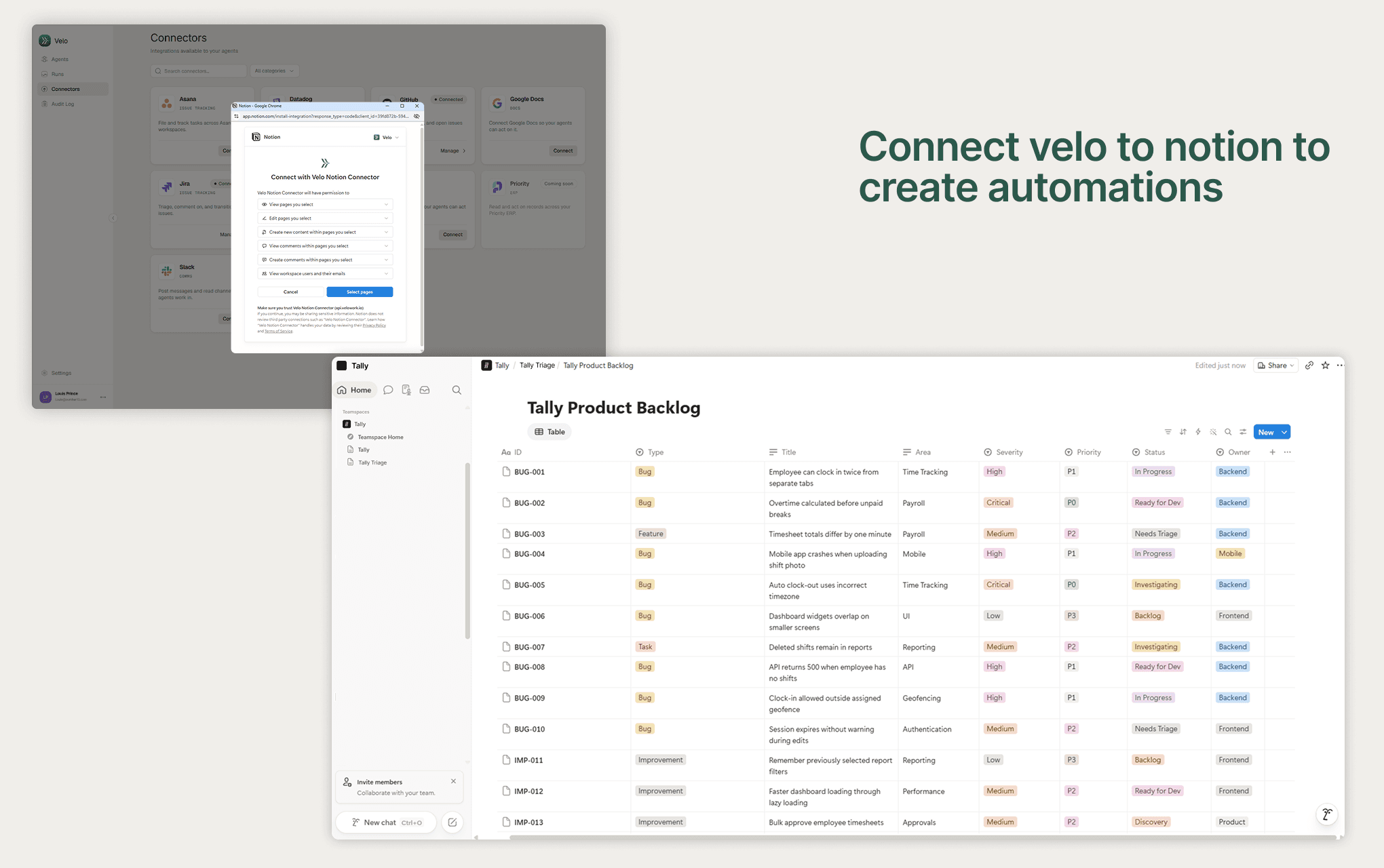
Connect Velo to Notion and your agents can read the pages, databases, and comments you share with them - then act. A new page in your "Requests" database kicks off an agent. A comment on a spec becomes a follow-up task. A properties change on a tracker row triggers the next step.
Agents don't stop at Notion. The same run can open a pull request on GitHub, post to Slack, or move a Jira ticket - then come back and write the result into the page that started it, as Velo.
What you can build
- Intake — a page in a database becomes a scoped, assigned piece of work.
- Docs that maintain themselves — an agent updates specs and status pages as the underlying work changes.
- Comment-driven follow-through — ask for something in a comment; the agent picks it up and replies when it's done.
- Cross-tool handoffs — Notion is the front door; the work lands in GitHub, Slack, or Jira.
How access works
Velo connects as a bot user, so anything it creates is attributed to Velo - never to you. It only sees pages you explicitly share with the connection, and you choose which agents get Notion access at all. Revoke it from your workspace's connections at any time.
Features
- Read, insert and update contentCan read, insert and update pages, databases and blocks shared with this connection.
- Read and add commentsCan read and add comments on the pages and blocks it can access.
- View workspace usersReads basic profile details about workspace members and guests, including their email addresses.
How to use
1. Create your Velo workspace.
Sign up at velo.example and invite your team. You'll need a Velo account before connecting Notion.
2. Connect Notion.
In Velo, go to Connectors, find Notion, and click Connect. You'll be sent to Notion to authorize - pick the workspace you want Velo to work in, and select the pages you're happy for it to access. You can change this selection later.
3. Share the pages your agents should see.
Velo only sees what you explicitly share with it. On any page or database, open the ••• menu → Connections → Velo. Share a parent page and everything beneath it comes with it.
4. Build an agent.
Go to Agents → New, describe what the agent should do, and grant it Notion under Connectors. Then choose a trigger - a new page in a database, a page update, or a comment - and point it at the pages from step 3.
5. Try it.
Create a page or drop a comment where your agent is listening. Watch the run stream in under Agent runs, and check the page for the agent's reply.