
SummarizeVideoToText
About this agent
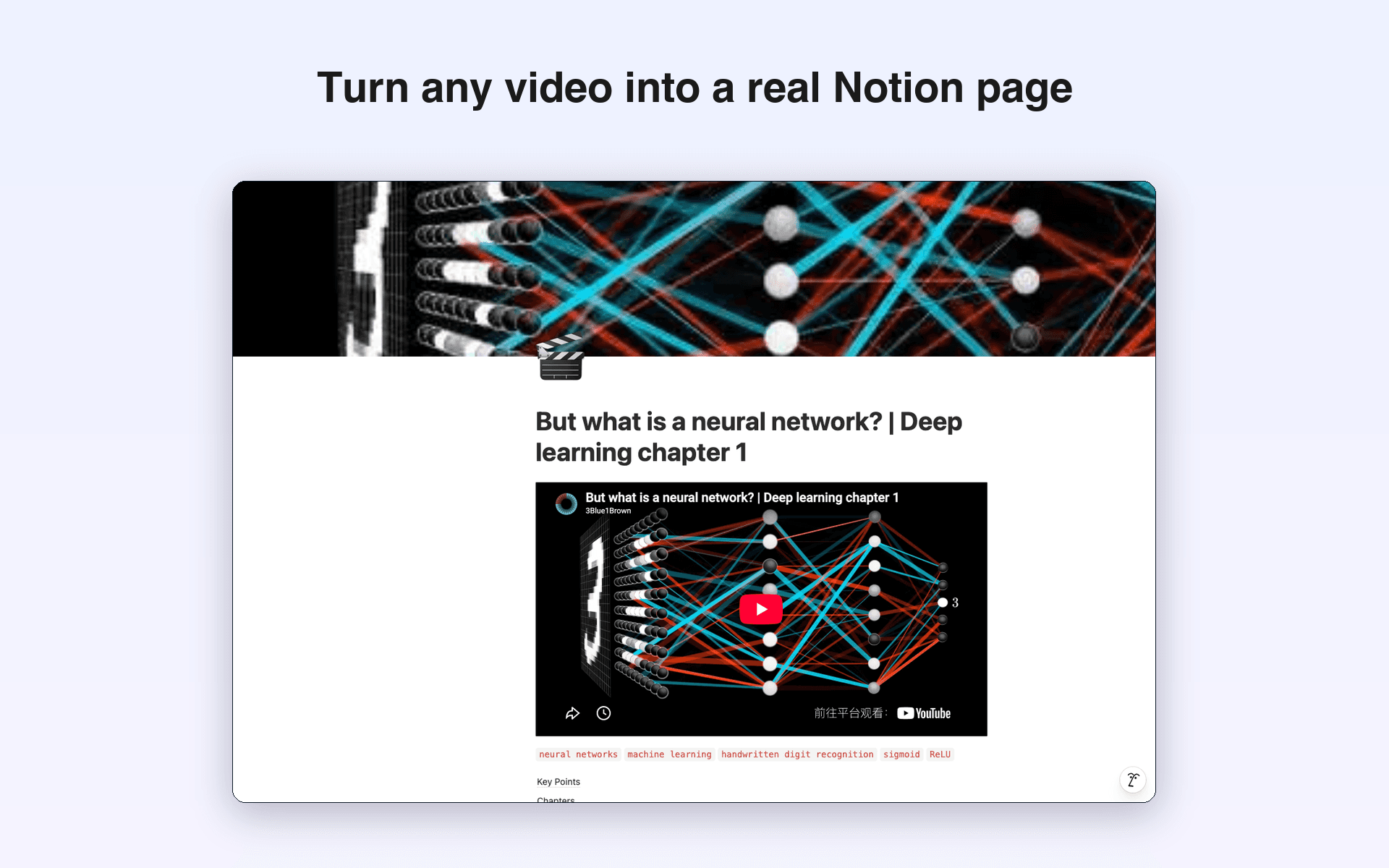
SummarizeVideoToText watches a video for you and sends the whole thing into Notion as a real page — built from real Notion blocks, not a wall of pasted text.
Paste a YouTube, TikTok, Instagram or X link (or upload your own video or audio file). Within seconds you get a TL;DR, the key insights, timestamped chapters and the full transcript. One click on Export → Notion and all of it lands in your workspace.
What the exported page contains
- Cover and icon
— the video thumbnail becomes the page cover, with 🎬 as the icon, so it is recognisable at a glance in a list. - The video itself
— a YouTube link becomes an embedded player you can watch without leaving Notion. TikTok, Instagram and X links become a bookmark card, because Notion cannot play those inline. - Table of contents
— a real Notion table-of-contents block, so a two-hour talk stays navigable. - TL;DR
— the one-paragraph version, in a 💡 callout at the very top. - Key insights
— a numbered list: the point in bold, the explanation underneath. - Chapters
— one heading per chapter with its start and end time, then bullets. Every timestamp links back to that exact second of the original video. - Questions you asked
— anything you asked in the Q&A tab travels with the export, each answer folded into a toggle. - Full transcript
— last and collapsed by default, each line keeping its own timestamp link.
The order is deliberate: what you actually want to read sits at the top, and the raw material sits at the bottom where you can still reach it.
What the connection can and cannot do
- It authorizes through Notion's own OAuth flow. We never ask for your Notion password.
- It can reach
only the pages you explicitly shared
during authorization, plus the pages it creates itself. The rest of your workspace stays invisible to it. - It asks for read content, update content, insert content, and read user information — the last one only so the app can tell you which workspace you connected.
- It never overwrites anything.
Each export creates one new page under the parent you picked. Existing pages are never rewritten, reorganized or deleted. - We store the access token encrypted at rest (AES-256-GCM), your workspace name and icon, and the parent page you chose. The contents of your Notion pages are never copied to our servers.
- You can revoke it any time from Notion: Settings → Connections → SummarizeVideoToText → remove. The token stops working immediately.
Connecting Notion and exporting to it are free, and an export does not spend any of your summary quota — it only sends content you have already generated.
Features
- Read, insert and update contentCan read, insert and update pages, databases and blocks shared with this connection.
- View workspace usersReads basic profile details about workspace members and guests, including their email addresses.
How to use
1. Create a free SummarizeVideoToText account. A free account is enough; connecting Notion costs nothing.
2. Connect your workspace. Open https://summarizevideototext.com/notion and click Connect Notion — or open any video and choose Export → Connect Notion. Notion asks which pages to share: pick one page to act as the parent. Every page we create lands underneath it. Notion then hands you back to where you started and the export carries on by itself.
3. Summarize a video. Paste a YouTube, TikTok, Instagram or X link on the homepage, or upload a video or audio file. The TL;DR, key insights, chapters and transcript appear within a few seconds. Optionally ask questions in the Q&A tab — everything you ask travels with the export.
4. Send it to Notion. Open the Export menu and choose Export to Notion. When the page is written you get a link straight to it, along with the name of the parent page it landed under, so you never have to hunt for it in your sidebar.
If nothing was shared during authorization, the export stops and tells you, instead of quietly writing into nowhere. To fix it: open the page you want in Notion, click ··· in the top right, choose Connections, and add SummarizeVideoToText. Then run the export again.
Long videos take a moment — a transcript of several hundred lines is written in batches, because Notion accepts a limited number of blocks per request. The button tells you it is still working.
Full walkthrough, screenshots and FAQ: https://summarizevideototext.com/notion