 Marcin Czech
NeuraCache
About this agent
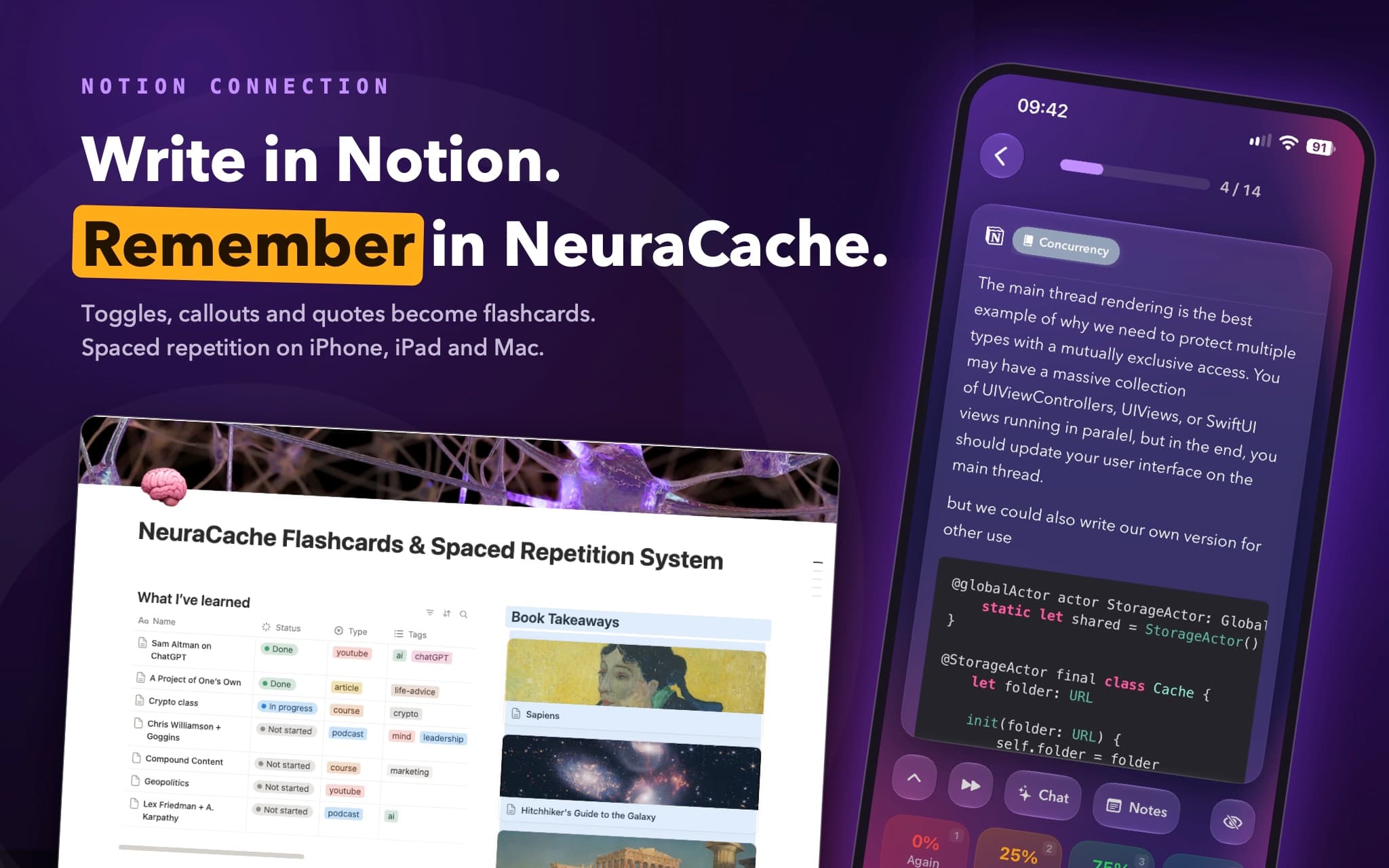
NeuraCache turns the Notion blocks you share into a daily queue of insights, reviewed with spaced repetition. Toggles, callouts and quotes become cards; database rows can too. Review them in the NeuraCache app on iPhone, iPad and Mac. Connect once, pick the pages and databases to share, and nothing else in your workspace is touched.
Features
- Read contentCan read pages, databases and blocks shared with this connection.
How to use
1. Get NeuraCache on your iPhone, iPad or Mac from the [App Store](https://apps.apple.com/app/neuracache/id1364898494), then open Cards → Sources → Notion.
2. Tap Connect Notion, sign in, and tick the pages and databases you want to share. That's it — no developer portal, no token, and nothing else in your workspace is touched.
3. Write cards in Notion. On any shared page, a toggle becomes a flashcard (the question on the toggle, the answer inside it); a callout or a quote becomes a card too. In a database, the row's title is the front and a Text column is the back — or put toggles inside each row's page and NeuraCache works out which you're using.
4. Back in the app, open Select Pages or Select Databases, turn on Observe for the ones you want, and tap Sync. Your cards appear in the Notion section of the Cards tab, ready for review.
5. Edit in Notion any time — the next sync updates the cards, and your review history stays with them.
Not sure how to lay out a page? Duplicate the [NeuraCache Notion template](https://www.notion.com/templates/neuracache) — it comes with pages and databases already shaped the way cards are read. Full guide: [How to use Notion with NeuraCache](https://neuracache.com/notion-flashcards).
Details

- Productivity
- Automations