CertFusion
CertFusion
About this agent
CertFusion turns a Notion database into verified digital certificates. Keep your course graduates, workshop attendees, members or volunteers in Notion, connect CertFusion, and issue personalized certificates to every row in a few clicks.
How it works
1. Connect your Notion workspace and choose the databases to share.
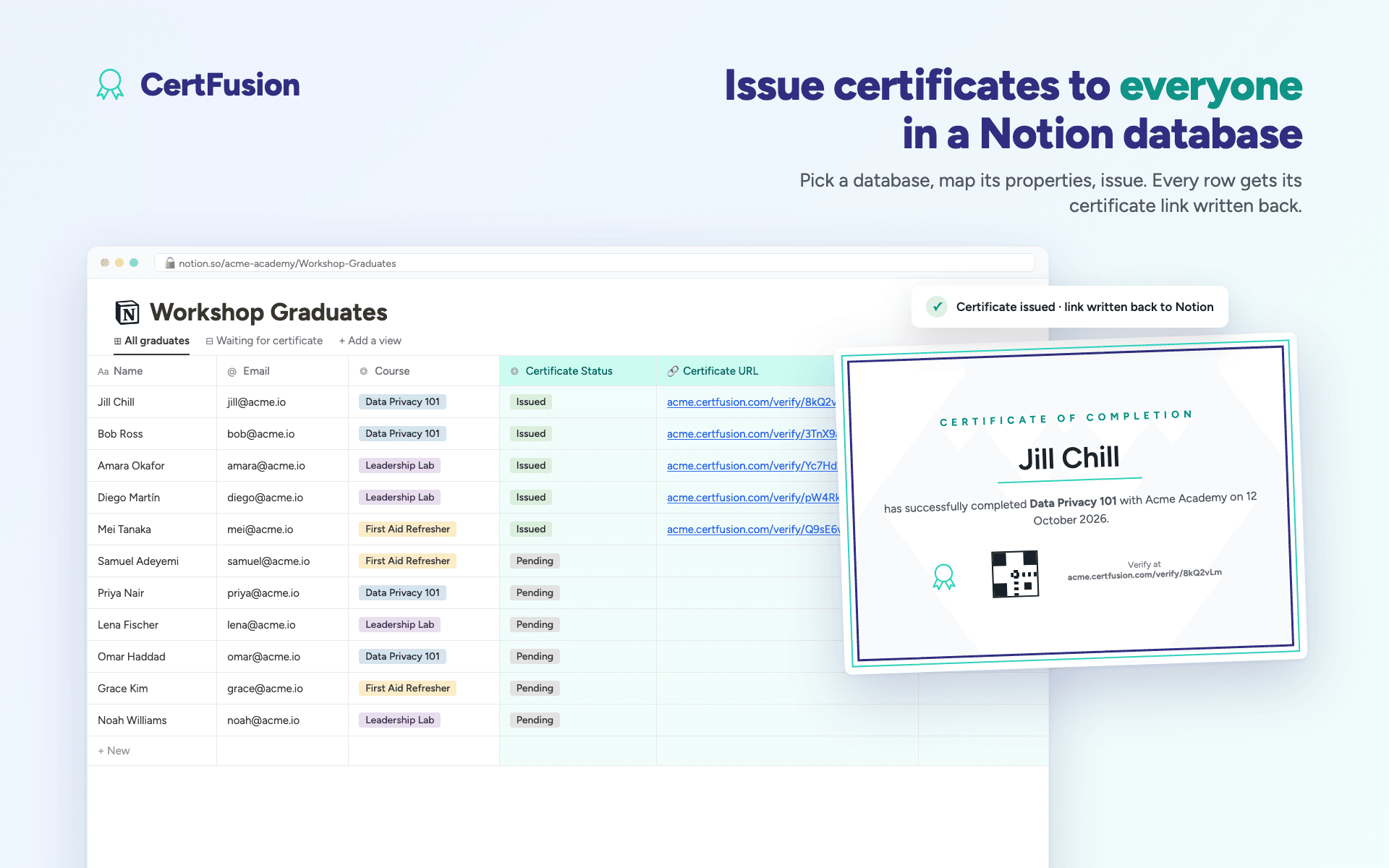
2. In CertFusion, pick a certificate design, then pick the Notion database. CertFusion matches your Email and Name properties automatically and lets you map any other property, such as course name, score or completion date, onto your certificate.
3. Import the rows and issue the certificates. Each recipient gets a PDF certificate by email with a public verification page and QR code.
4. CertFusion writes the results back to Notion. Three properties are added to your database: Certificate URL, Certificate Status and Certificate ID. They are filled in for each row as its certificate is issued.
Re-run the import whenever you add rows. Rows that were already imported are skipped, so nothing is issued twice.
What CertFusion can do with your data
CertFusion only sees the pages and databases you select. It reads the rows you choose to import and updates only the three properties it creates. It never changes any other content in your workspace. Recipient names, emails and mapped fields are sent to CertFusion to generate the certificates. Access tokens are encrypted at rest, and you can disconnect at any time from CertFusion or from Notion's Connections settings.
Supported properties
Title, text, email, URL, phone, number, select, status, multi-select, date, people, checkbox, formula, rollup and ID properties can all be mapped onto a certificate.
Requirements
A CertFusion account is required. Certificate designs are created in CertFusion's editor, or start from one of the free templates. Setup guide: https://certfusion.com/notion
Features
- Read, insert and update contentCan read, insert and update pages, databases and blocks shared with this connection.
- View workspace usersReads basic profile details about workspace members and guests, including their email addresses.
How to use
1. Sign in to CertFusion at https://certfusion.com and open Manage Integrations. Click Connect next to Notion.
2. Notion asks which workspace to use and which pages to share. Click Select pages, tick the databases that hold your recipients, and click Allow access. Only the databases you select are visible to CertFusion.
3. Open a certificate design, click Add Recipients, then choose Notion. Pick your database from the list. (Not listed? In Notion, open the database, click ••• → Connections, add CertFusion, and click Refresh.)
4. Click Preview Rows. CertFusion matches your Email and Name properties automatically. Map any other property, such as course, date or score, onto a [custom.field] placeholder in your design. Keep "Write certificate links back to Notion" ticked.
5. Click Import. list as a draftrecipient. Rows imported earlier are skipped, so you can re-run the import
6\. Issue the certts page,individually or in bulk. Each recipient receives a PDF certificate by emtion page and QRcode.
7. Watch Notion. As each certificate is issued, CertFusion fills in three prificate URL,Certificate Status (Issued) and Certificate ID. Use them in your own Notion vions.
Full guide with screenshots: https://certfusion.com/notion
Questions: [email protected]