ActionMind

ActionMind
About this agent
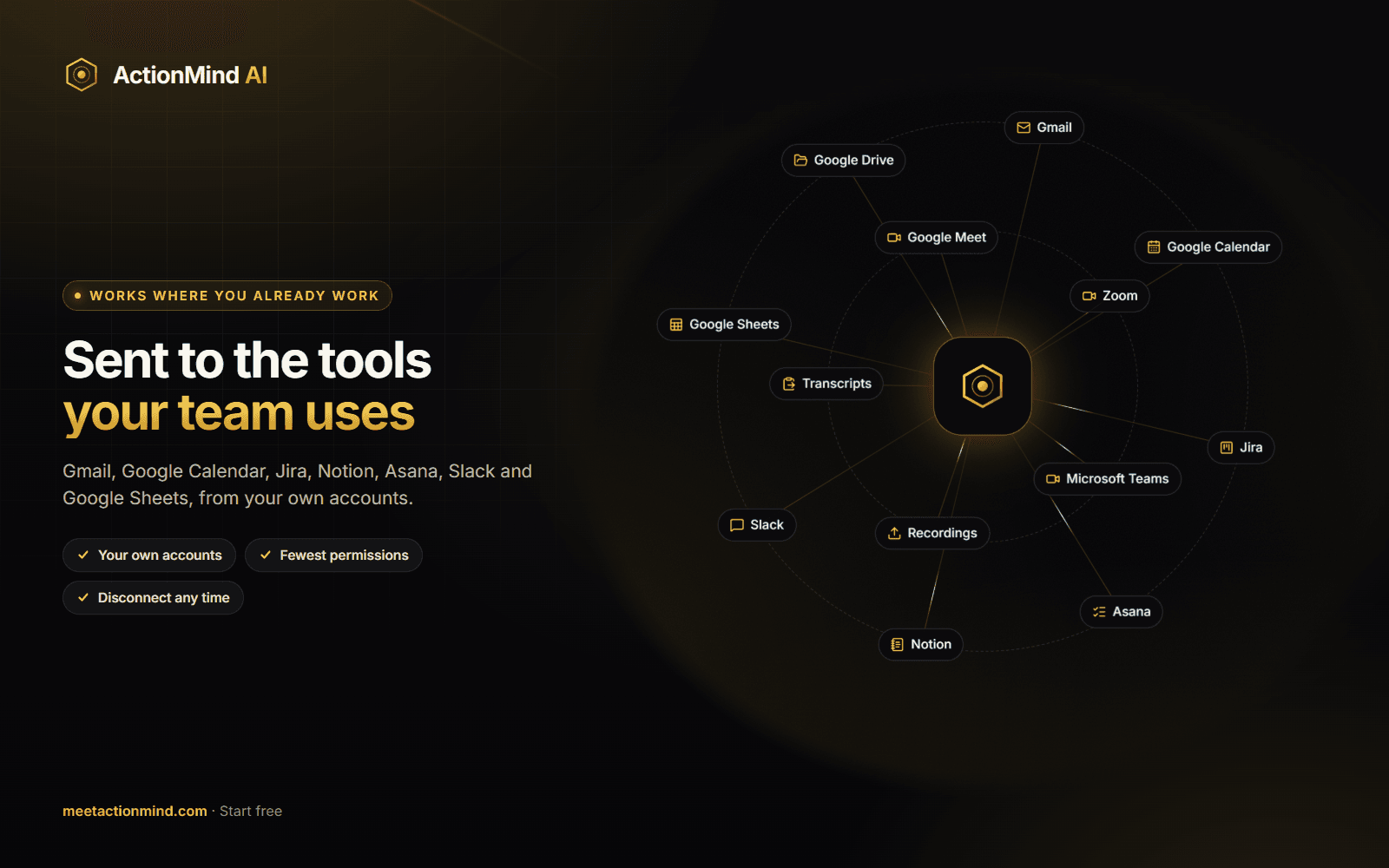
ActionMind joins your Google Meet, Zoom or Microsoft Teams meetings, writes the transcript in 90+ languages, and finds what was decided: who does what, by when. Once you approve a task, it becomes a row in your Notion database.
What it does in Notion:
• Rows from meetings: each approved task becomes a page in the database you choose, with its title, owner, due date, priority and status, and what was said in the meeting inside the page.
• Your own table: use the database your team already has; ActionMind matches its columns to yours. Or let it create a tasks database on a page you share.
• Updates, not duplicates: a change agreed in a later meeting updates the same row, and a task said again is a follow-up, never a second row.
• Both ways: mark a task done in Notion and ActionMind sees it; mark it done in ActionMind and its row follows.
You stay in control:
• Nothing is written until you approve it.
• ActionMind sees only the pages and databases you share with it, and writes only to the database you chose and the rows it created.
• A column or status your team changed in Notion wins over ActionMind's next update.
• If someone changes the database's columns, ActionMind holds its rows and asks you to match them again, instead of writing in the wrong place.
Works with every Notion plan, the free one too. Notion comes with ActionMind's Pro and Team plans and with the 14-day trial every new account starts with (no card needed).
Features
- Read, insert and update contentCan read, insert and update pages, databases and blocks shared with this connection.
- View workspace usersReads basic profile details about workspace members and guests, including their email addresses.
How to use
1. Create your free ActionMind account at https://meetactionmind.com (no card needed).
2. In ActionMind, open Settings → Connections → Notion and click "Connect with Notion".
3. On Notion's page, share your tasks database with ActionMind (or a page where ActionMind can create one), then choose it. If it is your own table, match its columns (title, owner, due date, status).
4. In Settings → Preferences, choose Task tracker: Notion.
5. Bring ActionMind to your next meeting (or upload a recording or transcript). Each task you approve becomes a row in your Notion database.
To disconnect, use Settings → Connections in ActionMind, or remove ActionMind in Notion's Settings → Connections.