About
PrinterFlo is shop management software for sign and print shops: quotes, orders, proofs, payments and production in one place. This connection keeps a Notion database up to date with your shop's work.
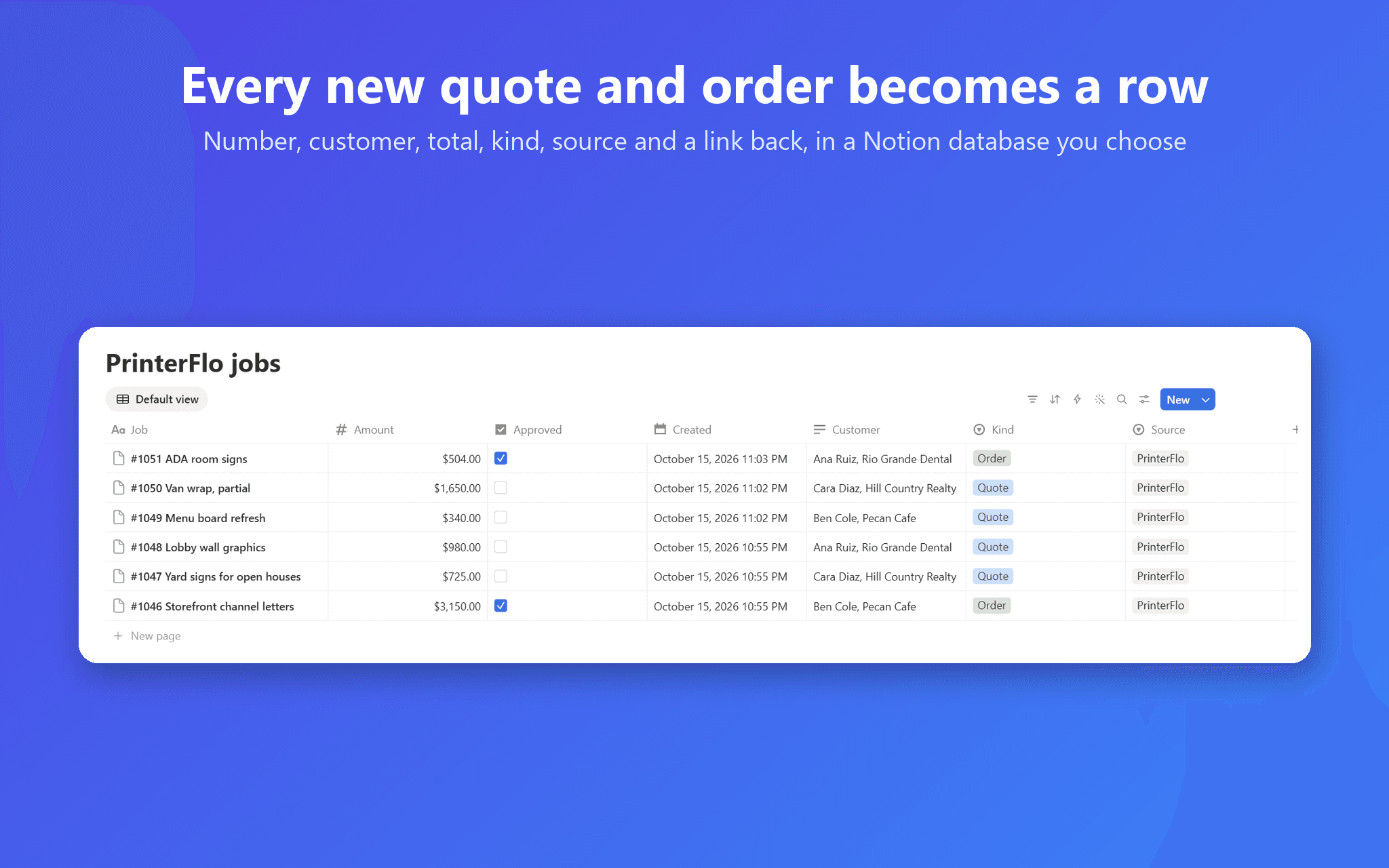
Every new quote and order becomes a row: the job number and title, the customer and company, the email and phone of the person it's for, the total with discount and tax, where it came from (typed in, your website quote form or your online store), the PO number, when it was created, and a link back to the job in PrinterFlo. When a customer approves a quote, its row is ticked; when a quote becomes an order, the same row says Order.
Use a database you already have, and PrinterFlo fills its title and any column named Number, Kind, Approved, Customer, Email, Phone, Amount, Source, PO, Created or Link, never adding or renaming columns. Or pick a page and PrinterFlo creates a "PrinterFlo jobs" database there with all of them.
It's one way: PrinterFlo writes rows and reads only the names and columns of the pages and databases you share with it. It never reads your other pages and never deletes anything. You need a PrinterFlo account to use it.
ฟีเจอร์
- อ่าน แทรก และอัพเดทเนื้อหาอ่าน แทรก และอัพเดทหน้า ฐานข้อมูล และบล็อคที่แชร์กับการเชื่อมต่อนี้ได้
How to use
1. Add PrinterFlo from this page, or in PrinterFlo open Settings, Integrations, Notion and press Connect Notion.
2. In Notion's window, choose the page or database PrinterFlo may use, then press Allow access. If you started here, sign in to PrinterFlo and press Finish connecting.
3. Back in PrinterFlo, pick a database you shared, or a page where PrinterFlo creates a "PrinterFlo jobs" database.
4. Quote as usual: each new quote and order appears in Notion as it's created, and approvals and conversions update their rows.
To disconnect, press Disconnect Notion in PrinterFlo and remove PrinterFlo under Settings, Connections in Notion. Help: https://printerflo.com/integrations/notion/