

About
CustomGForm connects your customized Google Forms to a Notion database, automatically creating a new database entry for each submission collected through CustomGForm. Collect leads, customer feedback, event registrations, job applications, and support requests, then manage them where your team already works.
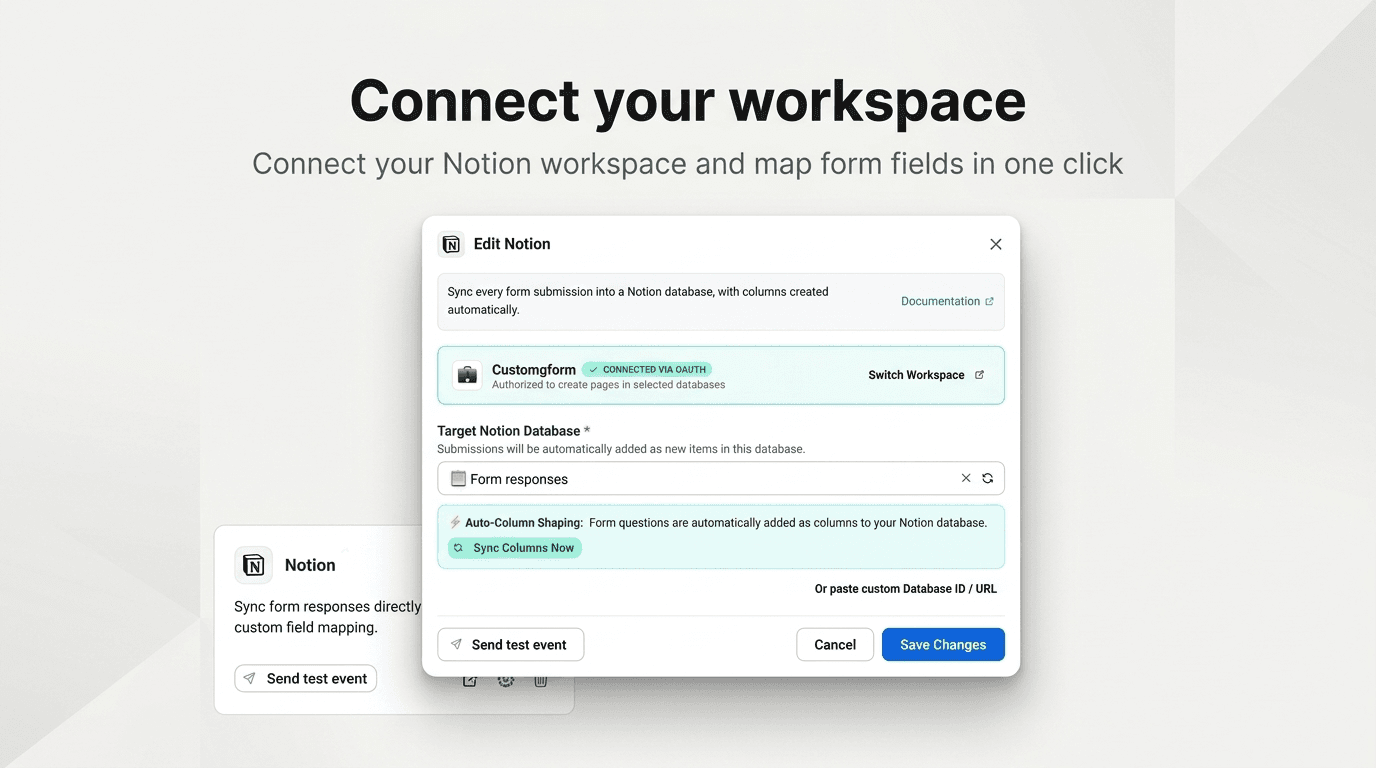
Connect your Notion workspace, choose a database, and let CustomGForm create columns from your form questions. Responses populate matching database properties, with the submission details included inside each page.
What you can do:
- Automatically send new form submissions to a Notion database.
- Create database columns from your form questions.
- Organize answers using text, email, phone, date, number, and choice properties.
- Customize the content of submission pages with response variables.
- Send a test submission to check your setup.
- Refresh database columns when your form questions change.
Build a lead pipeline, collect product feedback, or organize incoming requests without manually copying responses.
A CustomGForm account with a Starter or Pro plan is required.
Funktioner
- Läsa, infoga och uppdatera innehållKan läsa, infoga och uppdatera sidor, databaser och block som delas med den här anslutningen.
- Visa arbetsytans användareLäser grundläggande profiluppgifter om medlemmar och gäster i arbetsytan, bland annat deras e-postadresser.
How to use
- Sign in to CustomGForm and add your Google Form, or open an existing form.
- Open the Connect tab and select Notion.
- Click “Connect with Notion (1-Click).”
- Choose your Notion workspace and grant access to the pages or databases you want CustomGForm to use.
- Back in CustomGForm, select your target Notion database. Columns are created automatically from your form questions.
- Click “Send test event” and check that a test entry appears in Notion.
- Click “Connect Notion” or “Save Changes” to finish.
New submissions collected through your CustomGForm form will now create entries in your selected database.
If you change your form questions, click “Sync Columns Now” to update the database columns. If your database is missing from the dropdown, check its access permissions in Notion and refresh the list.
Details

- Marknadsföring
- Produktivitet
- Formulär