

Mais informações
Genaya is one AI operations platform for service businesses: scheduling, CRM, a call center with an AI receptionist, estimates, invoices and payments, accounting, marketing and websites. Clinics, advisory firms, agencies, field services and construction teams run their day in it.
The Genaya connection links one Notion workspace to a Genaya organization so the team can move documents both ways:
- Import a Notion page as a Genaya note. Paragraphs, headings, bulleted and numbered lists, to-dos, toggles, quotes, callouts, code blocks, dividers and tables come across.
- Export a Genaya note to Notion as a new page, created under a parent page you choose.
- An admin connects the workspace once for the whole organization. Every member with access to notes can then import and export.
Genaya only reads the Notion pages you share with the connection when you sign in, and it never changes a Notion page on its own: every import and export starts from a click in Genaya.
Recursos
- Ler, inserir e atualizar conteúdoPode ler, inserir e atualizar páginas, bases de dados e blocos compartilhados com esta conexão.
- Veja os usuários do espaço de trabalhoLê detalhes básicos do perfil sobre membros e convidados do espaço de trabalho, incluindo seus endereços de e-mail.
Como usar
1. Sign in to Genaya (Pro, Business or Enterprise plan, or the free trial). Notes must be on: Settings > Features > Notes.
2. Open Settings > Integrations > Docs Sync and click Connect Notion on the Notion card. In Notion, pick the pages and teamspaces Genaya may use and allow access. Notion connects once for the whole organization.
3. Optional: under Default page for exports, choose the Notion page that new exports are created under.
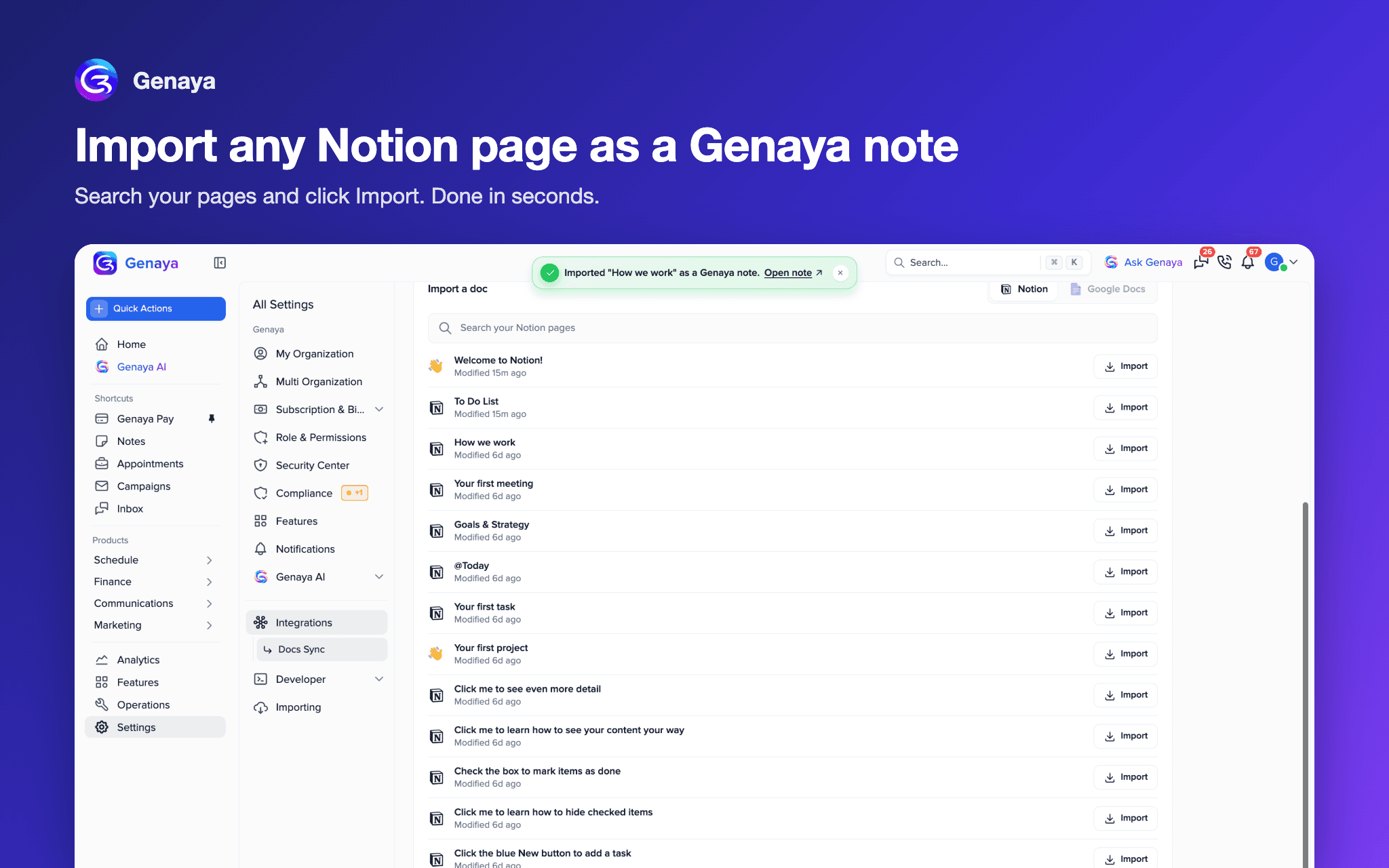
4. To import: under Import a doc (on Docs Sync, or the import button at the top of Notes), search for a Notion page and click Import. Click Open note to see it in Genaya.
5. To export: open any Genaya note, open its menu and choose Export to Notion. Genaya creates a new page; it never changes an existing one.
6. To disconnect: click Disconnect on the Notion card, or remove Genaya from your Notion workspace connections.
Detalhes

- Produtividade