
Nook Focused Reader
About
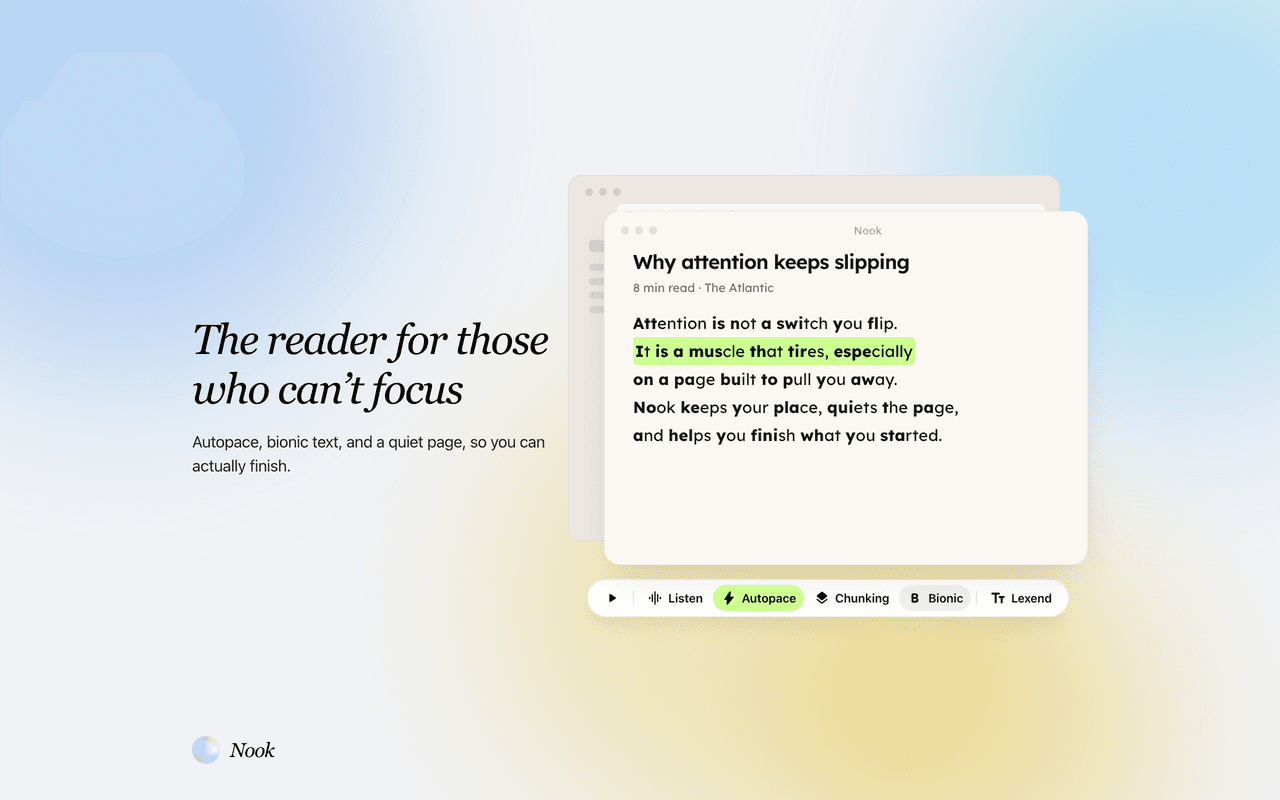
Nook is a focused reader for people who lose their place, reread the same line, or bounce off long pages. This connection brings Notion pages into Nook so you can actually finish them.
What it does
• Import pages you choose from Notion into your Nook library
• Open those pages in a distraction-free reader with autopace, line-by-line focus, bionic text, listen-along, and reading fonts
• Keep reading on the web, iPhone, or the Chrome extension, with progress synced across devices
How access works
Nook only sees pages you share with it during install. It does not scan your whole workspace. The connection is read-only: Nook imports the page to read. It does not edit Notion pages, add comments, or sync highlights back.
Who it is for
Writers, students, and researchers who draft or collect reading in Notion and then need a quieter place to get through it. Especially useful if you have ADHD, dyslexia, or just struggle to stay on the page.
Nook is a separate reading app. After you connect, pick pages in Nook and import them. A free trial is available at getnook.net with no credit card required.
Funksjoner
- Lese, sette inn og oppdatere innholdKan lese, sette inn og oppdatere sider, databaser og blokker som deles med denne tilkoblingen.
- Lese kommentarerKan lese kommentarer på sidene og i blokkene den har tilgang til.
- Vis brukere av arbeidsområdetLeser grunnleggende profilopplysninger om medlemmer og gjester i arbeidsområdet, inkludert e-postadressene deres.
How to use
1. Create a free Nook account at https://getnook.net (no credit card required).
2. Open Nook Settings, or visit https://getnook.net/api/integrations/notion/connect.
3. Click Connect next to Notion. Sign in to Notion if asked.
4. Choose which pages Nook can access. Nook can only import pages you share here. You can add more later from Notion → Connections.
5. In Nook, open Settings or your library and click Import from Notion.
6. Pick the pages you want to read. Nook copies the text into your library.
7. Open a page in Nook and turn on autopace, bionic text, line focus, or listen as needed.
To disconnect, use Disconnect in Nook Settings, or remove Nook from Notion → Settings → Connections.
Need help? Email [email protected]