
Ninecast
About
Ninecast turns the Notion database you already plan in into a live Instagram grid, and then publishes it.
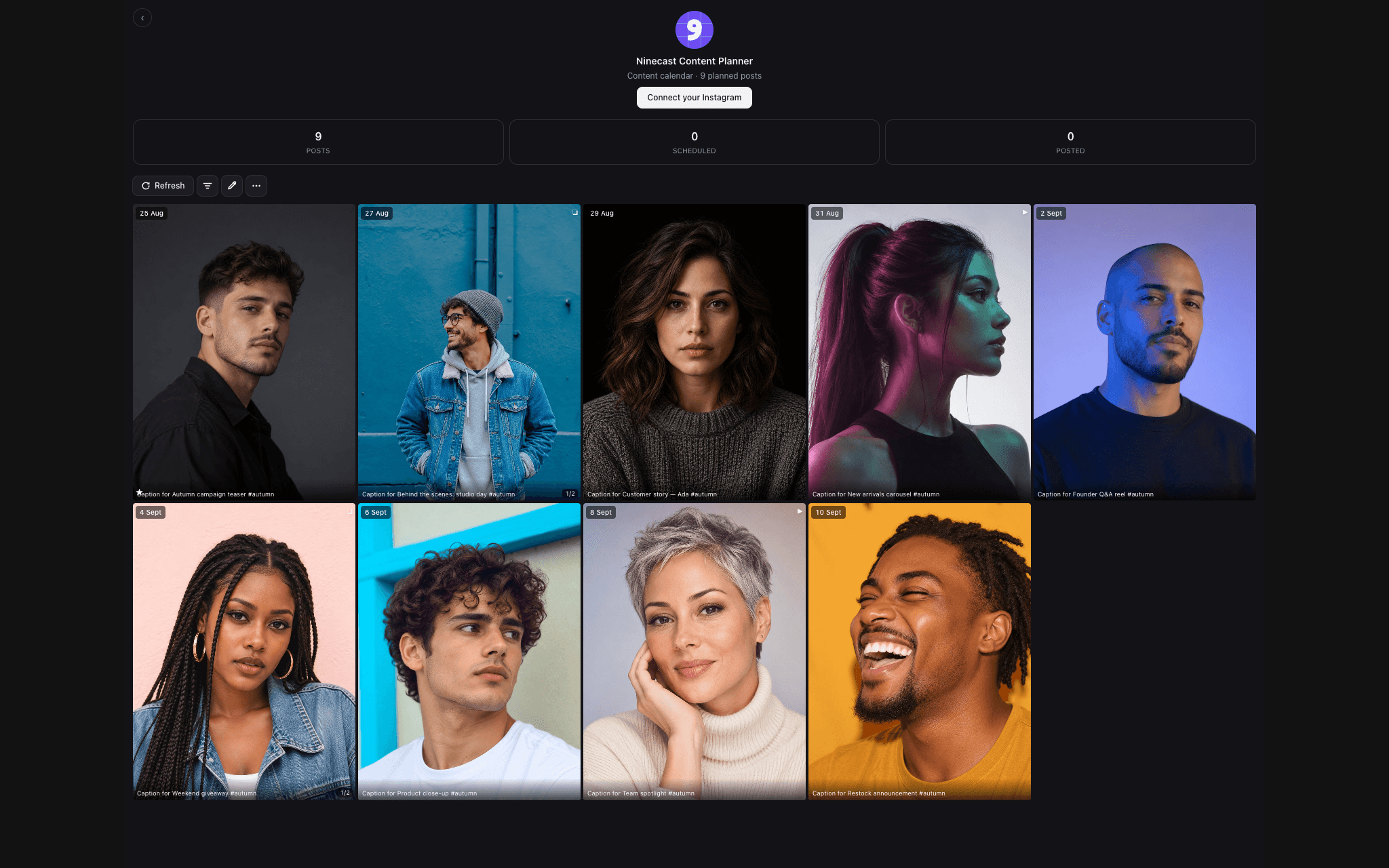
Paste one Ninecast link into your Notion page and a real three-across Instagram grid appears beside your content calendar, built from your own rows. Change a date, swap an image or edit a caption in Notion and the grid updates within a second. Drag one post onto another and they trade dates, written back into Notion.
When a row's date arrives, Ninecast publishes it to Instagram, Pinterest and LinkedIn: Instagram feed posts, carousels and Reels, image Pins on the board you choose, and LinkedIn posts. A Canva design link in the row can be the artwork. A Platforms column decides where each row goes; leave it empty and it goes to every account you have connected.
After a post goes out, its link is written into the row, and for Instagram the likes, comments, shares, saves, reach and views are written back too, so your Notion database records what happened, not only what you planned.
- Works with any Notion database: you map your own columns once, by property id, so renaming a column never breaks it.
- No Zapier, no Make, no second calendar.
- The grid preview is free forever. Paid plans start with a free trial and no card.
- Works with Airtable too, for teams whose calendar lives there.
Built by System Magic Studio Ltd, a company registered in England and Wales.
Funksjoner
- Lese, sette inn og oppdatere innholdKan lese, sette inn og oppdatere sider, databaser og blokker som deles med denne tilkoblingen.
- Vis brukere av arbeidsområdetLeser grunnleggende profilopplysninger om medlemmer og gjester i arbeidsområdet, inkludert e-postadressene deres.
How to use
1. Go to getninecast.com/start and start your free trial. You get a planner link.
2. In Notion, open the page with your content calendar, paste the link and choose Embed.
3. In the grid, press Connect Notion and choose the database that holds your posts. Confirm which column is the title, date, media and caption.
4. Open Settings in the grid and connect Instagram, Pinterest or LinkedIn.
5. Give a row a date. It publishes on that date, and the result is written back into the row.
Step-by-step guide with screenshots: https://getninecast.com/guide