

About
Humanlike is an AI hiring platform. Connect Notion so your AI recruiters and interviewers can work with the hiring pages you choose.
What it can do
- Read job descriptions, scorecards and interview kits from Notion
- Create a page for each candidate with notes and interview summaries
- Update candidate status and other properties in your hiring database
- Search and query your recruiting databases
- Add feedback to existing pages after an interview
Workflows
Start a Humanlike workflow when a page is created or edited, a database row changes or someone comments. For example, move a candidate to Interview in Notion and Humanlike starts the next hiring step.
Several workspaces
Connect as many Notion workspaces as you like, for example one per client if you recruit for several companies. Each sign in adds one workspace.
Use it from your AI tools
Add Notion to a Humanlike MCP server and use your hiring data from Claude, ChatGPT or Cursor.
Your data
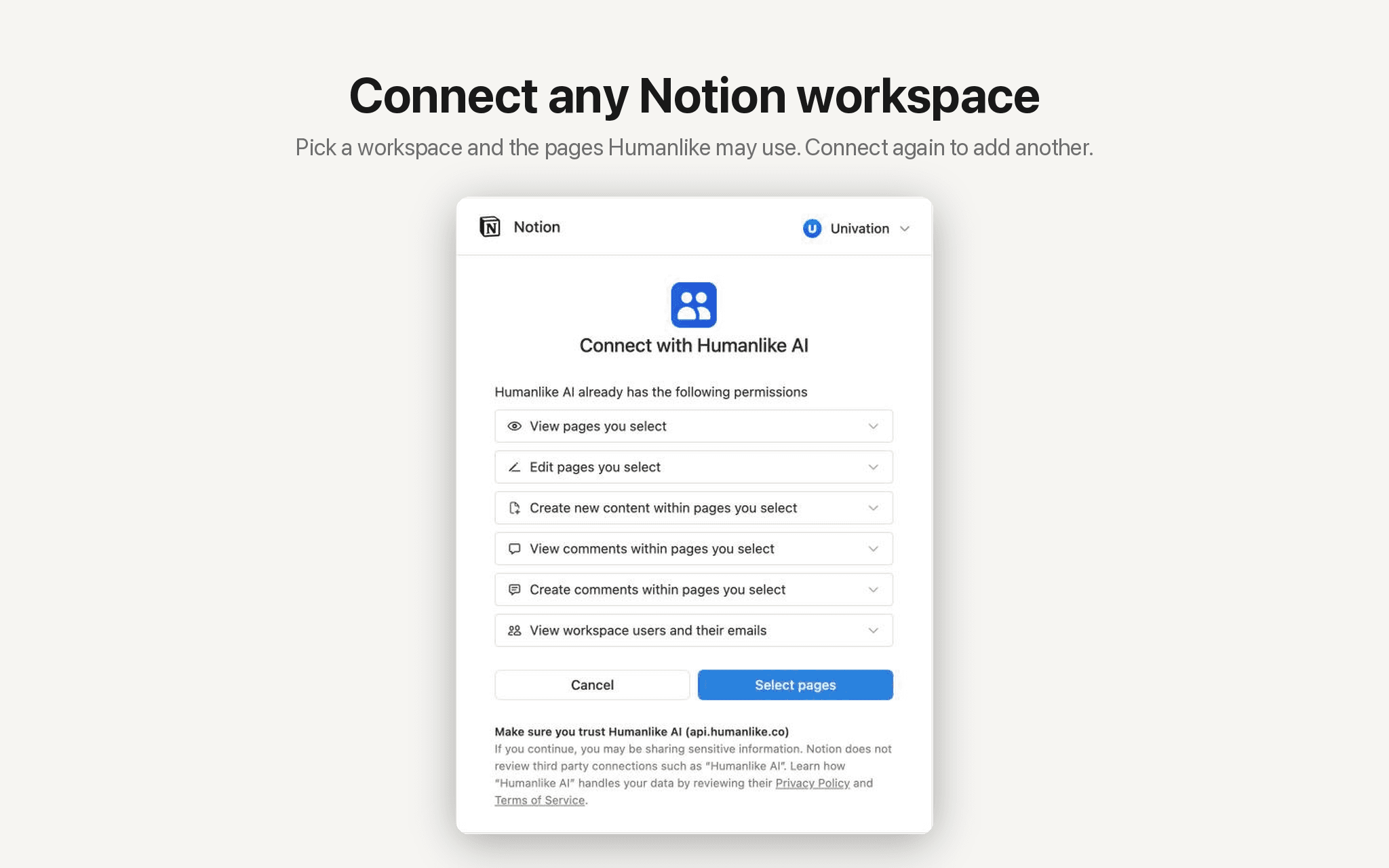
Humanlike only sees the pages you share during sign in. You can remove access at any time in Notion under Settings, Connections.
Funksjoner
- Lese, sette inn og oppdatere innholdKan lese, sette inn og oppdatere sider, databaser og blokker som deles med denne tilkoblingen.
- Lese og legge til kommentarerKan lese og legge til kommentarer på sidene og i blokkene den har tilgang til.
- Vis brukere av arbeidsområdetLeser grunnleggende profilopplysninger om medlemmer og gjester i arbeidsområdet, inkludert e-postadressene deres.
How to use
- Open
humanlike.co/integrations/notion/connect
and sign in to Humanlike, or create an account. - Notion asks which workspace to connect and which pages Humanlike may see. Choose them and click
Allow access
. - You return to Humanlike with Notion connected. Your AI coworkers can use it right away, and you can add Notion to a custom MCP server for Claude, ChatGPT or Cursor.
- To add another workspace, connect again and choose a different one.
- To start workflows from Notion events, open
Workflows
in Humanlike and pick a Notion trigger such as
Page created
.
