About
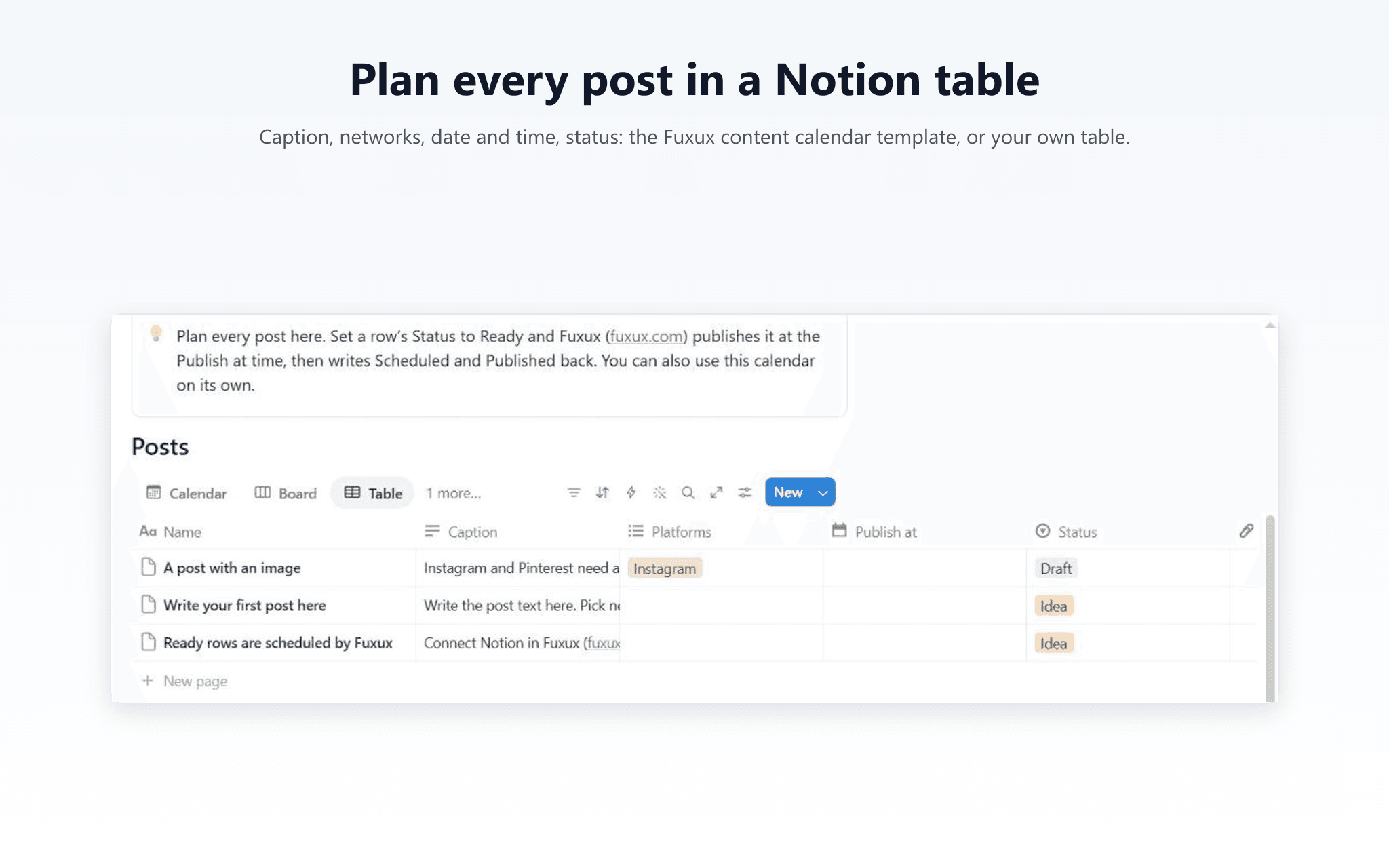
Plan your social media posts in a Notion table and let Fuxux publish them. Write the caption, tick the networks, pick a date and time, and set the row's Status to Ready. Fuxux schedules it and writes the result back to the row: Scheduled with a link to the post, then Published, or Failed with the reason.
Posts go to X, Instagram, LinkedIn, Facebook, Threads, Bluesky, Pinterest, Discord, Telegram and Slack. Images in the Media column (up to 4) are attached; Instagram and Pinterest need one. X is on paid plans, because X charges for every post.
What Fuxux does in your workspace: it reads only the pages you share with it, and it only changes the Status, Fuxux link and Fuxux note of rows it posted. It asks for no user information. One row is one post, never posted twice. The time in Publish at is used in the time zone you wrote it in.
When you connect, you can start from the Fuxux content calendar template (calendar, board, table and this-week views), or share your own table with the columns Caption, Platforms, Publish at and Status.
The Free plan includes 1 table, checked every hour, with no card. Paid plans check every 15 minutes and include more tables. Fuxux also schedules posts you write in its own composer, posts RSS feeds automatically, and works from ChatGPT and Claude.
Funksjoner
- Lese og oppdatere innholdKan lese og oppdatere sider, databaser og blokker som deles med denne tilkoblingen.
How to use
- Sign up at fuxux.com (Free plan, no card) and connect the social accounts you want to post to.
- In Fuxux, open Auto-posting, choose the Notion tab and click Connect Notion. On Notion's screen, pick the Fuxux content calendar template, or share your own content calendar page.
- Click Add a table, then pick the table and the accounts its rows may post to.
- In Notion, write a row: Caption, Platforms, Publish at (date and time). Set Status to Ready.
- Within 15 minutes (an hour on the Free plan) the row shows Scheduled with a link to the post, then Published once it's out. If a row can't be posted, it shows Failed and the reason in Fuxux note: fix it and set it to Ready again.
Full guide: https://www.fuxux.com/notion