Medusa IT
StageClock
About
A status in Notion says where a task is, not how long it has been there. StageClock records every status change in the databases you choose, from the day you connect, and turns them into reports your team can act on.
What you get:
- Time in status: average, median and 85th percentile time per status. Find the status where work waits.
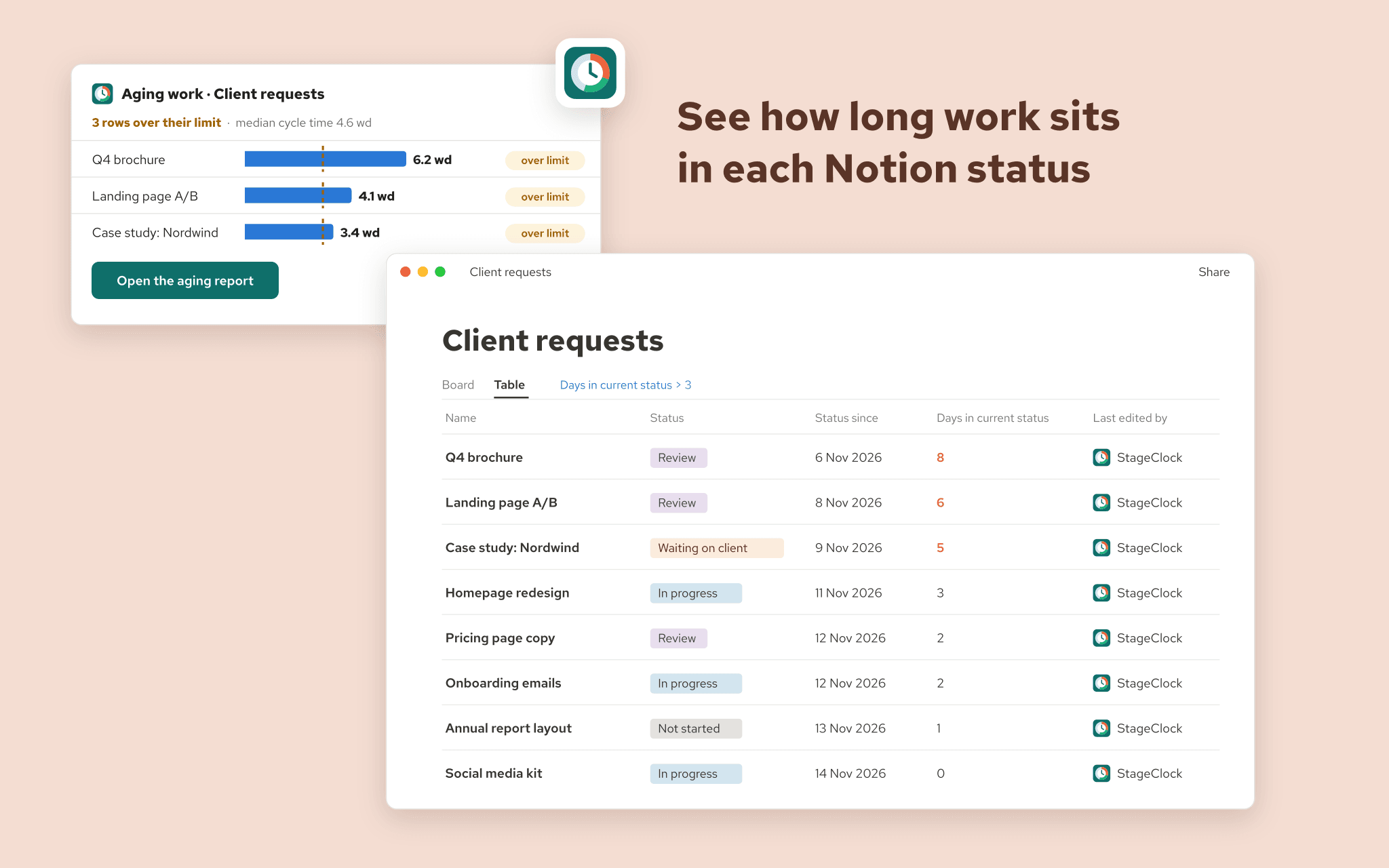
- Aging work: open rows sorted by how long they have been in their current status, against the limit you set.
- Cycle time and lead time: weekly trend and distribution, based on your own status groups (To-do, In progress, Complete). No configuration needed for a standard status property.
- Row timeline: every stay of one row, with its duration.
- Stuck-work alerts: set a limit per status. A daily email lists rows that crossed it, once per stay, not every day. Optionally StageClock comments on the page and mentions the assignee.
- Working calendar: count working days and hours only, with your holidays and time zone.
- Custom metrics, targets and forecast: time to first response, time waiting on the client, "cycle time within 5 days" with a goal, and when open work is likely to finish, from your own history.
- Weekly digest: a short Monday summary that names the bottleneck. Every figure is measured by StageClock; AI only writes the sentences.
- Back in Notion: optionally writes "Status since", "Days in current status", cycle and lead time into the database, so you can filter, sort and chart them there.
- Share reports with viewers and editors, export CSV, or embed a report in a Notion page.
How precise is it? Status changes are recorded from Notion's change notifications, to about a minute, with an hourly check as a safety net. Rows already in a status when you connect get an estimated start, clearly labelled. Every figure says how many rows it is based on.
StageClock only sees the databases you share with it. It stores row ids, statuses and timestamps (titles optional), never page content.
Free plan: one database, 30 days of reports. Team and Business plans add more databases, unlimited history, alerts, write-back, the working calendar, custom metrics, targets, forecast and the weekly digest.
Fitur
- Membaca, menyisipkan, dan memperbarui kontenDapat membaca, menyisipkan, dan memperbarui halaman, database, dan blok yang dibagikan dengan koneksi ini.
- Lihat pengguna ruang kerjaMembaca detail profil dasar tentang anggota dan tamu ruang kerja, termasuk alamat email mereka.
How to use
1. Click "Add to Notion" (or go to stageclock.medusa-it.app and click "Connect Notion").
2. On Notion's screen, choose the databases StageClock may use. Share the original database, not a linked view. You can change this later in Notion under Settings > Connections, or with "... > Connections" on a database.
3. In StageClock, click "Track a database" and pick it. StageClock proposes its status property and reads the status groups.
4. Optionally set limits for stuck-work alerts, the working calendar and write-back, then click "Start tracking".
5. StageClock records the current status of every row, then every change from now on. Aging work is available at once; the other reports fill in as rows move.
Help: https://stageclock.medusa-it.app/guide and https://stageclock.medusa-it.app/support