Use Custom Agents on Slack Enterprise Grid
Learn how to connect Custom Agents to Slack Enterprise Grid, choose the right workspace, and manage channel access securely.
מעבר לשאלות הנפוצותYou can connect Custom Agents to Slack Enterprise Grid, so your agents can securely read, respond, and take action across all the workspaces in your Slack org, not just a single workspace.
Each agent connects to one Slack workspace at a time, and only works in the channels you choose. In Slack, a workspace is sometimes called a team.
Make sure the following are in place before setting up Custom Agents with Slack Enterprise Grid:
Your company uses Slack Enterprise Grid. Your Slack enterprise ID starts with an
E. Your Slack admin can confirm this.Slack Enterprise Grid support is set up for your Notion workspace. Ask your Notion contact to set this up, and wait for confirmation before you create or update Slack-connected agents.
A workspace admin has connected the Slack workspace in Notion, and a workspace owner has allowed Custom Agents to read and post messages (steps below). No Custom Agent can use Slack until this is done.
A Slack Org Admin or Org Owner is available to approve the installation for your whole Slack org, plus any new permissions.
Use a Slack account with the same email address as your Notion account.
A workspace owner does this step. If your workspace is already connected to Slack Enterprise Grid, give Custom Agents permission to read and post messages. Until then, Custom Agents can only read in Slack.
In your sidebar, go to
Settings, then select theAI connectorstab.Find Slack in the list of connections, and select
Settings.Select
Configure accessbelow Custom Agents can view and post messages.
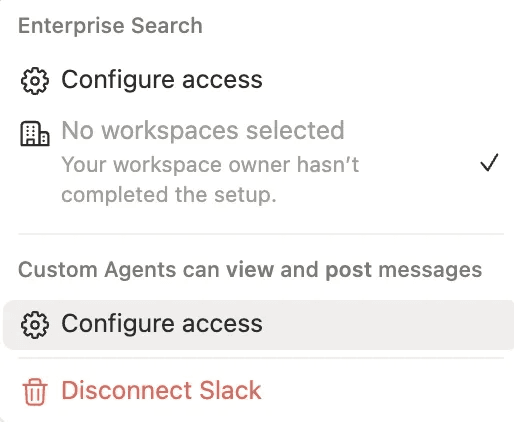
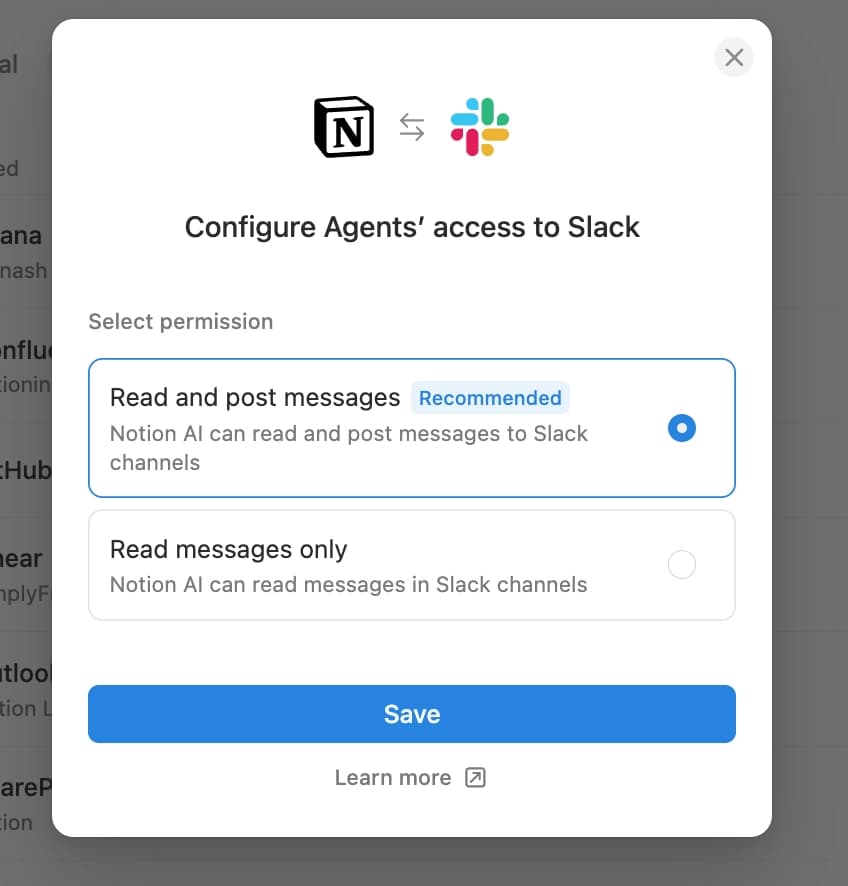
4. Select Read and post messages → Save.
5. When Slack sends you to the admin approval screen, the Slack admin must select your Organization, not an individual workspace. Selecting an individual workspace can cause connection errors.
When you connect Slack to a Custom Agent, you’ll choose one Slack workspace for that agent. If you pick the wrong one, you can disconnect and reconnect.
You can only connect the Slack workspaces you have access to. Connect with a Slack account that uses the same email address as your Notion account. If the emails don’t match, the agent’s triggers will fail without any error message.
Open your Custom Agent and go to
Settings.In
Tools and access, selectSlackto connect.Under
Organization name→ select the correct Slack workspace.
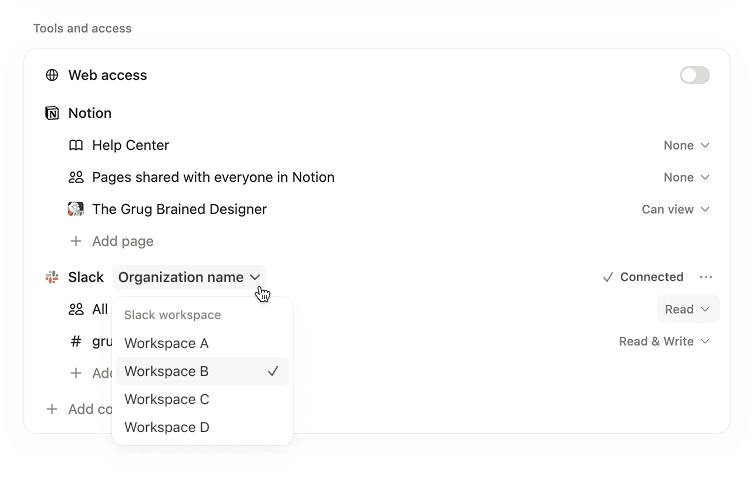
4. Choose which channels the agent can access, and update the triggers → Save.
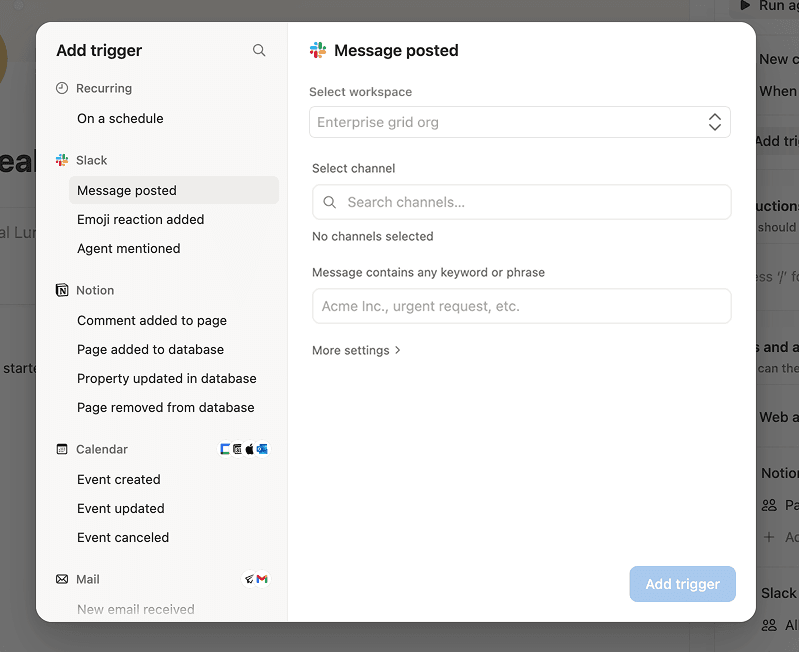
When it works, your agent shows as connected to the Slack workspace you picked and can respond in the channels you allowed.
If your Notion workspace was connected to a single Slack workspace and your team already uses Custom Agents with Slack, your existing connection won’t move over on its own. Agents can stop working or keep old connection settings until you finish the steps below.
Fully disconnect your current Slack connection. Go to
Settings→AI connectors→Slackand disconnect the single-workspace connection. Updating settings alone isn’t enough. Some settings are only saved when Slack first connects, so you need a full disconnect and reconnect.
Request Grid access from your Notion contact. Your Notion contact will turn on the Grid connection for your Notion workspace. You can’t proceed to the next steps until this happens.
Reconnect Slack at the organization level. A workspace owner whose Notion email matches their Slack email should reconnect, starting from the Slack workspace you want as the connection’s home workspace. When Slack asks, select your
Organization, not an individual workspace.Approve the installation in Slack. Your Slack Org Admin must approve the installation for your whole Slack org, plus any new permissions. Without this, agents can’t read or post messages.
Set permissions in Notion again. Follow the steps to update permissions so Custom Agents can
Read and post messages.Update each Custom Agent that uses Slack. Open the agent, reconnect and select the correct Slack workspace, then save its triggers again so they use the new connection.
Ask members to reconnect their personal Slack accounts if they use Slack with their personal agents.
Test before rolling out. Trigger one agent, for example by posting a keyword message in a connected channel, and confirm it reads and responds as expected.
If your agents still don’t respond after switching, disconnect completely and reconnect from the connection’s home workspace.
The agent can:
Read and post in the public channels you choose, in the one Slack workspace you connected.
Use org-wide channels that are shared with that workspace.
The agent can’t:
See private channels. If you see an
Enable access to private contenttoggle in your Slack connector settings, it doesn’t apply to Custom Agents on Grid.See your DMs in Slack Enterprise Grid.
Use Slack Connect channels with other companies.
Work in other workspaces in your org. To cover more workspaces, connect a separate agent to each one.
Work in channels outside the allowed list, even if the agent is shared with others.
Privacy
People without access to a Slack channel can’t see that channel’s messages through the Custom Agent.
People without access can’t see channel names through the Custom Agent’s configuration.
If you’re ever unsure, keep the agent shared to a smaller group and limit the Slack channels it can access.
שאלות נפוצות
Why don’t I see Slack as an option when setting up a Custom Agent?
Why don’t I see Slack as an option when setting up a Custom Agent?
Make sure an admin has connected the Slack AI connector first. Then, ask a Notion workspace owner to confirm Custom Agents are allowed to view and post messages in the Slack connector settings. Finally, confirm you’re on a plan that supports Slack with Custom Agents.
Who can install Custom Agents?
Who can install Custom Agents?
Only Slack Org Admins (or Organization owners) can approve the installation for your whole Slack org, and select which Slack workspaces are included. Individual workspace admins can still manage which channels the agent participates in within their workspace.
Will the agent have access to every channel in our Grid?
Will the agent have access to every channel in our Grid?
No. The agent only joins the public channels you invite it to. Each agent connects to one workspace in your Grid at a time, and can also use org-wide channels shared with that workspace.
Do members still need to connect their own Slack account?
Do members still need to connect their own Slack account?
Yes. The installation for your Slack org powers Custom Agents, but members may still need to connect their personal Slack account to confirm who they are.
Why can’t the Custom Agent see a channel I expected?
Why can’t the Custom Agent see a channel I expected?
Check whether the channel is included in the agent’s allowed channel list. Confirm you’re signed into the right Slack workspace. You can also manually add the Slack channel by URL if it doesn’t populate in your channel list.
Why can the Custom Agent post in one channel, but not another?
Why can the Custom Agent post in one channel, but not another?
The Custom Agent can only work in channels you explicitly allow. Add the channel to the agent’s Slack access, then try again.
How do I get more help or report a bug?
How do I get more help or report a bug?
Reach out to your Notion contact directly, or share feedback via the in-product feedback button. We’re actively monitoring feedback to improve quickly.