 Timothe AI
Timothe's Growth Calendar
Información
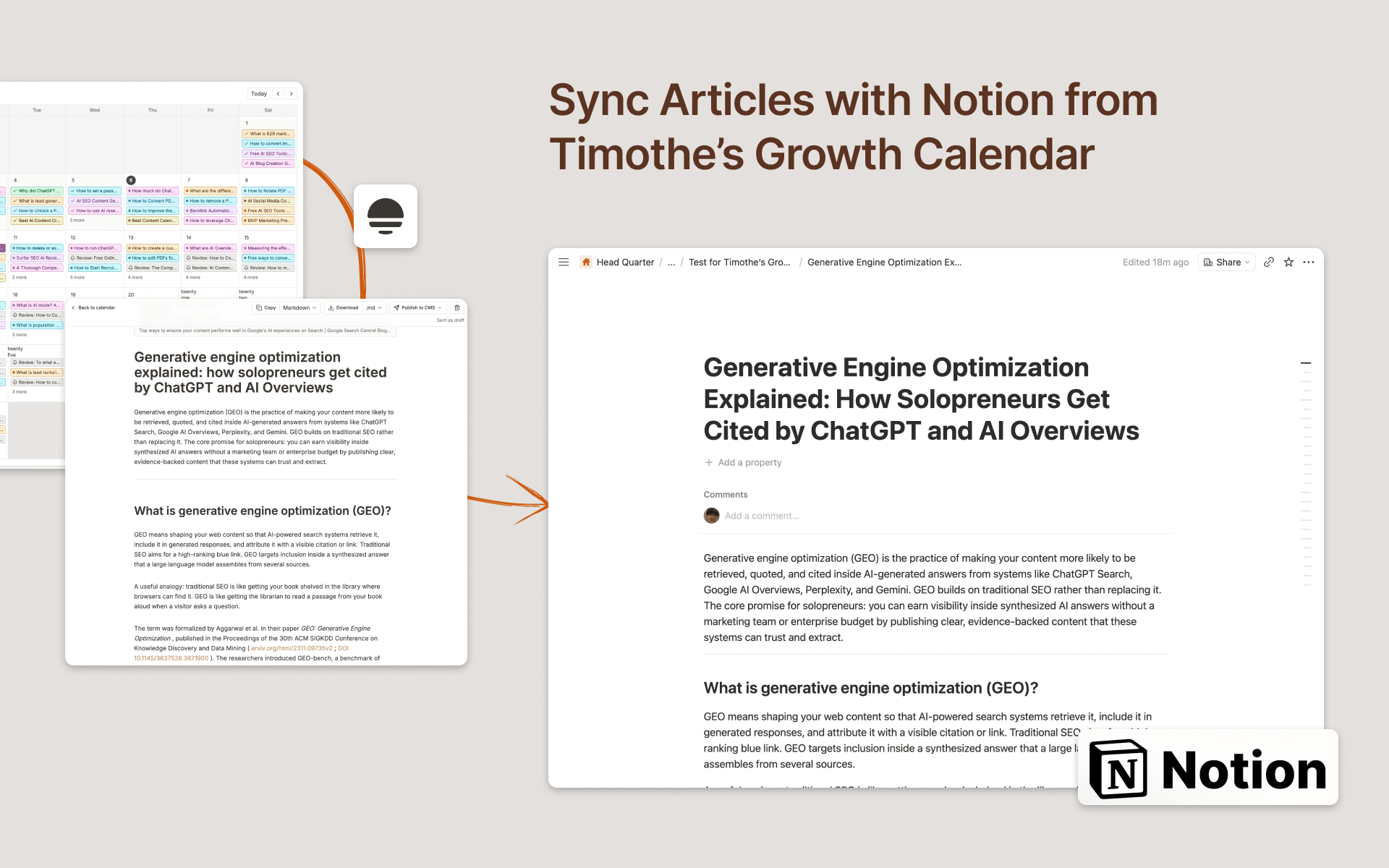
Timothe's Growth Calendar researches your market, plans months of SEO articles, and writes them on
schedule. This connection sends the finished ones into Notion as pages in a database you choose.
What it does
- Creates one page per article in the database you shared, with the body written as real Notion blocks rather than a wall of Markdown text.
- Writes only the title property. Status, tags, dates and any other columns you added are left untouched, so a database with your own workflow keeps working.
- Re-sending an article replaces the contents of the page it already created, instead of leaving a second copy behind.
- Sends every article as it is finished, or only the ones you pick, whichever you choose.
Two ways teams use it
- As a review queue
. Articles arrive in Notion, someone edits and approves them there, and they go live on your site afterwards. - As the place articles are published from
. if your site is built on Notion. Set a public site URL and articles link to each other at their real addresses.
What it can reach
- Notion grants access page by page. The connection sees only the pages and databases you tick while authorizing, and it uses that access to list the databases you can publish into and to write
articles into the one you picked. - Growth Calendar is part of Timothe and needs a Timothe account. Notion is one of its publishing destinations, alongside WordPress, Ghost, Shopify and webhooks.
Funciones
- Leer, insertar y actualizar contenidoPuede leer, insertar y actualizar páginas, bases de datos y bloques compartidos con esta conexión.
- Ver los usuarios del espacio de trabajoLee información básica del perfil sobre los miembros e invitados del espacio de trabajo.
Cómo se usa
To get started with Timothe, firstly.
- Sign in or Sign up to Timothe. here:
https://timothe.ai/growth-calendar - Open Growth Calendar. here:
https://timothe.ai/tools/growth-calendar/app - Select
CMS
in the top right, choose
Notion
, then
Connect
. - On the Notion screen, tick the database articles should go into. Notion only lets the connection see what you tick here.
- Back in Growth Calendar, pick that database and choose how articles are sent:
- manually
- automatically
- Open a generated article and select
Publish to CMS
to sync it to your notion database.
Full setup guide: https://timothe.ai/helps/growth-calendar/notion
Detalles
Creada por

Categoría
- Marketing
- Automatizaciones
Enlaces para desarrolladores