

Información
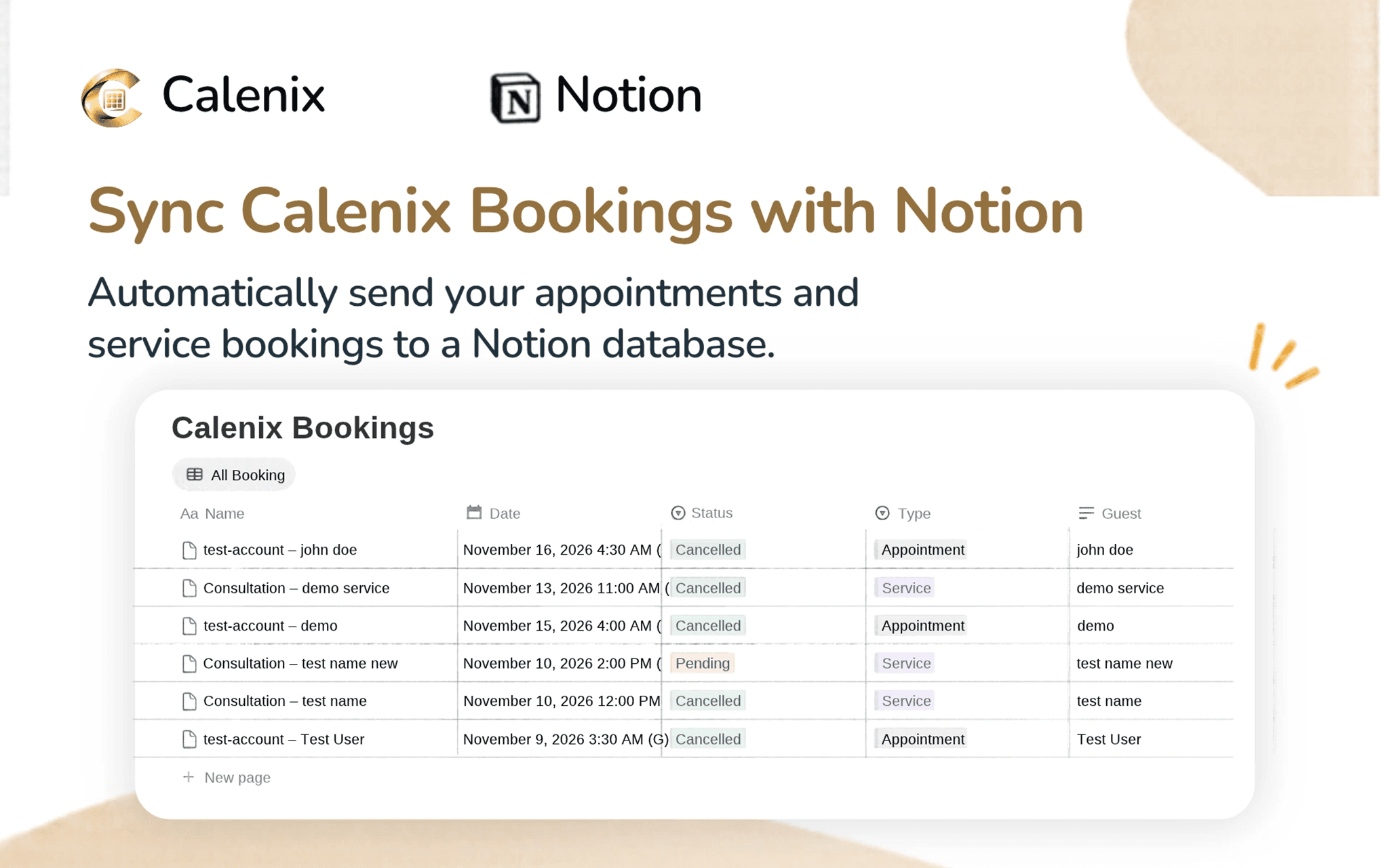
Manage Your Calenix Bookings in Notion
Connect Calenix with Notion and keep your appointment and service booking information organized in one place.
Key Features
- Automatic Booking Sync: Sync eligible appointment and service bookings from Calenix to your Notion database.
- Booking Updates: Automatically update existing Notion records when booking details change.
- Cancellation Sync: Reflect booking cancellations in your Notion database.
- Duplicate Prevention: Identify booking records using a unique Calenix ID.
- Guest Information Control: Choose whether guest email addresses and phone numbers are shared with Notion.
- Flexible Date Sync: Configure the date from which bookings should be synchronized.
- Secure OAuth Connection: Connect your Notion workspace using OAuth authorization.
How It Works
1. Sign in to your Calenix account.
2. Open the Productivity Integrations page.
3. Connect your Notion workspace using OAuth.
4. Create a new Calenix Bookings database or reconnect an existing database.
5. Configure your booking sync date and guest information preferences.
6. Calenix automatically synchronizes eligible appointment and service bookings with Notion.
Manage your bookings in Notion while continuing to use your existing Calenix booking workflow.
For support, contact [email protected].
Funciones
- Leer, insertar y actualizar contenidoPuede leer, insertar y actualizar páginas, bases de datos y bloques compartidos con esta conexión.
Cómo se usa
Getting Started with Calenix and Notion
Step 1: Sign in to Calenix
Log in to your Calenix account.
Step 2: Open Integrations
Go to the Integrations section and find Notion.
Step 3: Connect Notion
Click Connect and authorize Calenix through Notion.
Step 4: Choose Your Database
Create a new Calenix Bookings database using the provided Notion template, or reconnect an existing Calenix Bookings database.
Step 5: Configure Sync Settings
Choose your booking sync start date and decide whether guest email addresses and phone numbers can be shared with Notion.
Step 6: Automatic Synchronization
Calenix automatically syncs eligible appointment and service bookings with your selected Notion database.
You can manage your connection and sync settings from the Calenix Integrations page.
For help, contact [email protected].
Detalles

- Productividad