InfraNest

InfraNest
About
InfraNest brings everything a company runs online into one place: domains, DNS, SSL certificates, cloud servers and uptime monitoring, from more than 30 registrars, DNS hosts and cloud providers. When something breaks, it opens an incident and keeps track of everything that happens until it is fixed.
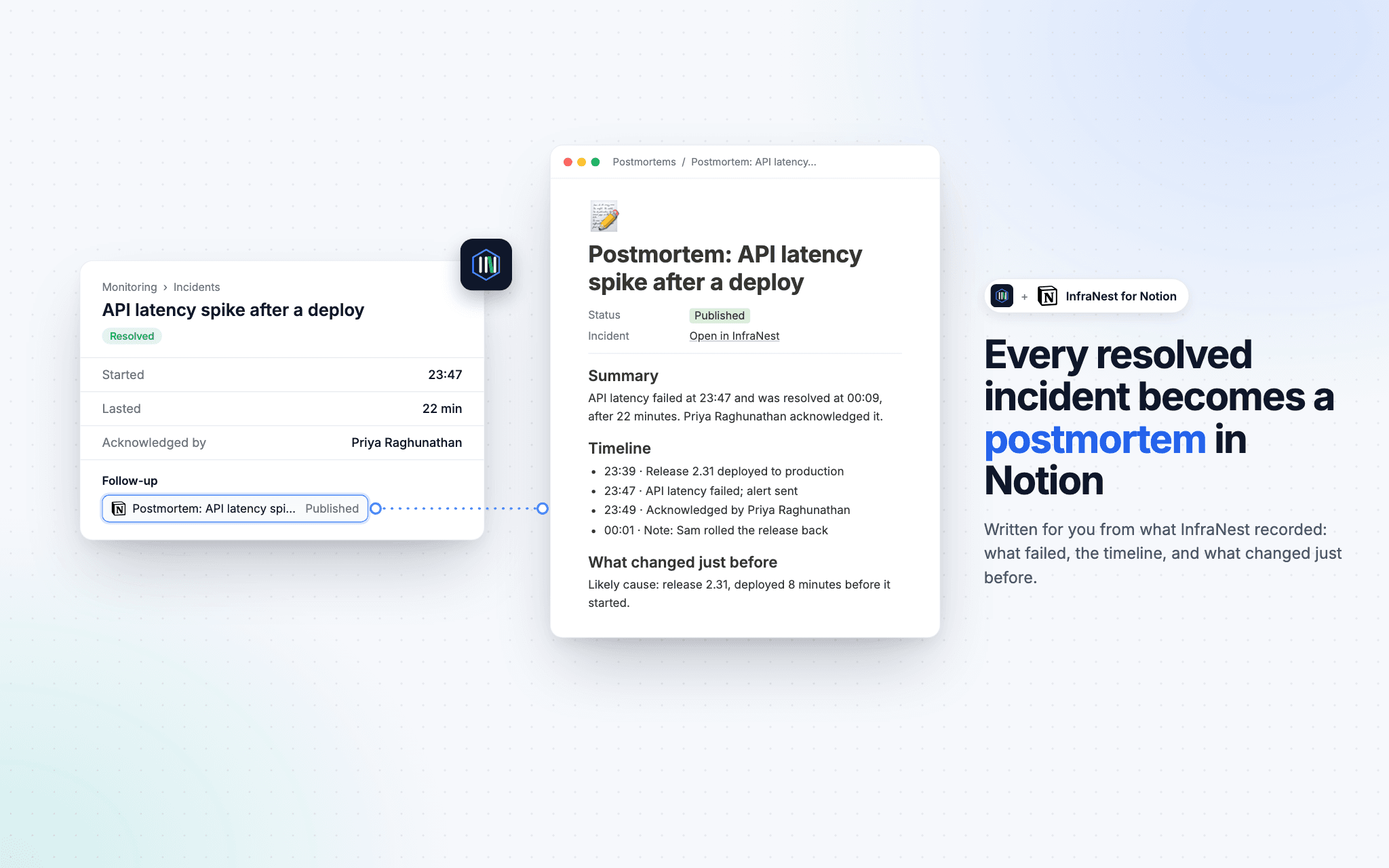
Connect Notion, and that record becomes your postmortem. Every resolved incident turns into a page in the Notion database you choose, already written from what InfraNest saw. Your team adds what it learned; the facts are already there.
A postmortem written for you
Say your checkout page went down for 18 minutes last night. The next morning there is a page called Postmortem: Checkout returning 503 in your database, with:
- Summary
: what failed, the impact, when it started and was resolved, how long it lasted, and who picked it up - What the team said
: the summary your team saved on the incident - Timeline
: the first failure, the alert, the acknowledgement and the recovery, with every team note, status page update and ticket, in your workspace's time zone - Linked tickets
: the Jira or Linear issues for the incident, with their latest status - What changed just before
: deploys, DNS edits and setting changes in the 30 minutes before it started, with the likely cause when there is one - Follow-up
: left for your team, what will change and who owns it
The page is written in your workspace's language, and its link opens the incident in InfraNest.
Your review, published to Notion
When your team writes the incident's review in InfraNest, the page is written from it: what happened, the impact, why it happened, and the follow-ups, each with its issue and status. Publishing again updates the same page, so there is never a second one, and every change saved after the review is finished reaches Notion a minute later. Already wrote a postmortem in Notion yourself? Link it to the incident instead.
You decide what gets a page
Every incident, only critical ones, or only the monitors you pick. Write a test page shows the result in your database before a real incident does. For anything more specific, such as only payment monitors or only weekdays, build your own rule with the Write a postmortem step, and post the page's link to Slack straight after.
Tasks from anything InfraNest notices
InfraNest automations can also file tasks in a Notion database: a certificate about to expire, a domain due for renewal, a server running out of disk. Fill any of your database's own columns (status, date, owner, options), comment on the task later, and set it to Done when the problem clears.
Only what you share
InfraNest sees only the pages and databases you choose on Notion's approval screen. It writes as its own integration, never in a person's name, so the connection keeps working when someone leaves your team.
Functies
- Content Lezen, invoegen & bijwerkenKan pagina's, databases en blokken lezen, invoegen & bijwerken die met deze koppeling zijn gedeeld.
- Opmerkingen ToevoegenKan opmerkingen toevoegen op de pagina's en blokken waartoe het toegang heeft.
- Workspace-gebruikers bekijkenLeest basisprofielgegevens over workspace-leden en -gasten.
How to use
- In InfraNest, open
Integrations
in the sidebar, choose
Notion
and select
Connect with Notion
. - Notion asks you to approve access and to choose which pages and databases to share. Pick the database you want postmortems written in. InfraNest can only see what you share here.
- You land back in InfraNest, connected. Under your connection, turn on
Postmortems
. - Pick the database, and choose which incidents get a page: all of them, only critical ones, or only the monitors you pick. Then select
Save changes
. - Select
Write a test page
. A real page appears in your database straight away, written from your most recent resolved incident, or from a clearly labelled sample if none has resolved yet.
That's it. From now on, every resolved incident gets its own postmortem page in Notion.
Filing tasks as well? Open Automations, build a rule and choose Create Notion task as the action. Pick the database, write the title, and fill any of its columns.
Nothing showing up in Notion? InfraNest can only write to databases you've shared with it. Open the database in Notion, click ••• at the top right, choose Connections and add InfraNest.
Step-by-step help is in the full guide.