
About
Glasp is a highlighter for what you read, on the web at glasp.co and in the Glasp app for iOS and Android. Open an article in Glasp's reader, highlight the passages that matter, and add notes and tags as you read. You can also upload PDFs and highlight them, or import the highlights you kept in Weava, Diigo, Raindrop.io and other tools.
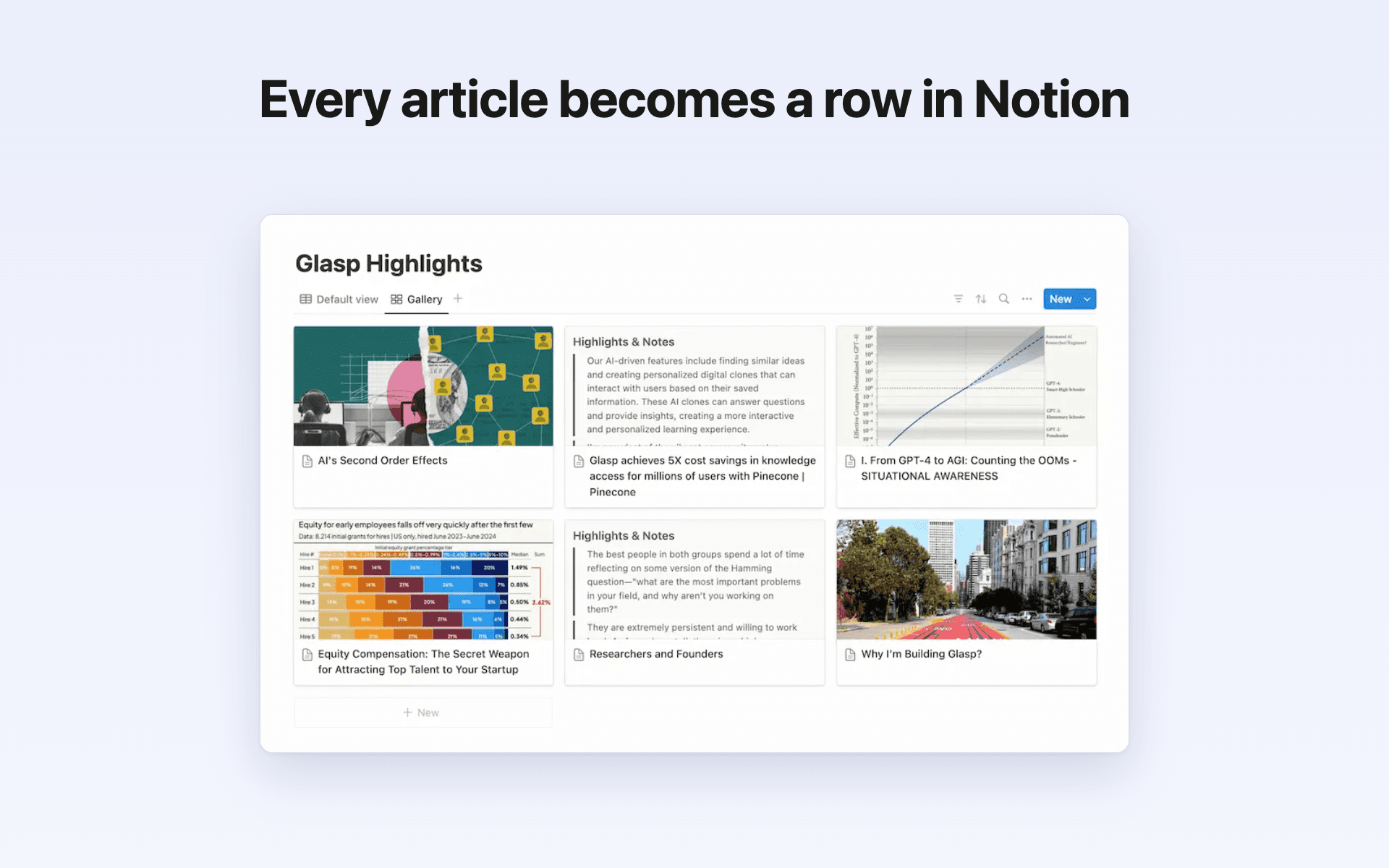
This connection sends them to Notion. Glasp creates a "Glasp Highlights" database on the page you share with it. Each article or document becomes a row with its title, URL, tags, author and last-updated date, and your highlights and notes are inside the page as blocks.
Export everything you have highlighted with Export All Highlights, or send a 3-page test first to see how it looks. Turn on Daily Auto-sync, and new highlights are exported to Notion automatically once a day.
You can disconnect Notion at any time in Glasp's settings.
Functies
- Content Lezen, invoegen & bijwerkenKan pagina's, databases en blokken lezen, invoegen & bijwerken die met deze koppeling zijn gedeeld.
How to use
1. Create a free Glasp account at glasp.co.
2. Highlight as you read: open an article in Glasp's reader at glasp.co/reader or in the Glasp app for iOS or Android, upload a PDF, or import your highlights from another tool. Add notes and tags as you go.
3. In Glasp, open Settings → Integrations → Export → Notion Export and click Connect Notion. When Notion asks, choose the page Glasp may use.
4. Click "3-page test" to check the result, then "Export All Highlights". Glasp creates the "Glasp Highlights" database on that page at the first export.
5. Turn on Daily Auto-sync to export new highlights once a day.