About
What the Notion Integration Does
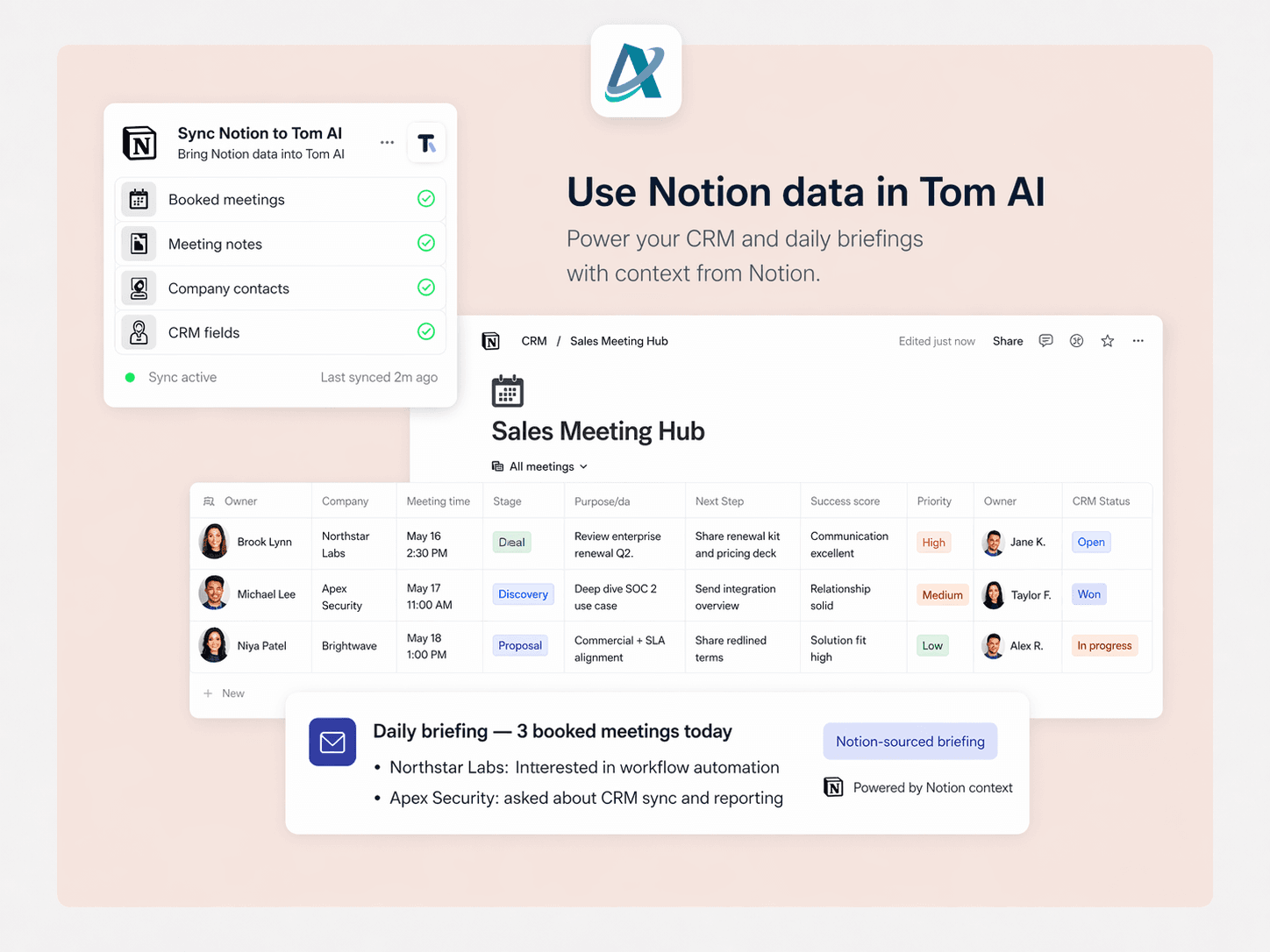
The Notion integration connects your Notion databases (where you track prospects/clients) to Tom AI, so your meeting game plans and daily briefings automatically include information from Notion.
Benefits:
- Richer meeting prep - Game plans include notes, deal stages, and custom fields from Notion
- No duplicate data entry - Information flows automatically from Notion to Tom AI
- Unified view - See Notion data alongside HubSpot and Google Calendar info
How to Connect Notion (First-Time Setup)
Step 1: Go to Integrations Page
- Log in to Tom AI: https://aip-ai.vercel.app
- Click "Integrations" in the navigation menu
- Find the Notion section
Step 2: Connect Your Notion Account
- Click the "Connect Notion" button
- You'll be redirected to Notion's authorization page
- Review the permissions:
- Tom AI is requesting access to read your databases and pages
- You'll select which specific pages/databases to share
Step 3: Select Which Databases to Share
- On the Notion authorization page, you'll see a dropdown: "Select pages"
- Choose your prospect/client database(s)
- Example: "Sales Pipeline", "Client CRM", "Prospects"
- You can select multiple databases - Click "Allow access"
Step 4: Confirm Connection
- You'll be redirected back to Tom AI
- The Integrations page will show: "Notion: Connected ✓"
- You'll see the date/time it was connected
Functies
- Content Lezen, invoegen & bijwerkenKan pagina's, databases en blokken lezen, invoegen & bijwerken die met deze koppeling zijn gedeeld.
- Opmerkingen Lezen & toevoegenKan opmerkingen lezen & toevoegen op de pagina's en blokken waartoe het toegang heeft.
- Workspace-gebruikers bekijkenLeest basisprofielgegevens over workspace-leden en -gasten, inclusief hun e-mailadressen.
How to use
Once connected, the integration works automatically - no manual action needed.
Automatic Data Enrichment:
- When you have a meeting scheduled:
- Tom AI detects the calendar event (from Google Calendar)
- Searches your connected Notion databases for the prospect's name or email
- Pulls in Notion data (notes, deal stage, custom fields)
- In your meeting game plan (24 hours before):
- You'll see a "NOTION DATA" section with:
- Notes from your Notion database
- Custom fields (e.g., "Deal Stage: Qualified Lead")
- Any other properties from that Notion page
- In your daily email briefing:
- Prospect information includes Notion notes
- More context for follow-ups and going-cold alerts
Example: What You'll See
Before Notion Integration:
Game Plan for Meeting with Sarah Johnson
WHAT I KNOW ABOUT SARAH
- Email: [email protected]
- Company: ABC Corp
After Notion Integration:
Game Plan for Meeting with Sarah Johnson
WHAT I KNOW ABOUT SARAH
- Email: [email protected]
- Company: ABC Corp
NOTION DATA:
Notes: Met at conference in January. Interested in retirement planning
for employees. Has $2M in assets under current advisor but unhappy
with service.
Custom Fields:
Deal Stage: Qualified Lead
Source: Conference Referral
Last Contact: 2026-03-15
Priority: High
Managing Your Notion Integration
To Disconnect Notion:
- Go to Integrations page
- Click "Disconnect" under Notion section
- Confirm disconnection
To Change Which Databases Are Shared:
- Go to Notion settings: https://www.notion.so/my-integrations
- Find "AIP AI" in your connections
- Click "Manage"
- Update which pages/databases are shared
- Changes take effect immediately
To Reconnect:
- Simply click "Connect Notion" again and repeat the setup steps
Tips for Best Results
- Structure Your Notion Database with These Fields:
- Name (title field) - Prospect/client full name
- Email - Their email address (helps Tom AI match them)
- Phone - Contact number
- Company - Their business/organization
- Notes - Key information, conversation history
- Status/Stage - Where they are in your pipeline
- Keep Your Notion Database Updated:
- Tom AI pulls the latest data each time it generates a game plan
- Updates in Notion appear in your next game plan automatically
- Use Descriptive Database Names:
- Makes it easy to identify which database to connect
- Example: "Client Pipeline" instead of "Database 1"
Troubleshooting
"Notion not showing data in game plans"
- Check that the prospect's email or name in your calendar matches what's in Notion
- Verify the correct database is connected (go to Integrations page)
"Connection failed"
- Make sure you clicked "Allow access" on Notion's authorization page
- Try disconnecting and reconnecting
"Can't find my database when connecting"
- Only databases you have access to will appear
- Make sure you're logged into the correct Notion workspace
Privacy & Security
- Tom AI only accesses the specific databases you approve
- You can revoke access at any time from Notion settings
- Your Notion data is encrypted and never shared with third parties
- Read our full https://aip-ai.vercel.app/privacy-policy
Need Help?
Contact support: [email protected]