 Melbsdev
OpsFlow
About
Free to start, with paid tiers for higher volume and more automations.
Status stays in sync: when an order is later paid or fulfilled, the page Opsflow already created updates instead of creating a duplicate. Every sync is logged, and failed syncs can be retried with one click.
due dates, assignees, status, labels and custom fields all populate automatically if your database has a matching property. If you don't have a database set up yet, Opsflow can create one for you with everything wired in (Name, Status, Assignee, Due date, Labels).
Opsflow connects your Shopify store to a Notion database so store events show up as pages without any manual copying. New orders, refunds and cancellations, low-stock alerts, and abandoned checkouts all create a page in the database you choose the moment they happen.
Works with a database you already have, or build one in one click. Opsflow reads your database's actual properties and maps to them by type —
Funktioner
- Læs, indsæt og opdater indholdKan læs, indsæt og opdater sider, databaser og blokke, der er delt med denne forbindelse.
- Vis brugere af arbejdsområdetLæser grundlæggende profiloplysninger om arbejdsområdemedlemmer og gæster, herunder deres e-mailadresser.
How to use
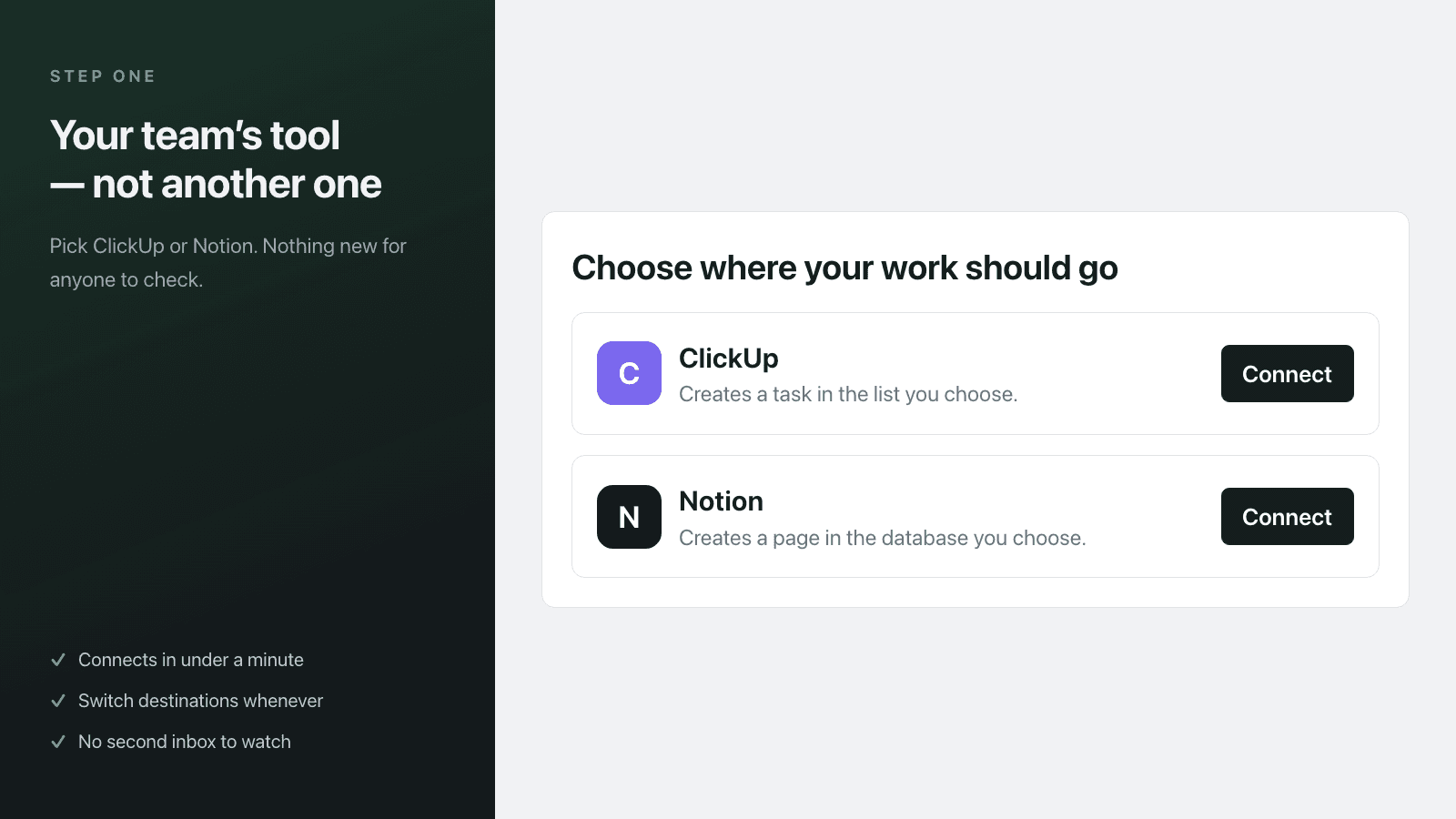
it appears in Opsflow immediately, since Notion shares nothing with a new connection by default. Don't have a database ready? Opsflow can create one for you with the right properties already set up. Turn on the automations you want (new orders, refunds, low stock, abandoned checkouts) and pick the database for each one. Matching store events then start creating pages in Notion automatically.
menu at the top right, choose Connections, and add Opsflow —
•
Install Opsflow from the Shopify App Store and open it from your Shopify admin. On the Automations page, choose Notion as your destination and connect your Notion workspace. Then share a database with Opsflow: open the database you want to use in Notion, click the •
