 FyneDesk
FyneDesk
About
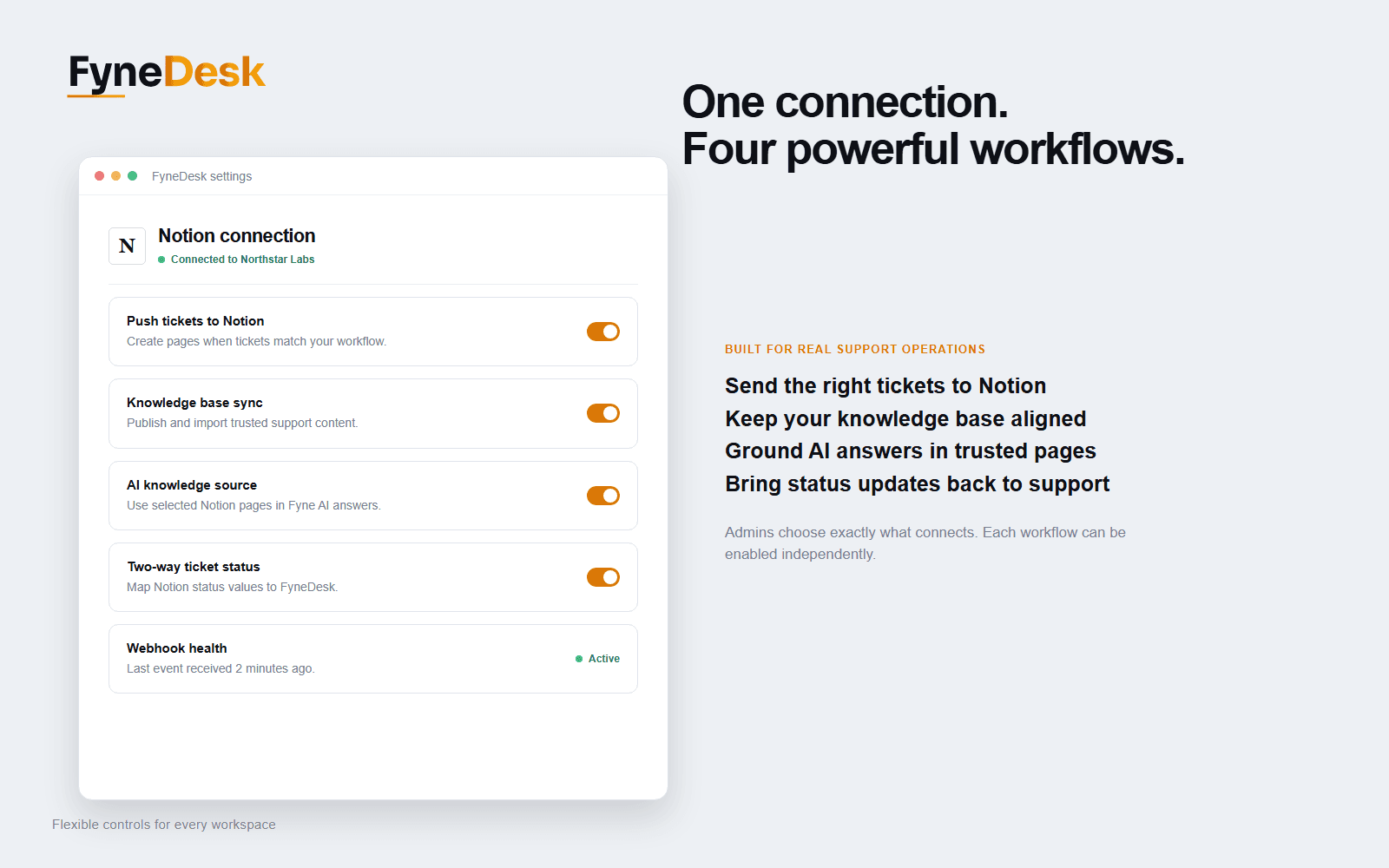
FyneDesk is a customer support help desk. This connection links FyneDesk with Notion so your support and delivery teams work from one source of truth.
With FyneDesk + Notion you can:
- Push tickets into Notion — turn new, escalated, or tagged support tickets into pages in a Notion database, so engineering, ops, and project teams track them where they already work.
- Two-way Knowledge Base sync — keep FyneDesk Knowledge Base articles and Notion pages in sync. Author in whichever tool you prefer; each article has a clear source of truth and the other side stays updated automatically.
- Power AI replies with your Notion docs — let FyneDesk's AI draft replies, summaries, and triage grounded in your Notion runbooks, SOPs, and product docs.
- Two-way ticket status — when a ticket's status changes in your Notion tracker, the matching FyneDesk ticket updates too.
Connect once at the organization level, choose exactly which Notion pages and databases to share, and manage everything from FyneDesk → Settings → Connections → Notion. Requires a FyneDesk Pro plan.
Funktioner
- Læs, indsæt og opdater indholdKan læs, indsæt og opdater sider, databaser og blokke, der er delt med denne forbindelse.
- Læs og tilføj kommentarerKan læs og tilføj kommentarer på de sider og blokke, den kan få adgang til.
- Vis brugere af arbejdsområdetLæser grundlæggende profiloplysninger om arbejdsområdemedlemmer og gæster, herunder deres e-mailadresser.
How to use
1. In FyneDesk, go to Settings → Connections → Notion (a Pro plan is required).
2. Click Connect and authorize your Notion workspace. On Notion's page picker, select the pages and databases you want FyneDesk to access — FyneDesk can only see what you share here.
3. Turn on the integration, then set up the features you want:
• Ticket → Notion: choose the target Notion database and when tickets should be pushed.
• Knowledge Base sync: choose where FyneDesk articles publish to and which Notion pages to import, and set the default owner.
• AI knowledge source: pick the Notion pages that should help FyneDesk's AI write replies, then enable it.
• Two-way status: map your Notion status values to FyneDesk ticket statuses.
4. That's it — your tickets, docs, and AI now stay in sync with Notion.
Need a hand? Email [email protected].
Details

- Kundeoplevelse
- Markedsføring
- Automatiseringer