
About
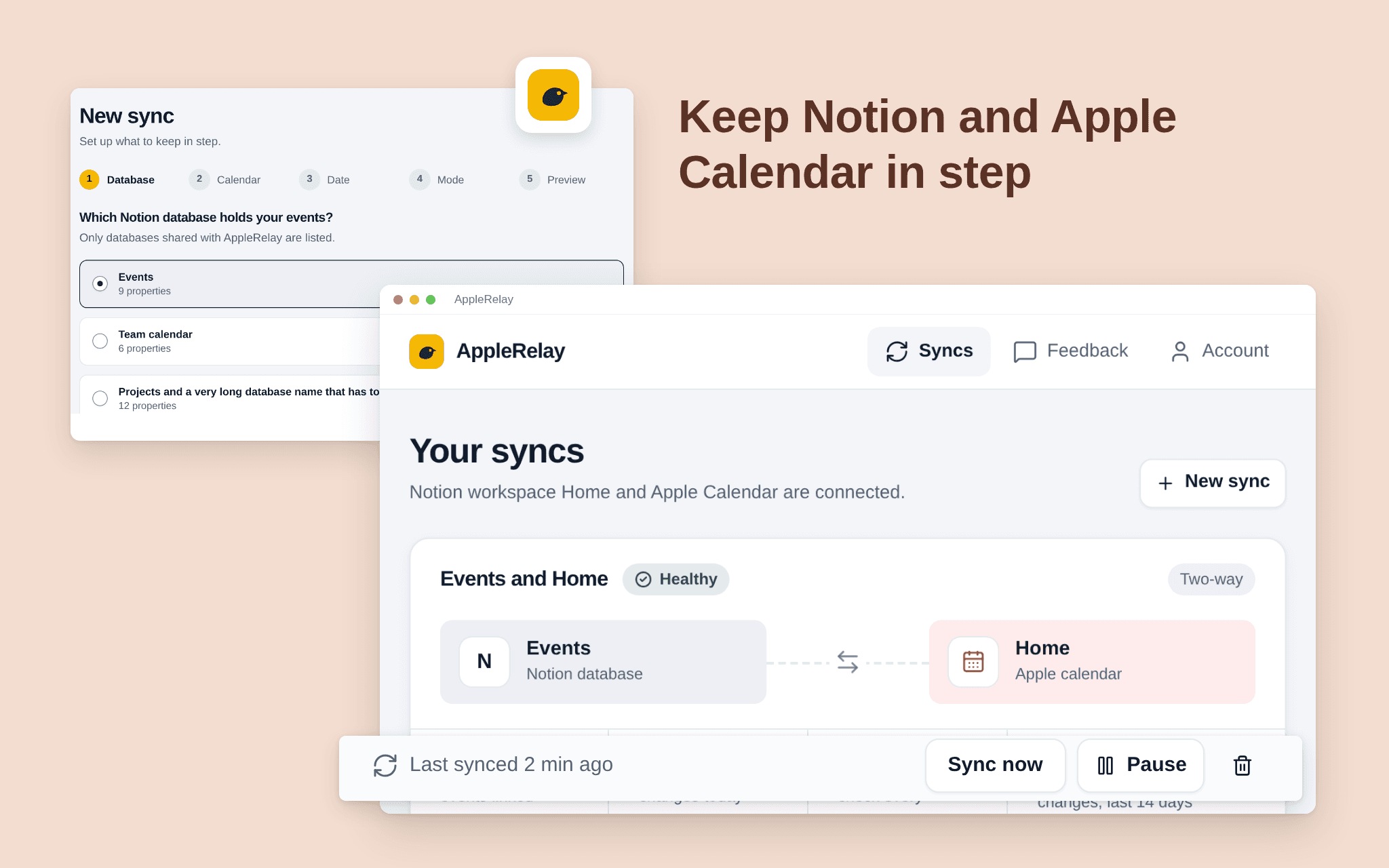
AppleRelay keeps a Notion database and an iCloud calendar in step, both ways or one way. Pick the database, the calendar and the date property; events you add or change in one place appear in the other.
Pick one Notion database and one iCloud calendar; AppleRelay only touches those two.
Choose two-way, Notion first or calendar first.
See what the first sync will do before it runs.
A dashboard shows every sync's health, the last run and what changed.
Calendar events only, not Reminders. Free while in beta.
Funktioner
- Læs, indsæt og opdater indholdKan læs, indsæt og opdater sider, databaser og blokke, der er delt med denne forbindelse.
- Vis brugere af arbejdsområdetLæser grundlæggende profiloplysninger om arbejdsområdemedlemmer og gæster, herunder deres e-mailadresser.
How to use
1. Open the install link and sign in with Notion.
2. Select the pages or databases AppleRelay may use (it only sees what you share).
3. Connect your iCloud calendar with an app-specific password from your Apple Account.
4. Choose the Notion database, the calendar, the date property and the direction.
5. Check the preview and start the sync.