All SVG Icons

Offentlig API
All SVG Icons
About
All SVG Icons gives your Notion pages icons and covers from a library of 400,000+ SVG icons, brand logos, flags and emoji.
- Set a page icon: search by name or brand, and see it on a preview of your page before you add it.
- Set a cover: pick from 12 illustrated covers, each with a night version.
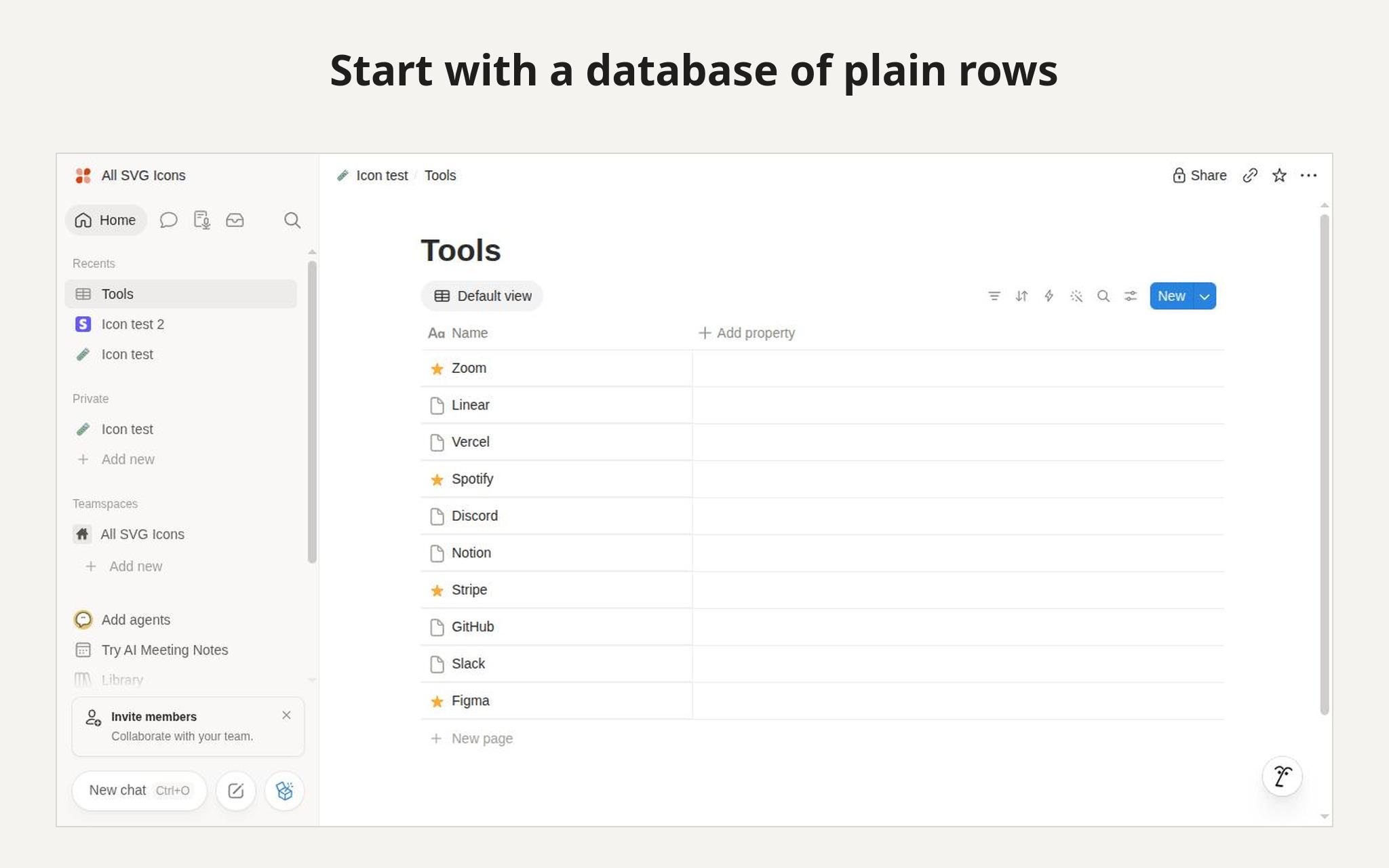
- Auto-icon a database: every row gets an icon matched to its title. A row called "Stripe" gets the Stripe logo. Notion's bulk edit gives all rows the same icon, and icon sites mean copy and paste per row. Here you see every match first, then accept all or one by one, change a match, or skip a row. Nothing changes until you accept.
- Icon color: keep the original, or pick one of Notion's colors or your own. Logos keep their own colors.
- Undo: put back the previous emoji or linked icon, for one page or a whole run. An image you uploaded to Notion yourself cannot be put back, and the preview warns you before you replace one.
Files are uploaded to your workspace, so they keep working if our service is down. The connection can only see the pages you share with it, and it changes only icons and covers. We keep only an encrypted connection token, its Notion ID and a daily count. Titles are used to match icons and are never saved. We do not store your page content. Undo history stays in your browser, and disconnecting deletes the token.
The free plan includes 50 icons and covers a day. Search and preview are free. Pro removes the daily limit.
Funktioner
- Læs og opdater indholdKan læs og opdater sider, databaser og blokke, der er delt med denne forbindelse.
How to use
- Open
https://i.allsvgicons.com/notion
and sign in with Google or GitHub. - Click Connect Notion and choose the pages or databases to share.
- Find a page, pick an icon or a cover, check the preview, then click Add to Notion. For a database, open "Whole database", click Preview icons, then accept all or one by one.