 BugCap

BugCap
نبذة
BugCap is a bug reporting tool at https://bugcap.io. Each report includes a screen recording, console errors, failed network requests, the steps to reproduce and an AI summary.
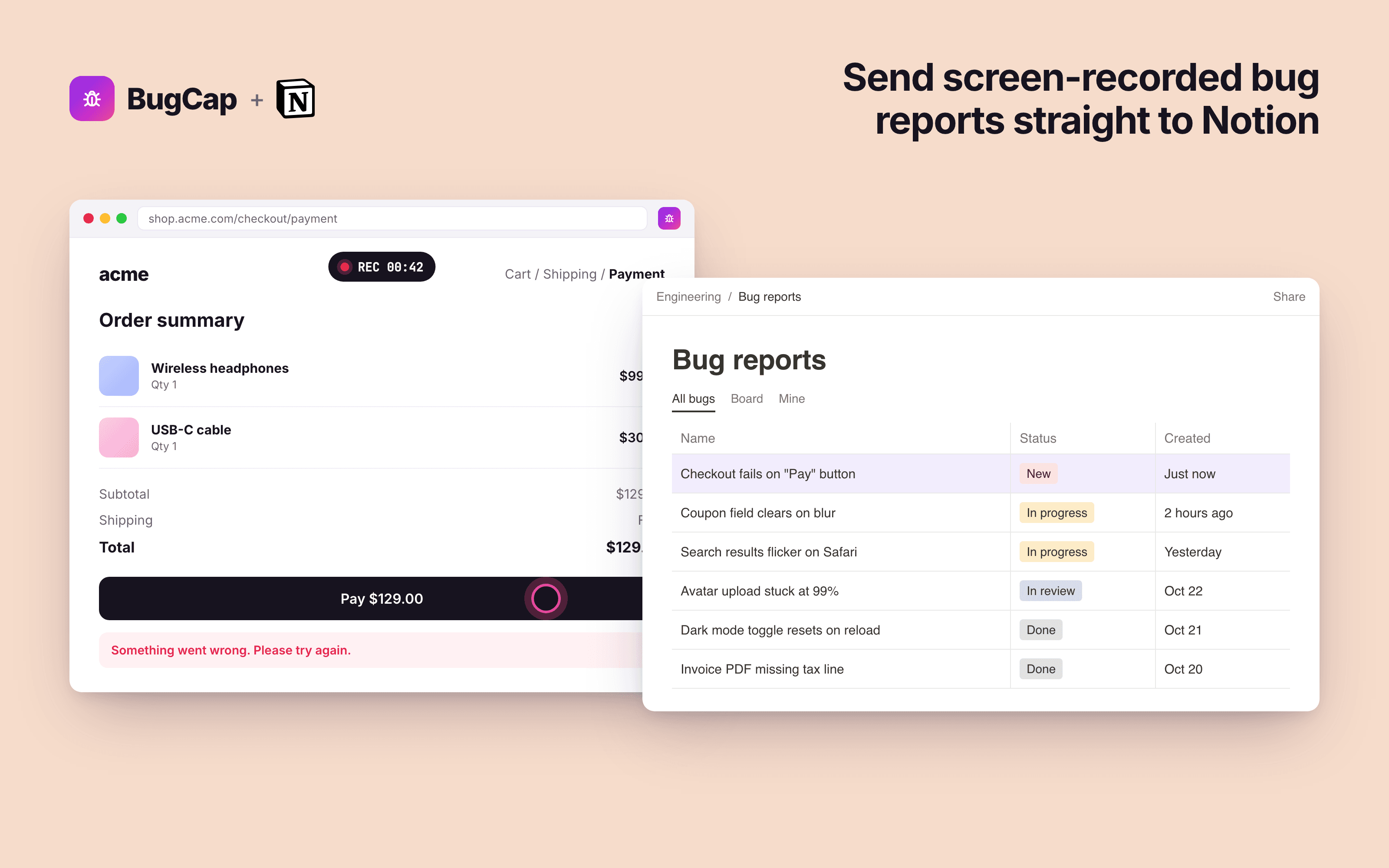
The Notion connection is set up and runs entirely in the BugCap web app. A workspace admin signs in at bugcap.io, opens Connections, authorizes Notion and picks a database. After that, BugCap's servers add a page to that database for every new bug report. Nobody has to copy anything by hand.
Each Notion page includes:
- The report title, as the page title
- A link to the full report on bugcap.io (video, console, network and steps)
- Key facts: page URL, recording length, browser and OS, and counts of errors, failed requests and steps
- The console errors and failed requests, listed in full
- A bookmark to the report
BugCap only gets access to the pages and databases you share with it during authorization, and it only creates new pages. It never reads or changes your other content. If a page can't be created after 5 tries, BugCap emails the person who uploaded the report and your workspace admins. You can disconnect at any time from Connections, or in Notion under Settings > Connections.
الميزات
- قراءة وإدراج وتحديث المحتوىيمكنه قراءة وإدراج وتحديث الصفحات وقواعد البيانات والكتل المشتركة مع هذا الربط.
- عرض مستخدمي مساحة العملقراءة تفاصيل الملف الشخصي الأساسية لأعضاء وضيوف مساحة العمل، بما في ذلك عناوين بريدهم الإلكتروني.
طريقة الاستخدام
BugCap sends a new page to your Notion database every time someone on your team shares a bug report. Setup takes about two minutes.
- Sign up or sign in at
https://bugcap.io
. - Open Connections at
https://bugcap.io/connections
. Only workspace admins can connect tools, and forwarding is part of the Pro plan. - On the Notion card, click Connect. Notion asks which pages and databases BugCap can access. Select the database you want bug reports in, then click Allow access.
- Back in BugCap, choose that database from the Database dropdown and click Save. The card now shows Connected.
- Record a bug report. Within a few seconds, a new page appears in your Notion database with a link to the full report.
To stop sending reports, click Disconnect on the Notion card at bugcap.io/connections, or remove BugCap in Notion under Settings > Connections.
From there, triage it like any other Notion page: assign it, set a status, or link it to a project.
Good to know
- The Notion connection is shared by your whole BugCap organization. Every report your teammates share goes to the same database.
- If a report can't be sent (for example, the database was deleted or BugCap lost access), BugCap retries automatically. If it still fails, the person who shared it and your admins get an email, and the report is marked "Failed to forward" on the dashboard.
- To change the database or disconnect Notion, go to Connections in BugCap. You can also remove BugCap's access from Notion under Settings → Connections.
- BugCap only creates new pages. It never edits or deletes your existing Notion content.
Need help? Email [email protected]
التفاصيل

- الهندسة
- الإنتاجية
- عمليات الأتمتة