 Talrin Apps
Nestbox
מידע
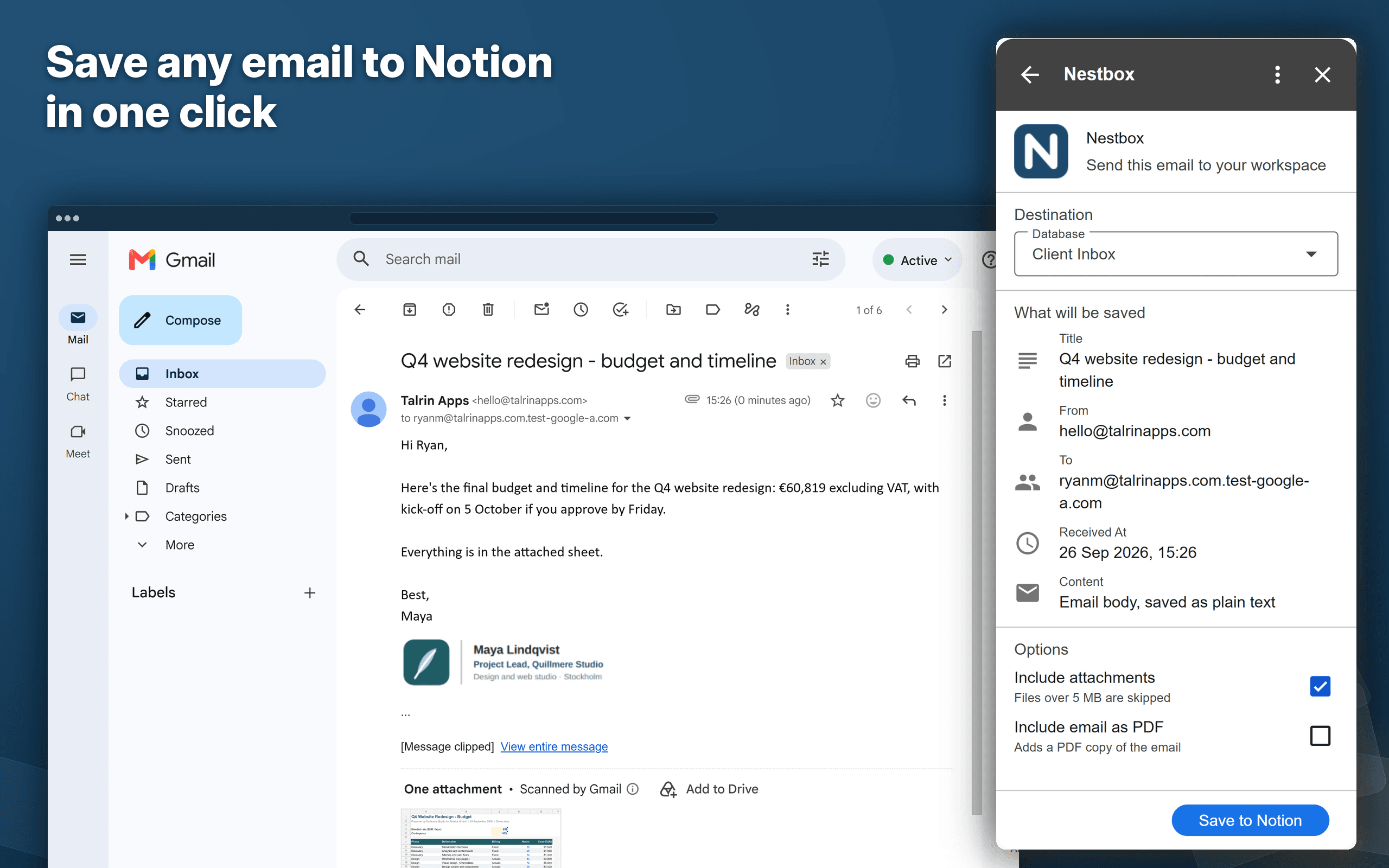
Nestbox saves the email you're reading to a Notion database, so the contract, the invoice or the client email ends up right next to the rest of your work.
⚡ HOW IT WORKS
1️⃣ Open an email in Gmail™ and open Nestbox from the side panel.
2️⃣ Pick a Notion database. Nestbox remembers it for next time.
3️⃣ Check the preview and click Save to Notion.
📥 WHAT ENDS UP IN NOTION
• The subject as the page title
• The sender, the To line and the date as properties
• The email body as plain text, so you can search it
• A link back to the email in Gmail™
• Pictures embedded in the email, like a logo in a signature
📎 ATTACHMENTS AND PDF
Both are off until you turn them on and Nestbox remembers what you picked.
Include attachments uploads the email's files into the Notion page. Files over 5 MB are skipped. If a smaller one fails to upload, the page is still saved and Nestbox lets you know.
Include email as PDF adds a PDF copy of the email to the page, so you keep the original look. Letters and invoices usually keep their layout. Heavily designed newsletters can come out simpler than they look in Gmail™.
🗂️ YOUR DATABASE
The first time you save to a database, Nestbox adds the columns it needs: From, To, Received At, Gmail Link, Attachments, PDF and Message Id. It never changes columns you already have. If one of yours has the same name but a different type, Nestbox leaves it empty.
If you open an email you've already saved, Nestbox tells you and links to the page. You can still save it again if you want a second copy.
🔗 CONNECTING TO NOTION
Sign in with Notion and pick the pages Nestbox can use. There are no API keys to copy. To add a database later, disconnect and reconnect in Settings, and pick it when Notion asks which pages to share.
🔒 PRIVACY
Nestbox only reads the email you have open, and only while you're using it. It can't see the rest of your inbox, send email or delete anything. It asks Google for these permissions: to run as a Gmail™ add-on, to read the open email and to connect to an outside service, which is limited to Notion.
There's no Nestbox server in between. Your email goes straight from your Google account to Notion, and in Notion, Nestbox can only see the pages you shared with it. You can disconnect at any time in Settings.
🆓 PRICE
Nestbox is free for now, with no limit on how many emails you save.
💬 SUPPORT
Something not working? Choose Contact support from the Nestbox menu or in Settings, or email [email protected].
תכונות
- לקרוא, להוסיף ולעדכן תוכןיכול לקרוא, להוסיף ולעדכן דפים, מאגרי ידע ובלוקים ששותפו עם החיבור הזה.
- צפייה במשתמשים בסביבת העבודהקורא פרטי פרופיל בסיסיים על חברים ואורחים בסביבת העבודה.
הוראות שימוש
1 Add to Gmail: Install Nestbox from the Google Workspace Marketplace and open any email.
2 Connect Notion: Click Connect to Notion and tick the databases you want to save into.
3 Save: Pick a database, check the preview, click Save to Notion.
4 Keep files too: Tick Include attachments to upload the email's files to the Notion page, or Include email as PDF to add a copy of the original email.
פרטים

- פרודוקטיביות
- עבודה משותפת
- ניהול קבצים