Argorant

Argorant
מידע
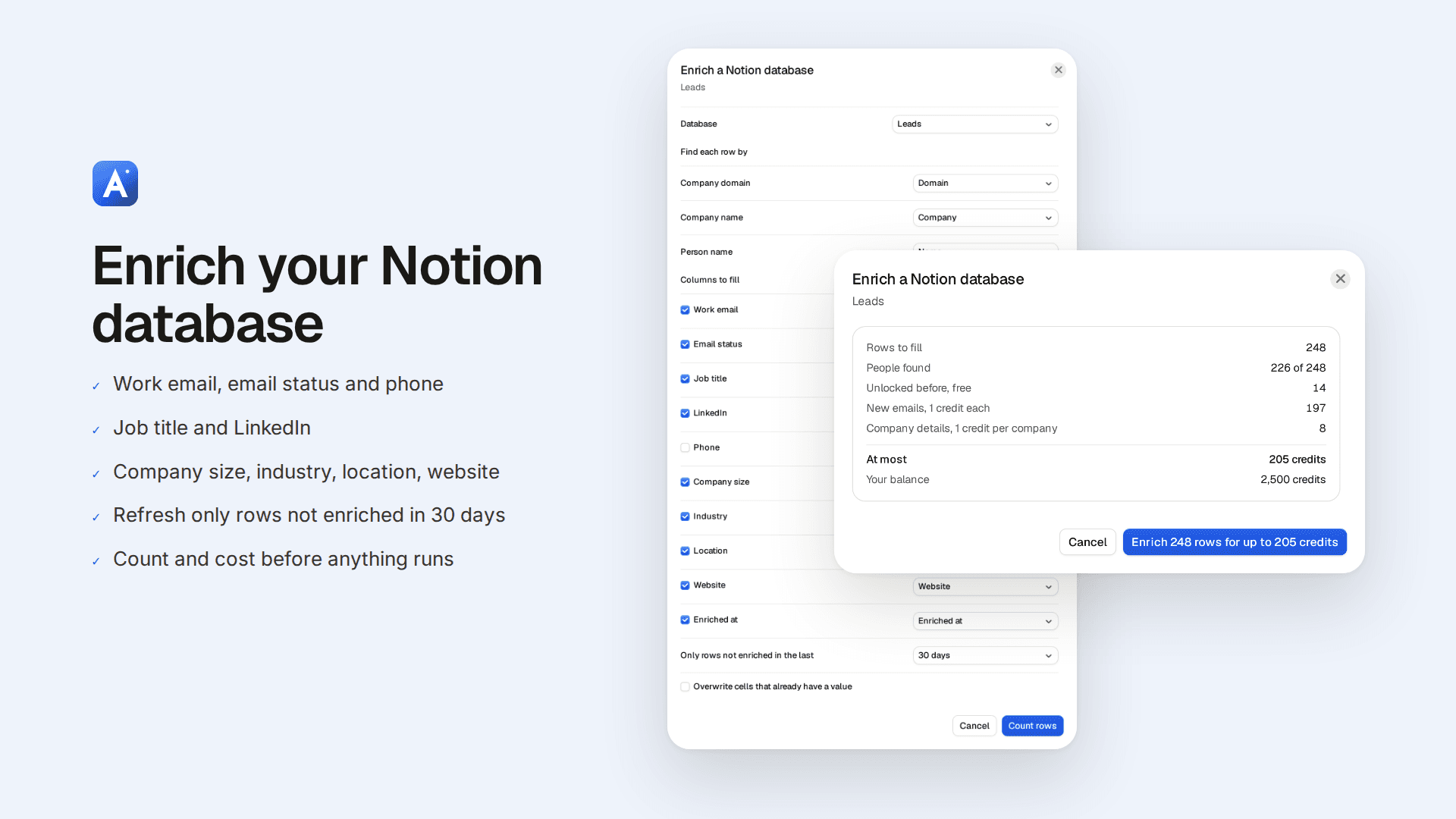
Argorant turns Notion into a place you can sell from. It enriches every row with work email, email status, phone, job title, LinkedIn, company size, industry, location and website, re-enriches rows that went stale, sends Argorant lists into Notion, adds a database to a campaign and keeps each row's status in sync, with activity comments and comment commands on the row.
Use it the way your team works:
Notion as your CRM. Enrich every new contact and company, and keep status, campaign and last activity current on each row. Positive replies can land in their own database.
Inbound. When a form or signup lands in a Notion database, enrich the person and the company with one click, or with a comment: argorant: enrich. With n8n or your own AI, enrich and route each new row as it arrives.
Campaign lists. Build a list in Argorant, send it to Notion, review it with your team, then add the database to a campaign.
Outreach from Notion. Every email, reply, bounce and unsubscribe shows on the row it belongs to and mentions the lead owner. Comment argorant: pause, resume or skip to act on that person; Argorant answers in the thread with the result and the name of the person who asked.
Account research. With your own AI and the Argorant connector, write a research page for each account next to its row.
How it works. Map your columns once (company domain, company name, or person name and company). Argorant counts the rows first and shows how many it can fill and the most it can cost. Nothing runs until you confirm, and the run never goes above that number. Cells that already hold a value stay as they are unless you tick Overwrite.
Start with the Argorant: Start here template. When you connect, Notion offers to duplicate it: a short guide to Argorant and a Leads database with every column already mapped.
Argorant reads only the pages and databases you share with it. Notion shares the name of the person who comments, never their email address. Every rule is off until you switch it on.
תכונות
- לקרוא, להוסיף ולעדכן תוכןיכול לקרוא, להוסיף ולעדכן דפים, מאגרי ידע ובלוקים ששותפו עם החיבור הזה.
- לקרוא ולהוסיף תגובותיכול לקרוא ולהוסיף תגובות בדפים ובבלוקים שהוא יכול לגשת אליהם.
- צפייה במשתמשים בסביבת העבודהקורא פרטי פרופיל בסיסיים על חברים ואורחים בסביבת העבודה.
הוראות שימוש
1. Click Install and create your Argorant account with your work email, or sign in if you already have one.
2. After a short setup, Argorant opens Settings, Connected tools, and starts Connect Notion for you. Connecting Notion needs a paid Argorant plan; on a free account Argorant asks you to pick one first. Enrich, statuses and comments are included from the Pro plan.
3. On Notion's screen, duplicate the Argorant: Start here template (a short guide and a Leads database that is already mapped), or pick the pages and databases Argorant may use. Click Allow access.
4. Back in Argorant, click Enrich a database. Pick the database, the column Argorant finds each row by (company domain, company name, or person name and company) and the columns to fill.
5. Click Count rows. Argorant shows how many rows it can fill and the most it can cost. Confirm to start; you can close the window while it runs.
6. Click Manage on the Notion card and switch on Statuses stay in sync, Activity comments or Comment commands.
7. Send any Argorant list with Send to Notion, add a database to a campaign with Add to a campaign, and comment argorant: pause, resume, skip or enrich on a row to act on that person from Notion.