إنشاء المجموعات وإدارتها
تتيح لك المجموعات في Notion جمع الأشخاص معاً والتعاون بسهولة أكبر. تعرّف على مالكي المجموعات، بالإضافة إلى كيفية إنشاء المجموعات وإدارتها.
الانتقال إلى الأسئلة الشائعةيمكنك تعيين أذونات متفاوتة لمجموعات وفرق مختلفة دون الحاجة إلى تقسيم الأشخاص إلى مساحات عمل مختلفة. أنشئ مجموعات داخل مساحة عمل واحدة وامنحهم مستويات وصول مختلفة صفحة بصفحة.

ملاحظة: يمكن فقط لأعضاء مساحة العمل تعيينهم في المجموعات. لا يمكن للمجموعات أن تحتوي على ضيوف مساحة العمل.
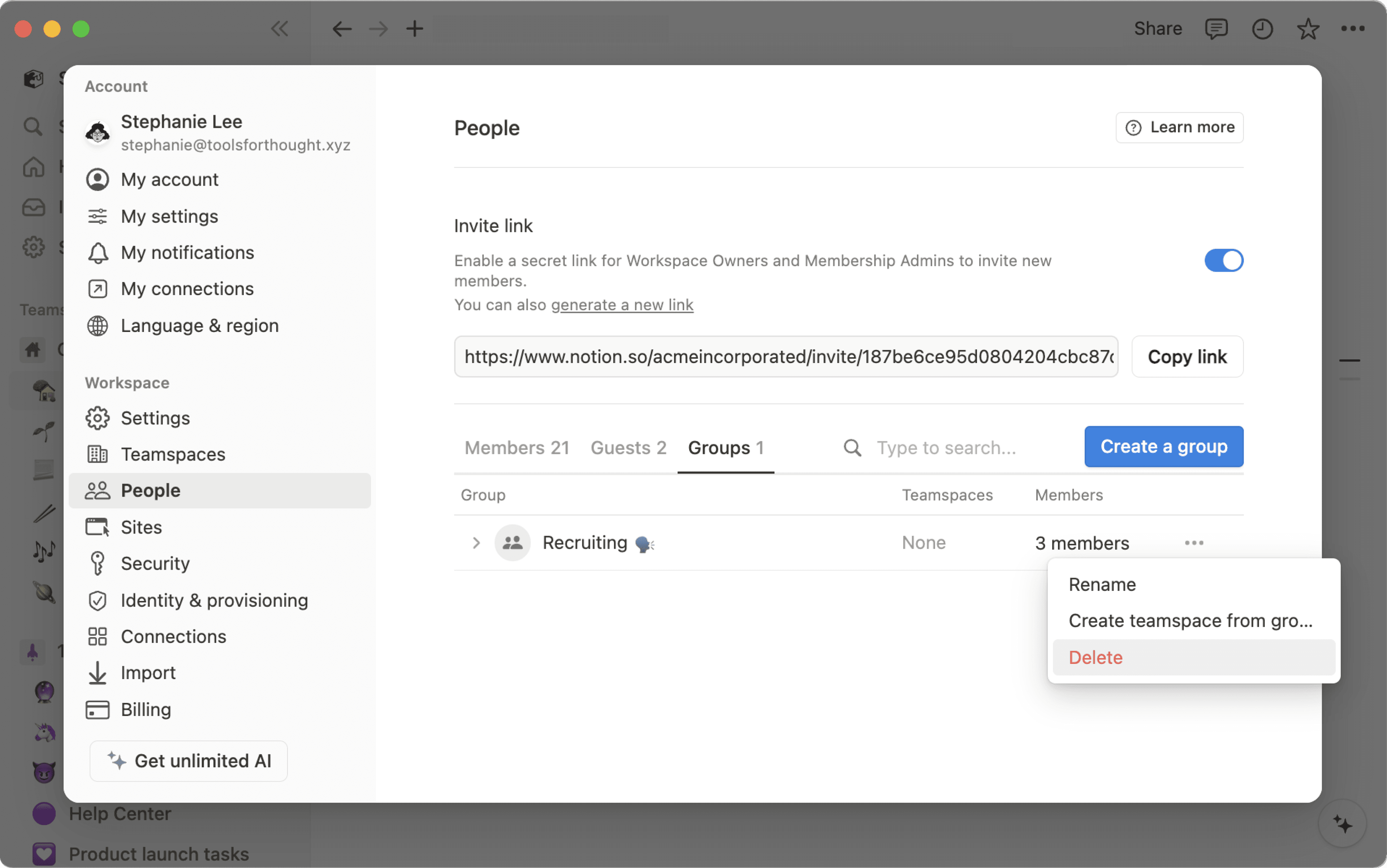
يمكن لمالكي مساحة العمل ومسؤولي العضوية إنشاء المجموعات وتحريرها. للقيام بذلك:
انتقل إلى
الإعدادات→الأشخاصأوالأعضاء(حسب خطة اشتراكك) →المجموعات.حدد
إنشاء مجموعةوأدخل اسماً لمجموعتك. لتعيين أيقونة للمجموعة، ما عليك سوى النقر على أيقونة الرموز التعبيرية التي تظهر عند التمرير فوقها.انقر على قائمة قابلة للطي في مجموعتك الجديدة، ثم حدد
إضافة أعضاء.أضف أي عدد تريده من الأعضاء إلى أي مجموعة.
يمكنك أيضاً النقر على
إزالةالموجودة على يمين أي عضو في المجموعة.حدد
•••بجوار مجموعة لـإعادة تسميتها، أوإنشاء مساحة عمل للفريق من المجموعة، أوحذفها.يمكنك دائماً البحث عن اسم أي شخص أو بريده الإلكتروني لمعرفة المجموعة التي ينتمي إليها.
إذا كانت مساحة عملك تسمح للأعضاء بإنشاء مجموعات، فيمكن لأي عضو تحديد إنشاء مجموعة. سيصبح الشخص الذي ينشئ المجموعة مالكاً لها بشكل افتراضي.
يمكن لمالكي مساحة العمل ومسؤولي العضوية تعيين مالك للمجموعة أو إدارته.
لإضافة مالكي المجموعات أو إدارتهم:
انتقل إلى
الإعدادات→الأعضاء.حدد قائمة النقاط الثلاث بجوار أحد الأعضاء.
حدد
تعيين كمالك للمجموعةأوإزالة من المجموعة.
يمكن لمالكي المجموعات إدارة مجموعة محددة دون الحاجة لأن يكونوا مالكي مساحة العمل أو مسؤولي العضوية. اعتماداً على إعدادات مساحة عملك، يمكن لمالكي المجموعات:
إضافة أعضاء إلى المجموعة أو إزالتهم منها.
حذف المجموعة.
إعادة تسمية المجموعة.
تعيين مالكين آخرين للمجموعة، وتغيير المالكين إلى أعضاء.
إنشاء مساحة عمل للفريق من مجموعة، أو إزالة ارتباطات مساحة عمل الفريق من مجموعة.
يمكن لمالكي مساحة العمل ومسؤولي العضوية تعيين مالك واحد أو أكثر للمجموعة. لا يمكن لمالكي المجموعات إدارة مجموعات أخرى ما لم يكونوا أيضاً مالكين لمساحة العمل أو مسؤولي العضوية.
إذا كانت مؤسستك توفر المجموعات من خلال SCIM، فقد يتم تصنيف بعض المجموعات بـ متزامنة. تتم إدارة هذه المجموعات بواسطة موفر الهوية الخاص بك (مثل Okta أو Microsoft Entra ID).
إذا حاولت إعادة تسمية مجموعة متزامنة أو تغيير عضويتها في Notion، فسترى تحذيراً. قد تؤدي التغييرات التي يتم إجراؤها في موفر الهوية الخاص بك إلى الكتابة فوق التعديلات التي تم إجراؤها في Notion.
لمعرفة المزيد حول توفير SCIM، راجع هذه المقالة.
بالنسبة لأي صفحة، اختر المجموعات التي يمكنها قراءة الصفحة والتعليق عليها وتعديلها ومشاركتها. لمشاركة صفحة مع مجموعة:
انقر على
مشاركة، ثمدعوة. سترى جميع المجموعات في أسفل النافذة المنبثقة.اختر مجموعة، ثم حدد نوع الوصول الذي تود منحه لتلك المجموعة من القائمة المنسدلة:
وصول كامل: يمكنهم تعديل الصفحة ومشاركتها.
يمكنه التعديل: يمكنهم تعديل محتوى الصفحة، ولكن لا يمكنهم مشاركتها. (هذا متاح فقط في الخطط المدفوعة.)
يمكنه التعليق: يمكنهم فقط القراءة والتعليق، ولا يمكنهم التعديل أو المشاركة.
يمكنه العرض: يمكنهم فقط قراءة المحتوى، ولا يمكنهم مشاركته.
إزالة: يلغي وصولهم إلى الصفحة.
بمجرد إضافة مجموعة، ستراها في قائمة
مشاركة، ويمكنك تعديل مستوى وصولهم من القائمة المنسدلة.يمكنك منح مجموعات متعددة حق الوصول على أي مستوى في نفس الصفحة.
تنطبق الأذونات على أي صفحة أيضاً على جميع صفحاتها الفرعية.
مشاركة مساحة عمل للفريق مع مجموعات
مساحات عمل الفريق هي مساحة مخصصة لكل فريق داخل مؤسستك أو شركتك، ويمكن تخصيصها بشكل فردي. تعرف على المزيد حول مساحات عمل الفريق →
لمشاركة مساحة عمل للفريق مع مجموعات في مساحة عملك:
مرر مؤشر الماوس فوق اسم مساحة عمل الفريق في الشريط الجانبي.
انقر فوق زر
•••، ثمإعدادات مساحة عمل الفريق.من هنا، ستتمكن من البحث عن المجموعات وإضافتها إلى مساحة عمل الفريق.
أشر إلى مجموعة مستخدمين في صفحة عن طريق كتابة
@متبوعاً باسم المجموعة.
الأسئلة الشائعة
كيف يمكن استخدام المجموعات بدلاً من مساحات عمل منفصلة ومتعددة؟
كيف يمكن استخدام المجموعات بدلاً من مساحات عمل منفصلة ومتعددة؟
لقد رأينا أشخاصاً ينشئون مساحات عمل متعددة بدلاً من المجموعات لتعيين أذونات دقيقة. على سبيل المثال، يقومون بإنشاء مساحات عمل منفصلة للتصميم، والتسويق، وفريق الإدارة، حتى لا تتمكن هذه المجموعات من الوصول إلى عمل بعضها البعض، أو تعديله، أو تشتيت انتباه بعضها البعض. هناك حل سريع لهذا باستخدام المجموعات:
عطّل
الوصول إلى مساحة العمل. بهذه الطريقة لن تظهر الصفحات للأشخاص والمجموعات الذين لم يُمنحوا حق الوصول إليها على وجه التحديد.في كل صفحة، امنح مستويات وصول مختلفة لكل مجموعة. ستظل مستويات الوصول هذه سارية على جميع الصفحات الفرعية الموجودة في تلك الصفحة.
لذا، على سبيل المثال، يمكنك تخصيص قسم من مساحة عملك لفريق الهندسة فقط. أنشئ مجموعة تضم جميع مهندسي فريقك، ثم في الصفحة الرئيسية لذلك الفريق، فعّل
الوصول الكامللتلك المجموعة فقط. ضع الصفحات داخل تلك الصفحة، ولن يتمكن سوى فريق الهندسة من الوصول إليها أيضاً!
من يمكنه إدارة المجموعات في مساحة العمل الخاصة بي؟
من يمكنه إدارة المجموعات في مساحة العمل الخاصة بي؟
يمكن لمالكي مساحة العمل ومسؤولي العضوية إنشاء وإدارة جميع المجموعات.
يمكن لمالكي المجموعات إدارة العضوية، ومالكي المجموعات، وإعادة تسمية المجموعات التي يمتلكونها.
هل يمكنني تقييد من يمكنه إنشاء مجموعات؟
هل يمكنني تقييد من يمكنه إنشاء مجموعات؟
في الخطة المؤسسية، يمكن لمالكي مساحة العمل تقييد إنشاء المجموعات على مالكي مساحة العمل ومسؤولي العضوية فقط.